Notes from the desktop

Guides to Shimeji on a Mac, where desktop pets come from, and the little tricks a MacBook can teach them.

Show hidden files on Mac: the Finder shortcut, the Library folder and Terminal commands on macOS 27, Tahoe, Sequoia and Sonoma
To show hidden files on a Mac, open a Finder window and press Shift-Command-Period; the same keys hide them again and also work in Open and Save dialogs. For your Library folder alone, hold Option and choose Go › Library. This guide says which routes Apple documents for macOS 27, Tahoe, Sequoia and Sonoma, what the Terminal commands defaults and chflags really change, and which hidden folders to leave alone.
15 min read
Mac Night Shift: how to turn it on and schedule it, why it's grayed out, and how it compares with True Tone and Dark Mode
To use Night Shift on a Mac, open System Settings › Displays, click Night Shift, then pick Sunset to Sunrise or Custom in the Schedule menu, or turn it on until tomorrow, and drag the slider for warmth; Control Center › Display has a quicker switch. This guide compares Apple's Night Shift pages for macOS 27, Tahoe, Sequoia and Sonoma, sets it beside True Tone, Dark Mode and the color profile, and reports what two studies found about sleep.
15 min read

How to right click on a Mac: trackpad, Control-click, Magic Mouse, the keyboard, and what changed from Sonoma to macOS 27
To right click on a Mac, hold down Control as you click, or click the trackpad with two fingers. On a Magic Mouse, press the right side of its top; a mouse with a right button needs no setup. This guide covers the trackpad's corner options, the keyboard routes Apple documents, the touch screen MacBook Pro, how Apple's pages changed from Sonoma to macOS 27, and what to check when right click stops working.
13 min read
Mac lock screen: every way to lock your Mac, and what you can change on macOS 27, Tahoe, Sequoia and Sonoma
To lock a Mac, press Control-Command-Q, choose Apple menu › Lock Screen, press the Touch ID key on keyboards that have one, or move the pointer into a hot corner set to Lock Screen. What the Mac lock screen shows is split between two places in System Settings: Lock Screen for the message, the password delay and the login window, and Wallpaper for the picture and, on Tahoe and macOS 27, the clock. This guide compares Apple's pages for all four versions setting by setting.
14 min read

Stage Manager on Mac: how to turn it on or off, use groups and the strip, and what changed from Ventura to macOS 27
To turn on Stage Manager on a Mac, click Control Center in the menu bar and then Stage Manager, or use the Stage Manager switch in System Settings › Desktop & Dock; either one turns it off again. The app you're using moves to the center, recent apps wait in a strip on the left, and dragging one onto the center groups them. This guide compares Apple's steps for macOS 27, Tahoe, Sequoia and Sonoma and explains why people switch it off.
12 min read
The best Mac apps by job in 2026: 8 picks with checked prices, the Macs they need, and what macOS 27 already does
The best Mac apps for most people, one per job: Raycast to find and launch anything, Maccy for clipboard history, Bartender for a crowded menu bar, Bitwarden for passwords beyond Apple devices, IINA for video, AppCleaner to remove apps and AlDente for MacBook battery care. Before you pay, check your macOS: Tahoe and macOS 27 already keep a clipboard history, hide other apps' menu bar icons and, from 26.4 on Apple silicon, cap charging.
14 min read
Mac emoji keyboard: every way to open it, skin tones, Genmoji, and what to do when Fn-E does nothing
On a Mac, the emoji keyboard is the Character Viewer: click where you're typing, press Fn-E (Globe-E) or Control-Command-Space bar, then search for an emoji and click it. This guide lists every way to open it for each kind of keyboard on macOS 27, Tahoe, Sequoia and Sonoma, then covers skin tones, favorites, the menu bar, emoji text replacements, Genmoji and Memoji, and what to check when the shortcut does nothing.
13 min read
Sticky notes on Mac: how to use Stickies, Quick Note and desktop widgets, plus 7 sticky note apps
Every Mac comes with Stickies, Apple's sticky notes app: choose File › New Note, pick a color from the Color menu, and choose Window › Float on Top to keep a note in front of your other windows. Stickies doesn't sync through iCloud, so for a note you also want on your iPhone, press Fn-Q for a Quick Note or add a Notes widget. This guide gives the steps for macOS 27, Tahoe, Sequoia and Sonoma, which tool suits which job, and 7 apps with checked prices.
15 min read
How to screenshot on a Mac: every shortcut, the Screenshot app, where files go and what macOS 27 changed
To screenshot on a Mac, press Shift-Command-3 for the whole screen, Shift-Command-4 to drag over an area, or Shift-Command-4 then Space bar to click one window, and the picture lands on your desktop. Shift-Command-5 opens the Screenshot app for recordings, a timer and another save folder. This guide shows how each works on macOS 27, Tahoe, Sequoia and Sonoma, the Terminal key macOS 27 renamed, and why some apps come out blank.
13 min read
How to customize the Dock on a Mac: every setting by macOS version, Terminal tweaks and Dock apps
Every Dock option Apple offers lives in System Settings › Desktop & Dock, but macOS 26 Tahoe renamed three of them, so older guides point at labels you won't find. This guide names each Dock setting as macOS 27, Tahoe, Sequoia and Sonoma show it, covers apps, folders, Stacks and websites in the Dock, explains the gray dot that macOS 27 added, gives the Terminal tweaks still reported working with an undo for each, and compares six Dock apps, from the free DockDoor to uBar.
13 min read
Split screen on Mac: Split View, window tiling and Stage Manager, with the steps for each macOS version
On macOS 15 Sequoia and later, macOS 26 Tahoe and macOS 27 included, you can split a Mac screen without going full screen: drag a window to the left or right edge, or press Fn-Control-Shift-Left Arrow. Split View, from the green button, gives two apps a full-screen space of their own, and Stage Manager groups apps in the middle. This guide gives Apple's names for each version, why Split View turns some apps away, how to leave a split, and six window manager apps.
12 min read
Mac keyboard shortcuts by task: windows, text, screenshots and Finder, and how to change or undo them
The Mac keyboard shortcuts worth learning, grouped by the job they do: switching apps and tiling windows, editing text, screenshots, Finder, Spotlight, the Globe key and accessibility. Every key comes from Apple's own pages for macOS 27 Golden Gate, with a table of what differs on Tahoe, Sequoia and Sonoma, a Windows-to-Mac table, the steps to make your own shortcut in System Settings, and where to put each change back.
13 min read
Mac folder icons: how to change a folder's color, emoji or picture, and how to undo it
On macOS 26 Tahoe and macOS 27, Customize Folder gives a folder a color, a symbol or an emoji, and Appearance settings change the default color of every folder. On every recent version, Sequoia and Sonoma included, you can paste your own picture onto a folder in Get Info and cut it to go back. This guide covers which folders Apple keeps off limits, how to undo each change, and five apps for icon sets and your own designs, from Tidewater to folderify.
7 min read
Live wallpaper on Mac: what macOS animates on its own, and the apps that keep the desktop moving
No setting in macOS plays a video behind your windows: on macOS 27 and macOS 26 Tahoe the aerial wallpapers move only as you lock or unlock, and Dynamic Wallpapers change their light with the time of day. For a desktop that keeps moving you need an app, from the free Aerial and Plash to Backdrop, Wallper, Wallspace, Walyro, Vivid Walls and gifPaper. This guide sets out what each macOS version does, what each app costs and needs, and what the makers say about battery.
7 min read
Mac widgets: how to add, arrange and tame them on the desktop and in Notification Center
Since macOS 14 Sonoma, widgets can sit on the Mac desktop as well as in Notification Center, and on macOS 27 you still start by Control-clicking the wallpaper. This guide gives the steps and the setting names for each macOS version, how iPhone widgets work on a Mac, and why widgets disappear behind your windows. It also compares six third-party widget apps, from Fantastical's calendars to Plash, which turns a website into your wallpaper.
7 min read
Custom cursor on Mac: what macOS lets you change, and the apps that swap the whole set
macOS lets you change the pointer's size and its outline and fill colors, but it has no cursor themes. To use a custom cursor set you need a separate app, and four free ones do it today: MaCursor, Mousecape-swiftUI, Cursie and Cursor Craft. This guide covers what each app needs, where safe cursor sets come from, why a custom cursor stops working and how to undo all of it.
7 min read
How to set a Mac screensaver in 2026, and the best free screen savers that still work
On macOS 26 Tahoe and later, the screen saver is in System Settings › Wallpaper › Screen Saver, while Sonoma and Sequoia give it its own place in the sidebar. This guide covers the built-in aerials, photos and messages, how to make it start sooner or from a hot corner, and what to do when macOS warns you about a downloaded .saver file. It also names four free screen savers updated for current macOS: Aerial, Fliqlo, Word Clock and Padbury Clock Revived.
6 min read
MacBook tips and tricks: 12 hidden features, with the exact steps and the MacBooks they work on
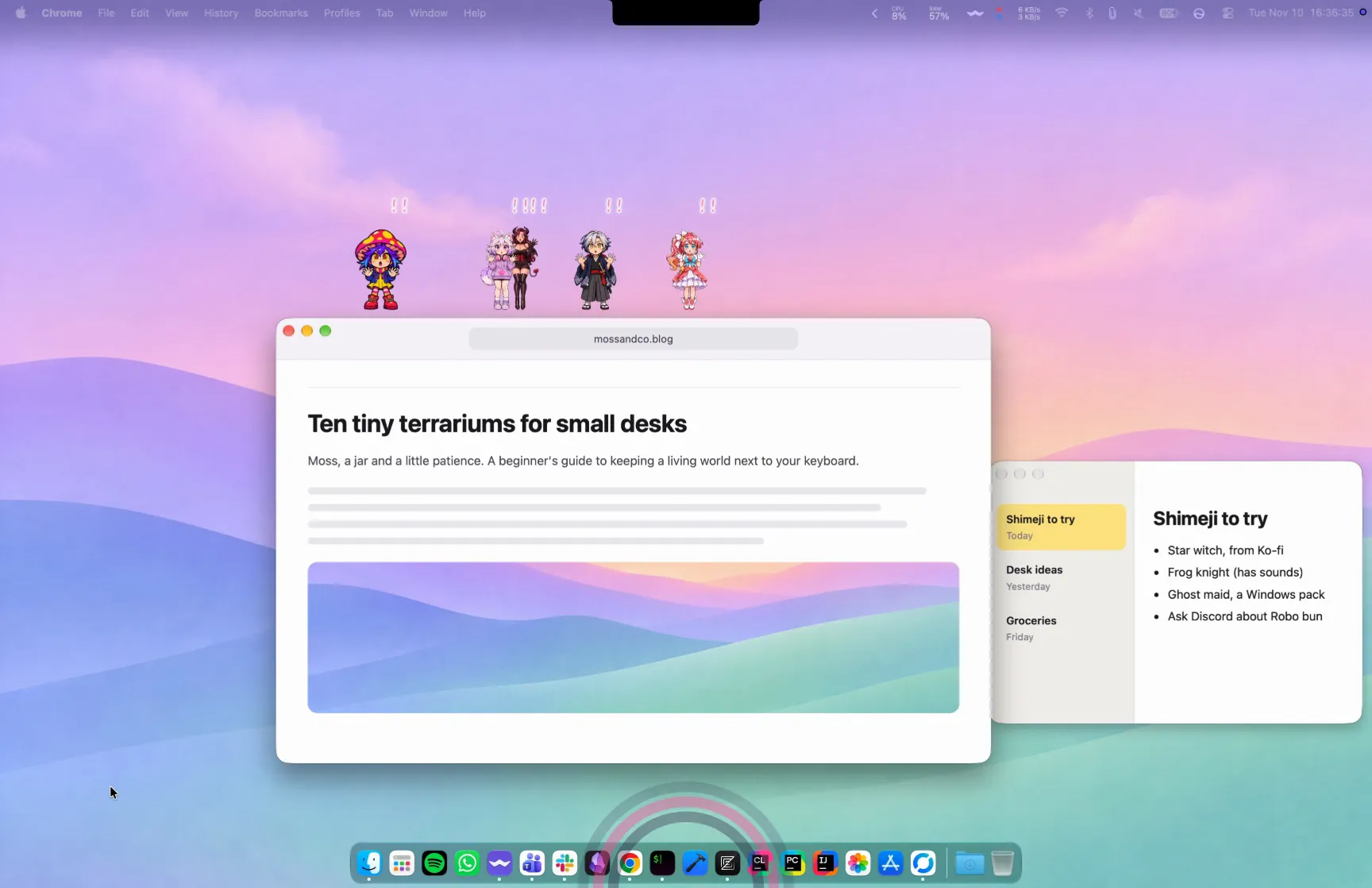
Twelve MacBook tips and tricks most owners never find, from window tiling, clipboard history and Live Text to iPhone Mirroring and a charge limit. Each one has the exact steps from Apple's own guides for macOS 27 Golden Gate and macOS Tahoe 26, and the MacBooks it needs. The last one is hardware most owners never use: the motion sensor, the lid angle sensor and the trackpad's haptics, which apps can put to work.
6 min read
TADC shimeji: where Caine, Pomni and Jax packs are shared, and how to run them on a Mac
TADC shimeji are unofficial, fan-made Shimeji-ee packs of The Amazing Digital Circus characters such as Caine, Pomni, Jax and Kinger, shared on the artists' own Tumblr, itch.io and DeviantArt pages, usually as a Windows zip that needs Java. Download from the artist's page, keep the credit and skip extensions and re-upload sites. On a Mac, drop the zip on Shimejiko.
5 min read
Hazbin Hotel shimeji: where the Alastor packs really are, and how to run one on a Mac
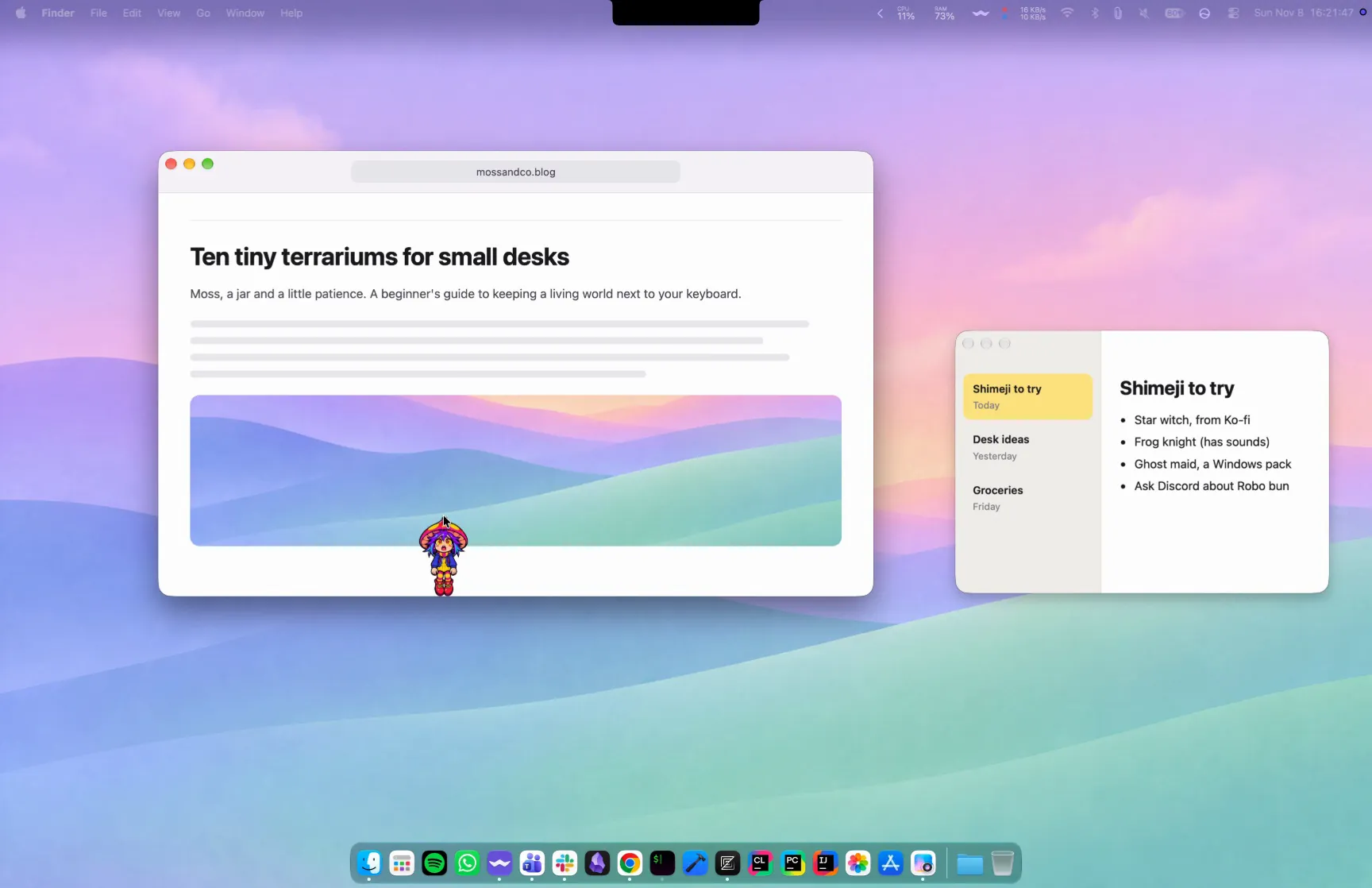
The Hazbin Hotel shimeji you will find most often, Alastor, Vox and Angel Dust among them, are free fan packs by the artist BambiTek, posted on Tumblr, downloaded from Ko-fi and made for Windows. The Steam Workshop item called Alastor Shimeji belongs to a different program, DPET. On a Mac, download the pack from the artist and drop the zip on Shimejiko.
6 min read
Deltarune shimeji: where Kris, Susie, Ralsei, Spamton and Tenna packs are shared, and how to run one on a Mac
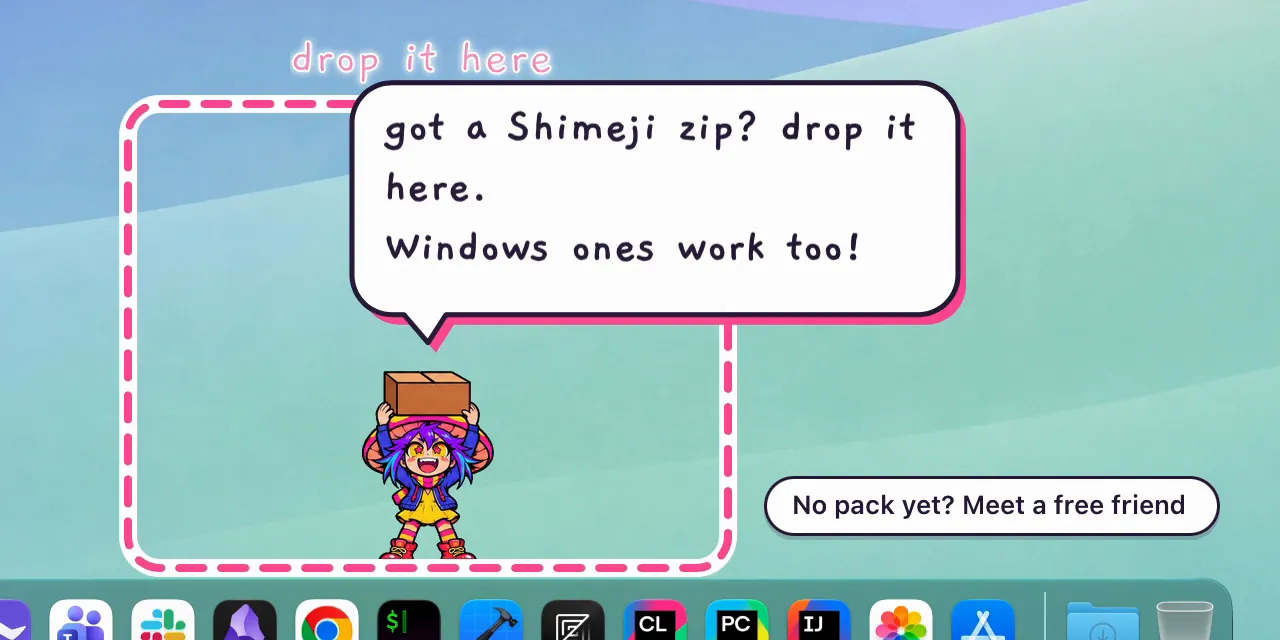
Deltarune shimeji are unofficial, fan-made desktop pets of Toby Fox's characters, shared on the artists' own Ko-fi, itch.io, DeviantArt and Tumblr pages and in the shimeji.org library. A real pack is a set of images named shime1.png and so on with a conf folder, sometimes bundled with Shimeji-ee, while standalone Tenna apps, Steam Workshop items and videos are not packs. On a Mac, drop the artist's zip or rar on Shimejiko.
6 min read
PC desktop pets: choose by what you want them to do
For a Windows PC desktop pet, choose Shimeji-ee for illustrated character packs, VPet for a pet to look after, Desktop Goose for mischief, Desktop Mate for licensed 3D characters, or eSheep for a simple screen companion. Shimejiko is a Mac option, not a Windows download. Start with the platform and the behavior, not the prettiest screenshot.
3 min read
Shimeji editor: choose the tool for the file you need
A Shimeji editor can mean a browser tool for replacing sprites, a drawing app, or a text editor for movement settings. Start with the player you want to use. The shimejis.xyz editor targets its browser extension; Shimeji-ee and Shimejiko use character packs. Drawing, packaging and testing are separate jobs.
4 min read
Desktop Pet Engine: which app do you mean?
Desktop Pet Engine names two different Steam projects, not one universal pet format. Oli Studio's app is listed for Windows with a demo and a planned Q4 2026 release. DPET is an older, separate project whose current download we could not verify. On a Mac, Shimejiko runs Shimeji packs instead.
4 min read
What is a virtual desktop pet? The two kinds, a short history, and which run on a Mac
A virtual desktop pet is a small animated character that lives on top of your apps. Some are pets you look after, like VPet-Simulator with its hunger, thirst and mood meters; others simply live on your screen and react, like Neko, eSheep, Shimeji and Desktop Goose. Here is how the two kinds differ, where they came from, and which ones run on a Mac today.
8 min read
The MacBook lid angle sensor: which Macs have it, and the apps that use it
The lid angle sensor sits in the hinge of recent MacBooks and tells macOS how far the screen is open. Here is which MacBooks have one that apps can read, how apps read it without a public API, and six apps that turn it into a number, a creaking door, a bending desktop or desktop characters that slide.
9 min read
Desktop Mate mods: custom avatars, what still works, and your own characters on a Mac
Desktop Mate has no official mod support: new characters come only as paid DLC. The best-known community mods ran on MelonLoader on Windows, like Custom Avatar Loader for your own VRM models and MateChat for AI chat, but their own pages now say they're archived or no longer work. Here is what each one did, what it needed, the risks, whether any of it works on a Mac, and how to put your own character on a Mac desktop.
8 min read
The Shimeji app: which one to get on Windows, Mac, Android, iPhone and Chrome
There is no single Shimeji app: each device has its own. On Windows it's Shimeji-ee, on a Mac it's Shimejiko, on Android it's Shimeji: Play with Screen Pets by Digital Cosmos, and in Chrome it's the Shimeji Browser Extension. iPhone and iPad apps can't walk over other apps, so their characters stay inside the app. Where to get each one, what it costs, one real drawback, and how to stay safe.
7 min read
AI desktop pets: the robots on your desk and the characters on your screen
"AI desktop pet" means two different things. One is a small robot that sits on your desk, like EMO, Loona Deskmate or Anthropic's open-source Claude Desktop Buddy. The other is a character on your screen that chats through a language model, like Clippy or Project AIRI. Here is what each one does, what it costs, what it needs and what it sees and hears, and where Shimejiko fits: a desktop pet with no AI at all.
8 min read
Slap your MacBook: the apps that react, and a gentler knock
Slap MacBook apps like SlapMac, SlapChan and the open-source spank read the motion sensor inside recent Apple silicon MacBooks and answer a hit on the case with a sound. Here is how they work, which MacBooks have the sensor, how hard is too hard, what else uses it, and how Shimejiko turns a gentle knock into desktop characters that jump.
7 min read
Shimeji template: what every frame from shime1 to shime46 is, and a free blank one
A Shimeji template, or base, is the set of 46 numbered frames a classic Shimeji pack fills in, shime1.png to shime46.png, each 128 by 128 pixels and facing left. Here is every frame, the moves that use it and where it touches the floor, wall or ceiling, which frames a first character needs, the mistakes that break a pack, and a free blank template to download.
10 min read
How to use Shimeji: the controls, menus and tricks on Windows and Mac
To use Shimeji, start the program and play with the mouse: drag a character to pick it up, let go to throw it, and right-click it for its menu. Here is every control in Shimeji-ee on Windows and Shimejiko on a Mac, from adding characters and hiding them all to stopping the multiplying, with a short guide to the browser extension and the Android app.
9 min read
Free desktop pets: which ones are really free, on Mac and PC
Most desktop pets cost nothing to download, but free means four different things. Shimeji-ee, VPet-Simulator, neko and RunCat 365 are free and open source. Bongo Cat, Desktop Mate, Dockitty and Shimejiko are free with paid extras. Desktop Goose lets you name your own price, and Pets Therapy starts free, then offers a yearly or lifetime unlock. Here is what each one charges for, on Mac and Windows, and how to download one safely.
8 min read
Shimeji characters for Mac: every Shimejiko character, free and in the Shop
Shimejiko, the Shimeji app for Mac, has 35 characters of its own (checked November 13, 2026). Three come free with the app: Shimejiko, her 8-bit twin Pixel Shimejiko and Sprout. The Shop sells 32 more in 31 packs by Decktopus, Inc.: 5 anime characters and 6 illustrated originals at $2.99 each, and 21 8-bit characters from $1.99 to $3.99. You can also import Shimeji-ee packs made by other artists.
8 min read
What is a desktop buddy? The kinds, and which ones work on a Mac
A desktop buddy, also called a screen buddy, desktop companion or desktop pet, is a small animated character that lives on top of your apps and keeps you company while you work. Some walk and climb your windows, some react to your typing, some play pranks, and some talk. Most kinds now run natively on a Mac; VPet is Windows only. Shimejiko is the native Mac app for walking Shimeji buddies.
7 min read
Desktop Mate on Mac: the Apple silicon beta and the alternatives
Desktop Mate runs on Macs with Apple silicon. As of November 2026, its Steam page lists macOS Monterey 12 or later, and its developer, infiniteloop, calls the Mac version an open beta. Intel Macs aren't supported, and multi-character mode isn't on the Mac yet. For a native desktop pet that walks, climbs and reacts to your MacBook, try Shimejiko: it's free, with 2D Shimeji characters rather than 3D models.
7 min read
Bongo Cat on Mac: which app should you download?
Bongo Cat on Steam now lists Mac support. Gamma-Software's BongoCat-mac is a separate free typing overlay. Choose Shimejiko instead if you want a desktop pet that walks and climbs.
5 min read
Oneko for Mac: the little cursor-chasing cat and your options
Want oneko on your Mac? Compare native ports, understand the original X11 cat, and decide whether you want a cursor chaser or a Shimeji companion.
5 min read
VPet on Mac: what works and which alternative to choose
VPet-Simulator has no official native Mac version. Compare its free Windows simulation and Workshop with Shimejiko, a native Mac desktop companion, before choosing a workaround.
5 min read
How to test a Shimeji pack before sharing it
Run moves and behaviors in Shimejiko’s test bench, inspect transitions with Pause and Step, and check the Script console. Then test the final archive on your real desktop. Reaction previews do not test hardware sensors.
5 min read
Shimeji multiplying on Mac? How to control the copies
Turn off Cloning in Settings › Behaviors to stop automatic splits and remove temporary clones. Copies you deliberately added remain, so you can control the crowd without deleting the character pack.
5 min read
Shimejiko free vs Pro: what you actually need to buy
You can import Shimeji packs and keep a desktop pet for free. Pro unlocks more ways to use your characters, while original Shop packs are separate purchases. Here is how to choose.
5 min read
Anime desktop pets for Mac: your Mac has anime now
Shimejiko's Shop has a new Anime shelf with five original anime desktop pets for Mac. Miyu, Ren, Vesper, Mirai and Suzu walk along your windows, climb them hand over hand, hang from the top of your screen and react to your MacBook. Each one is $2.99, bought once, and you can try any of them on your own screen before you buy.
4 min read
Shimeji Mac permissions: when to allow Accessibility
Shimejiko uses Accessibility for throwing windows and typing cheers. Climbing windows works without it. Grant access only if you want those extras, and revoke it any time in macOS System Settings.
4 min read
Shimeji on Intel and Apple silicon Macs: what actually changes?
Shimejiko runs on Intel and Apple silicon Macs with macOS 14 Sonoma or later. Your chip does not decide every reaction: knock and lid tricks need readable sensors, haptic purring needs a compatible trackpad, and battery reactions need a battery.
5 min read
Shimeji sprite sheet: turn your drawings into a working pack
A Shimeji sprite sheet is a drawing workspace, not usually the finished pack. Export each pose as a transparent PNG, preserve the template's filenames and alignment, and keep its working configuration. Then inspect every move, because a pack can run with substitute frames.
5 min read
Pixel or illustrated Shimeji? Choose a desktop pet for your Mac
Shimejiko supports illustrated and 8-bit desktop pets in the same Mac app. Start with the illustrated Shimejiko or her free 8-bit twin, then choose original Shop packs or compatible community packs by their artwork and movements.
3 min read
Desktop pets and MacBook battery life · what to adjust
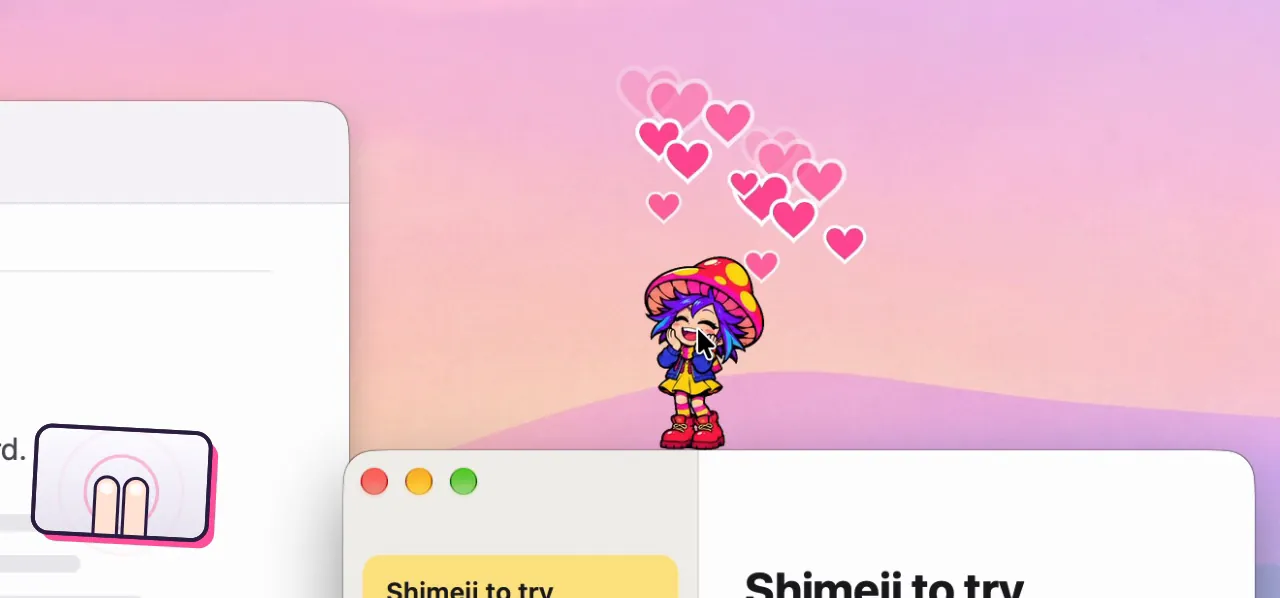
Start with Shimejiko’s Battery settings, keep a small crew and compare energy use on your own Mac. Calm mode and sleepy reactions serve different purposes.
3 min read
How to change Shimeji size and walking speed on Mac
Open Settings › Characters in Shimejiko and adjust Size or Walking speed. These overall controls are free. Pro adds Size and Speed settings for individual characters in the Library.
3 min read
Shimeji ZIP, RAR and JAR files: which one do you import?
Import the complete ZIP, RAR, 7z archive or extracted folder into Shimejiko. Keep artwork and configuration together; you do not need to run the Java launcher bundled with some older packs.
3 min read
Shimeji on multiple monitors: set up your Mac desktop
Shimejiko Pro lets characters use multiple monitors with Walk across displays. The free app keeps them on the main display; full-screen visibility has a separate setting.
3 min read
How to remove Shimeji characters on Mac without losing a pack
Use Dismiss to remove a Shimeji from the screen, Hide everyone for a temporary break, or Delete in the Library to remove an installed pack. These controls do different jobs.
3 min read
A cat desktop pet for Mac: meet Kumo
Looking for a cat desktop pet on Mac? Meet Kumo, preview the cloud cat before buying, and see what the free Shimejiko app, character pack and Pro each include.
3 min read
How to use a desktop pet while working or studying on Mac
A desktop companion can make your Mac feel more personal. Set up Shimejiko with calm mode, separate sound controls and a reliable hide routine for reading, studying and screen sharing.
3 min read
Shimeji on Android and a home for your characters on Mac
Shimeji on Android uses an app that draws characters over other apps. Learn how to set it up, check permissions and bring compatible character packs to a Mac with Shimejiko, a separate native macOS app.
4 min read
Shimeji vs Desktop Goose: which desktop companion fits you?
Desktop Goose is built around a mischievous goose. Shimeji is a character format supported by different apps, so its behavior depends on the runner and pack. Choose the goose for a specific prank-filled personality, or a Shimeji runner for characters you can change. On a Mac, Shimejiko adds calm mode, a hide shortcut and native pack importing.
4 min read
A Shimeji for every month: 12 desktop pet ideas
Give your Mac a different companion each month, from Winter Shimejiko to a raincoat duckling, a little astronaut and a gingerbread friend. This is a rotation of existing Shimejiko Shop packs, chosen for their colors and personalities. You pick when to switch; no seasonal subscription or calendar unlock is involved.
4 min read
Shimeji on Chromebook and Linux: what works where
On a Chromebook, a Shimeji browser extension is the place to start if your administrator allows it. The characters stay on web pages. For a Linux desktop, check a Linux project's compatibility list against your desktop environment and X11 or Wayland session. Shimejiko is a separate Mac app and does not run on ChromeOS or Linux.
4 min read
The best notch apps for MacBook in 2026
The best notch app for most MacBook owners is NotchNook. Boring Notch and Atoll are the free, open-source picks, Alcove and DynamicLake are one-time purchases in the Dynamic Island style, MediaMate refreshes the volume and brightness overlays, NotchDrop is a simple file shelf, and TopNotch hides the notch. Shimejiko, which we make, isn't a utility: it's a desktop pet whose characters hang from the notch.
9 min read
Shimeji not working? Which Java you need and how to fix it
Shimeji-ee needs Java 8, not the newest Java, because Java 15 and later removed the script engine it uses. Install Java 8 from java.com, extract the whole zip, and open Shimeji-ee.jar from inside its folder. If it still won't start, open Command Prompt in that folder and run java -jar Shimeji-ee.jar to see the real error. If one character fails, run its pack through our free checker. On a Mac, Shimeji-ee doesn't run at all, but Shimejiko runs the same packs with no Java.
10 min read
How to customize your MacBook, 10 ways to make your desktop feel like yours
In System Settings you can change the wallpaper (including slow-motion aerial landscapes), the accent color and icon style, the size and place of the Dock, and whether the menu bar hides. On the desktop itself you can add widgets, give folders their own color or icon, tidy files into Stacks and recolor the pointer. For something that moves, add a desktop pet such as Shimejiko, whose characters walk on your Dock and windows.
4 min read
12 fun Mac apps that make your MacBook feel alive
The most fun Mac apps right now are desktop companions like Shimejiko, Pets Therapy, Desktop Goose and Bongo Cat, small menu bar and Dock friends like RunCat Neo, Dockitty and FocusPet, notch apps like NotchNook and Boring Notch, and little delights like Aerial for screen savers, Klack for keyboard sounds and LidAngleSensor for your MacBook's hinge. Most are free or cost a few dollars once.
4 min read
Where to download Shimeji packs, and how to do it safely
Most Shimeji packs come from shimeji.org, a community library that hosts the files and shows a scan status for each, from artists' own pages on DeviantArt and itch.io, and from GameBanana's Shimeji section. Shimeji-ee itself, with its default character, is on Kilkakon's site. Download the pack the way the artist shares it, credit the artist, skip anything that only offers an installer or a browser extension, and on a Mac drop the zip on Shimejiko.
3 min read
Can you get Shimeji on iPhone or iPad?
Not the way Shimeji work on a computer. Apple doesn't let iPhone and iPad apps draw over other apps, so the Shimeji-style apps on the App Store keep their characters inside the app, in widgets, on the Lock Screen or in the Dynamic Island, and only one says it imports classic Shimeji packs, to play with inside the app. Android allows overlays, so the Android Shimeji app can walk over other apps. On Apple hardware, the full Shimeji experience is on a Mac.
4 min read
Ukagaka (伺か), the talking desktop mascots from Japan, and how they differ from Shimeji
Ukagaka (伺か) is a Japanese desktop mascot program that started in 2000. Its characters, called ghosts, stand at the side of your screen and talk to you in speech balloons, driven by a conversation engine, while Shimeji walk and climb all over the screen without words. Ghosts run inside a host program called baseware, today mostly SSP on Windows, with smaller projects for Mac and Linux.
3 min read
The best desktop pets for Mac in 2026
The desktop pets that run on a Mac today are Shimejiko for Shimeji characters that react to your MacBook, Pets Therapy for a large set of pixel animals, Desktop Goose for chaos, Bongo Cat for a cat that types along with you, RunCat Neo and Dockitty for a cat in the menu bar or the Dock, and Desktop Mate for 3D characters. Which one fits depends on whether you want a companion that walks on your windows, a quiet one in a corner, or a game.
6 min read
How to make your own Shimeji, step by step
A Shimeji is a set of transparent PNG images, one per pose, named shime1.png to shime46.png and usually 128 by 128 pixels, plus two settings files that say how the character moves. The easiest way to make one is to start from a template or an existing pack, draw your character in each pose with the same size and facing left, keep the settings files, then test it in Shimeji-ee on Windows or in Shimejiko on a Mac.
6 min read
Is Shimeji safe? What to check before you download a desktop pet
A Shimeji pack itself is only PNG images and XML settings files, which can't run anything on your computer. The risk is the program you run them with and where you download it from. Get packs from the artist's own page or a well-known Shimeji site, prefer zip files over unknown .exe downloads, and use a Shimeji program you trust. On a Mac, Shimejiko is signed and notarized by Apple and never reads your screen or keystrokes.
4 min read
Shimeji browser extension or Shimejiko? Choose your Mac companion
On a Mac, choose Shimejiko when you want your characters to stay with you across your apps. It runs Shimeji-ee packs natively without Java, puts friends on your windows and Dock, and adds MacBook reactions such as knocks, lid tilts and trackpad petting. A browser extension is an option for characters on web pages only.
4 min read
How to get Shimeji on a Mac (no Java needed)
Download Shimejiko from shimejiko.app, open it, and drop any Shimeji zip on its window. It is a native Mac app for macOS 14 or later, so there is no Java to install, no Terminal and no security setting to switch off. Packs made for Shimeji-ee on Windows, the original Shimeji and the Android app all run, and the free version shows one character type at a time.
6 min read
A desktop pet that notices your MacBook
Shimejiko is a desktop pet app for Mac that listens to the sensors inside your MacBook. Knock on the case and the characters jump, tilt the lid and they slide, stroke the trackpad and they purr with a buzz you can feel, plug in the charger and they sit down to eat. Which tricks work depends on your Mac, and the table in this article lists every model.
5 min read
What is a Shimeji? The little desktop pets, explained
A Shimeji is a small animated character that lives on your computer screen. It walks along the bottom of the screen and the tops of your windows, climbs, sits, and can be picked up and thrown with the mouse. The idea comes from a free Japanese program called Shimeji, fans have drawn thousands of characters for it, and today the same packs run on Windows, Android and Mac.
5 min read
