Shimeji template: what every frame from shime1 to shime46 is, and a free blank one

Also in日本語한국어繁體中文简体中文EspañolDeutschPortuguês (Brasil)Français
Quick answer
A Shimeji template, or base, is the set of 46 numbered frames a classic Shimeji pack fills in, shime1.png to shime46.png, each 128 by 128 pixels and facing left. Here is every frame, the moves that use it and where it touches the floor, wall or ceiling, which frames a first character needs, the mistakes that break a pack, and a free blank template to download.
Download for MacA Shimeji template, also called a Shimeji base, is the set of 46 numbered frames every classic Shimeji pack fills in: shime1.png to shime46.png, 128 × 128 pixels each, drawn facing left. Each number is a pose: 1 stands, 2 and 3 walk, 4 falls, 23 to 25 hang from a ceiling, 42 to 46 split in two. The table below lists all 46, and our blank template is a free download.
We make Shimejiko, a Mac app that runs Shimeji packs, and this frame map comes from the standard settings its engine plays. Shimeji-ee's default settings use the same numbers for the same poses. This page is the map. For drawing the poses, see how to make a Shimeji; for cutting frames out of one big image, see the Shimeji sprite sheet guide.
Facts about Shimeji-ee come from the download and source code on its own site, checked on 15 November 2026.
What is a Shimeji template?
A Shimeji template is a set of placeholder frames that shows which pose belongs under which file name. A pack's settings don't say "walk with the walking drawing". They say "walk with shime2.png, then shime1.png, then shime3.png", so the number decides when your drawing appears.
Artists also call it a base. A base usually has a plain figure drawn in every pose for you to draw over; a blank template has only the number, the pose name and the point where the frame touches the ground.
Three things are fixed for every frame of a classic template:
- The canvas: 128 × 128 pixels, with a transparent background.
- The facing: left. Shimeji programs mirror each frame when the character turns right.
- The contact point: the pixel that rests on the floor, wall or ceiling. For most frames it's the bottom centre, 64,128.
Download the free blank Shimeji template
Download the blank Shimeji template (zip)
It holds one folder, Shimeji Template, with 46 transparent 128 × 128 PNGs, shime1.png to shime46.png, and a README.txt that lists the whole frame map. Each frame shows its number, a short pose name, a reminder that it faces left and a red dot at its contact point. It's free to use for any pack, and you don't need to credit us.
Try it before you draw anything. On a Mac, drop the zip on Shimejiko as it is. A folder of frames with no settings files gets Shimejiko's standard moves, so the numbered squares walk, climb, fall and sit around your desktop, and you can watch which number plays when. On Windows, put the Shimeji Template folder in Shimeji-ee's img folder, next to the other characters' folders.
When you start drawing, rename the folder to your character's name. Keep each frame as a guide layer under your drawing, line your character up with the dot, then hide the guide before you export.
Bases that artists share on DeviantArt and elsewhere use the same numbers. Use one the way its artist allows: many ask for credit, and some don't allow tracing.
What is each frame, from shime1 to shime46?
Every frame has a job. The "Used for" column is what Shimejiko's standard settings play the frame for, and the contact point is in pixels from the frame's top-left corner.
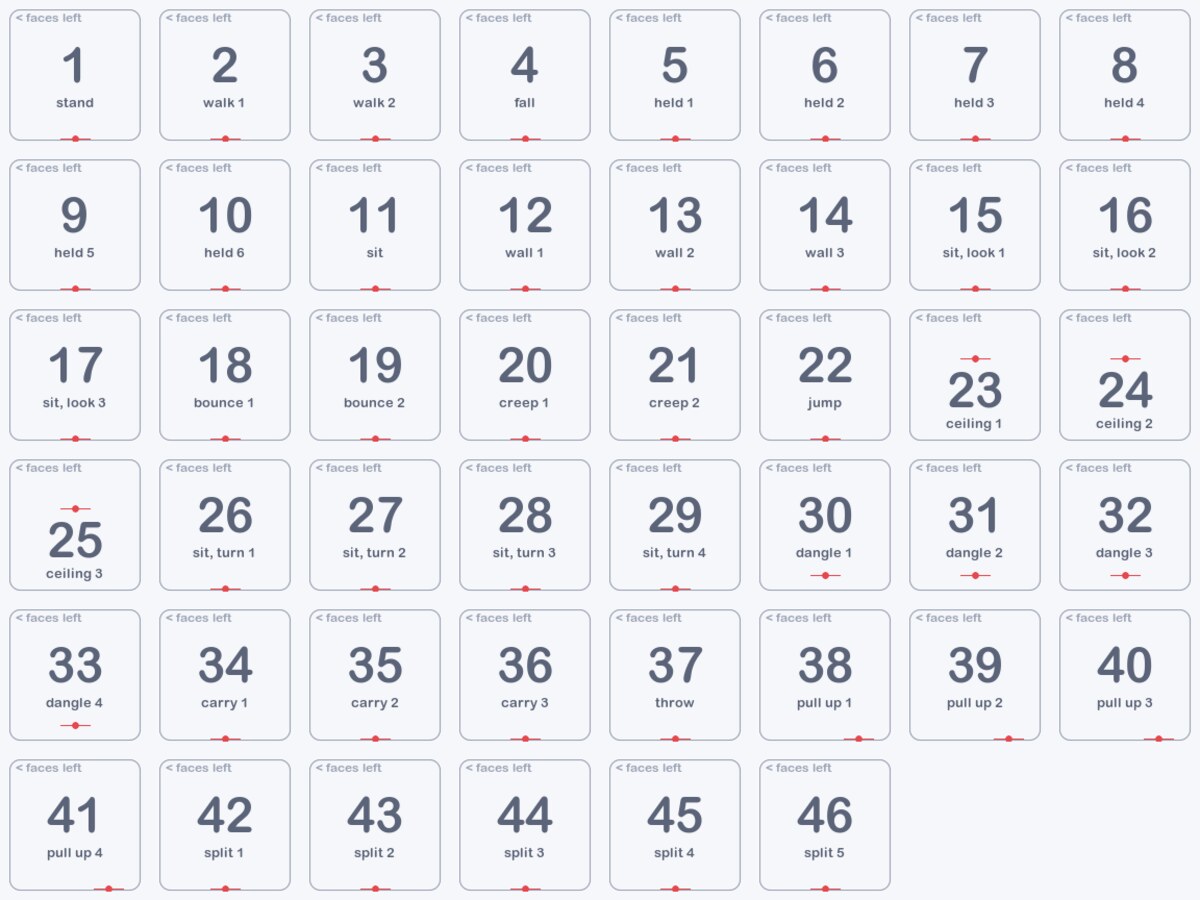
| Frame | Pose | Used for | Contact point |
|---|---|---|---|
| 1 | Standing | Standing still, the step between walking frames, hanging straight while held, the start of pulling a friend up | 64,128 |
| 2 | Walking, one foot forward | Walking, running, chasing the pointer | 64,128 |
| 3 | Walking, the other foot forward | Walking, running, chasing the pointer | 64,128 |
| 4 | Falling | Falling, being thrown, letting go of a wall or ceiling | 64,128 |
| 5 | Held, feet a little to the left | Dangling from the pointer, struggling to get free | 64,128 |
| 6 | Held, feet a little to the right | Dangling from the pointer, struggling | 64,128 |
| 7 | Held, swinging left | Dangling while the pointer moves, struggling | 64,128 |
| 8 | Held, swinging right | Dangling while the pointer moves, struggling | 64,128 |
| 9 | Held, swung far left | Dangling while the pointer moves fast, struggling, tumbling back after pulling a friend up | 64,128 (32,128 in the tumble) |
| 10 | Held, swung far right | Dangling while the pointer moves fast, struggling | 64,128 |
| 11 | Sitting | Sitting, the start and end of a head turn, watching the pointer | 64,128 |
| 12 | Climbing, reaching | Climbing a screen edge or the side of a window | 64,128 |
| 13 | Climbing, holding on | Holding on to a wall, climbing | 64,128 |
| 14 | Climbing, the other hand up | Climbing | 64,128 |
| 15 | Sitting, head turning | Looking around while sitting | 64,128 |
| 16 | Sitting, head turning | Looking around while sitting | 64,128 |
| 17 | Sitting, head turning | Looking around while sitting | 64,128 |
| 18 | Landing, squashed | Landing after a fall or jump, tripping | 64,128 |
| 19 | Landing, bouncing back up | Landing, tripping | 64,128 |
| 20 | Crawling, reaching forward | Crawling, tripping | 64,128 |
| 21 | Lying flat | Lying down, crawling, tripping | 64,128 |
| 22 | Jumping | Jumping onto a wall, onto a window or up under one | 64,128 |
| 23 | Hanging from a ceiling | Hanging from the top of the screen or under a window, swinging along it | 64,48 |
| 24 | Hanging, swinging one way | Swinging along a ceiling | 64,48 |
| 25 | Hanging, swinging the other way | Swinging along a ceiling | 64,48 |
| 26 | Sitting, looking up | Looking up, watching the pointer above, looking around | 64,128 |
| 27 | Sitting, head turning | Looking around while sitting | 64,128 |
| 28 | Sitting, head turning | Looking around while sitting | 64,128 |
| 29 | Sitting, head turning | Looking around while sitting | 64,128 |
| 30 | Sitting on an edge, legs up | Sitting down on an edge and getting up again | 64,112 |
| 31 | Sitting on an edge, legs down | Sitting with the legs hanging, swinging them | 64,112 |
| 32 | Swinging the legs one way | Swinging the legs on an edge | 64,112 |
| 33 | Swinging the legs the other way | Swinging the legs on an edge | 64,112 |
| 34 | Holding a window overhead | Pulling a window down, carrying it | 64,128 |
| 35 | Carrying a window, one step | Carrying a window | 64,128 |
| 36 | Carrying a window, the other step | Carrying a window | 64,128 |
| 37 | Throwing the window | Throwing a window | 64,128 |
| 38 | Leaning forward to reach down | Pulling a friend up through the floor | 96,128 |
| 39 | Reaching down past the floor | Pulling a friend up | 96,128 |
| 40 | Pulling, a friend's head appears | Pulling a friend up | 96,128 |
| 41 | Pulling the friend up | Pulling a friend up | 96,128 |
| 42 | Splitting, starting to stretch | Splitting in two | 64,128 |
| 43 | Splitting, stretching wider | Splitting in two | 64,128 |
| 44 | Splitting, stretching wider still | Splitting in two | 64,128 |
| 45 | Splitting, nearly two | Splitting in two | 64,128 |
| 46 | Two halves, about to part | Splitting in two | 64,128 |
A pack with its own actions.xml can use any frame for anything, so a custom pack may differ. For a pack that keeps the classic settings, this is the map.
Where does each frame touch the floor, wall or ceiling?
Most frames touch at the bottom centre, 64,128, and three groups don't. Get these points right and your character stands on windows instead of floating above them.
- Bottom centre, 64,128 (most frames). The feet rest on the bottom row of pixels, centred. On a wall the same point sits on the wall's edge, so in the climbing frames 12 to 14 the hands meet the frame's centre line. When the pointer picks the character up, it holds it 120 pixels above this point, at 64,8: the top of the head.
- 64,48, hanging from a ceiling (23 to 25). The ceiling runs 48 pixels below the top of the frame. Put the gripping hands on that line.
- 64,112, sitting on an edge (30 to 33). The seat is 16 pixels above the bottom, so the legs hang below the edge.
- 96,128, pulling a friend up (38 to 41). The feet stand 32 pixels right of centre, which leaves room to lean forward and reach down through the floor. The classic frames show the friend's head coming up in 40 and 41, and the new friend appears 32 pixels ahead and 96 pixels below the floor on the last frame.
- Carrying a window (34 to 36). The contact point stays at 64,128, and the window's bottom edge rides 64 pixels above the feet, so the raised hands go at that height.
Shimeji-ee's default settings use the same points for the ceiling, edge and pull-up frames, so a template drawn this way works in both.
Which frames does a minimal Shimeji need?
Frames 1 to 33 make a complete everyday character, and 34 to 46 are optional extras. Within 1 to 33, some appear in the first minute and some can start as copies.
- Draw first: 1 to 6, 11 to 14, 18, 19, 22 and 23 to 25. Standing, walking, falling, being picked up, sitting, climbing, landing, jumping and hanging are what people see in the first minutes.
- Can start as copies: 7 to 10 (copy 5 and 6), 15 to 17 and 26 to 29 (copy 11), 20 and 21 (lying and crawling), 30 to 33 (sitting on an edge). Replace them as you go.
- Optional: 34 to 37 (carrying and throwing a window), 38 to 41 (pulling a friend up), 42 to 46 (splitting in two).
The optional frames only play at particular moments. In Shimejiko, 34 to 37 play when a character throws a window, which needs Window access, the Accessibility permission (what it's for). Frames 38 to 46 play when characters multiply, which they only do by themselves with Cloning turned on in Settings › Behaviors (more on copies). Shimeji-ee's default behaviors include throwing windows, splitting and pulling up friends, so if your pack is also for Windows, draw all 46.
Every number still needs a file. Shimeji-ee shows an error and leaves out a character with a missing frame. Shimejiko shows the nearest number instead and lists what's missing when you import, which helps while you work but doesn't make a finished pack.
What are the most common Shimeji template mistakes?
Most broken packs come down to six mistakes, and each one is quick to fix.
- Facing right. Every frame faces left. A character drawn facing right walks backwards and climbs with its back to the wall.
- Mixed canvas sizes. One 150 × 150 frame among 45 at 128 × 128 makes the character jump whenever that frame plays. Keep every frame the same size. If you go bigger, the settings' contact points have to grow too: the bottom centre of a 256 × 256 frame is 128,256.
- Cropped frames. An exporter that trims empty space gives every frame a different size and moves the contact point. Export the whole canvas, empty corners included.
- Missing or misnamed numbers. Name them
shime1.png, notshime01.png,Shime 1.pngor a set that starts atshime0.png. A skipped number is a missing frame. - Ignoring the contact point. Feet a few pixels above the bottom row float above every window. Hands below the 48-pixel line in 23 to 25 hang in midair under the ceiling. A seat drawn on the bottom row in 30 to 33 sinks 16 pixels into the window.
- Guides left in. The template's numbers, names and dots end up on the desktop if you export with the guide layer showing. Hide it first.
How do you check your frames?
Check the zip in your browser first, then watch it move.
- Drop the zip on our free Shimeji pack checker. It reads the pack in your browser without uploading it and lists missing frames, mixed sizes, frames without transparency and broken settings files.
- Drop it on Shimejiko, open the character in the Library and choose the test bench. It plays every move frame by frame and shows any settings mistake with its line number.
- Follow how to test a Shimeji pack for the full pass before you share it.
Questions
Can I use the blank template for my own pack?
Yes. It's free to use for any pack, and no credit is needed. It holds no artwork, only numbers, pose names and dots, so what you draw is yours.
Does a pack made from this template work in Shimeji-ee?
Yes. The numbers and contact points match Shimeji-ee's default settings. Shimeji-ee needs Java and runs only on Windows, as its site says. On a Mac, Shimejiko runs the same pack without Java.
Which frame is the character's picture?
shime1.png, the standing pose. Shimeji-ee's character chooser and Shimejiko both show it as the character's picture, so make it your best drawing.
Download Shimejiko free and drop the blank template on it to watch the numbers walk.



