How to customize the Dock on a Mac: every setting by macOS version, Terminal tweaks and Dock apps

Also in日本語한국어繁體中文简体中文EspañolDeutschPortuguês (Brasil)Français
Quick answer
Every Dock option Apple offers lives in System Settings › Desktop & Dock, but macOS 26 Tahoe renamed three of them, so older guides point at labels you won't find. This guide names each Dock setting as macOS 27, Tahoe, Sequoia and Sonoma show it, covers apps, folders, Stacks and websites in the Dock, explains the gray dot that macOS 27 added, gives the Terminal tweaks still reported working with an undo for each, and compares six Dock apps, from the free DockDoor to uBar.
Download for MacOpen System Settings › Desktop & Dock. Under Dock, drag the Size and Magnification sliders, pick Left, Bottom or Right for the Dock's position, choose a minimize animation, and turn on Automatically hide and show the Dock (Option-Command-D does the same). Drag apps or folders onto the Dock to add them, and drag them off to remove them. On Sonoma and Sequoia, two of these settings carry older names: Position on screen and Minimize windows using.
Every page linked below was read on 21 November 2026, Apple's guides for macOS 27 Golden Gate, Tahoe, Sequoia and Sonoma included. For wallpaper, widgets and the rest of the desktop, start with 10 ways to customize your MacBook.
What is each Dock setting called on your macOS version?
Apple's Desktop & Dock pages for macOS 27, Tahoe 26, Sequoia 15 and Sonoma 14 list the same ten Dock options. Tahoe renamed three, and macOS 27 kept the new names. To open them, choose Apple menu › System Settings, then click Desktop & Dock in the sidebar (you may need to scroll down).
| What it changes | Name on macOS 27 and 26 Tahoe | Name on 15 Sequoia and 14 Sonoma |
|---|---|---|
| How big the icons are | Size | Size |
| Icons growing under the pointer | Magnification | Magnification |
| The left, bottom or right edge | Dock position on screen | Position on screen |
| The effect when a window shrinks into the Dock | Minimized windows animation | Minimize windows using |
| Double-clicking a window's title bar | Window title bar double-click action: Fill, Zoom, Minimize or No Action | Double-click a window's title bar to: Fill, Zoom, Minimize or Do Nothing (Sonoma: Minimize, Zoom or Do Nothing) |
| Minimized windows tucked into their app's icon | Minimize windows into application icon | Minimize windows into application icon |
| A Dock that slides away until you need it | Automatically hide and show the Dock | Automatically hide and show the Dock |
| Icons bouncing while apps open | Animate opening applications | Animate opening applications |
| A small dot under each open app | Show indicators for open applications | Show indicators for open applications |
| Up to three recent apps at one end | Show suggested and recent apps in Dock | Show suggested and recent apps in Dock |
| A Dock on every display, or the main one only | Displays have separate Spaces, in the Mission Control section | Displays have separate Spaces, in the Mission Control section |
The minimize menu itself offers Genie and Scale (Still Dock). Fill, on Sequoia and later, stretches a window over the space between the menu bar and the Dock, or beside a side Dock. Sonoma's page lists Displays have separate Spaces but doesn't say what it does to the Dock; the later pages do.
The look of the icons lives elsewhere. On Tahoe and macOS 27, System Settings › Appearance has Icon & widget style (Default, Dark, Clear or Tinted), which restyles app icons wherever they appear, the Dock included, and desktop widgets with them. macOS 27 adds a Liquid Glass slider that runs from clear to heavily tinted icons (Apple). The Folder color picked there reaches folders in the Dock as well; our folder icons guide covers it.
How do you resize, magnify and move the Dock?
- Choose Apple menu › System Settings, then click Desktop & Dock.
- Drag Size until the resting icons look right.
- Turn on Magnification and drag its slider to set how large icons grow as the pointer passes.
- Set Dock position on screen (Position on screen before Tahoe) to Left, Bottom or Right.
Apple offers no top position. A side Dock gives tall windows back the height a bottom Dock takes.
Quicker routes, from Apple's Dock guide and its keyboard shortcut list:
- Point at the separator line until a double arrow appears, then drag up or down to resize.
- Control-click the separator for a shortcut menu with more Dock actions.
- Hold Control-Shift while pointing at the Dock to switch magnification on or off for the moment.
- Press Fn-Control-F3 to reach the Dock from the keyboard, move with the arrow keys, and press Return to open an item.
How do you hide the Dock, and keep it hidden?
Turn on Automatically hide and show the Dock and it slides off the screen until the pointer reaches that edge. Option-Command-D flips the setting from any app, and on keyboards with the Globe key, Fn-A shows or hides the Dock too.
Two things Apple gives you no control over: the short wait before a hidden Dock appears, and the Dock returning whenever the pointer touches the edge. The Terminal section below has a command for each, with its undo.
How do you add and remove apps, folders and websites?
Apple's guide splits the Dock with a line: apps on one side, files and folders on the other, with a second line around recent apps when those are shown.
- Apps go left of the line, or above it on a side Dock. Drag one from the Applications folder in Finder, or Control-click the icon of an open app and choose Options › Keep in Dock.
- Files and folders go right of the other line, or below it. The Dock holds an alias, and the item stays where it was. Control-Shift-Command-T adds whatever is selected in Finder.
- Websites: on Sonoma or later, open the page in Safari and choose File › Add to Dock, then name it. Safari saves a web app in the Applications folder inside your home folder; its Dock icon can show a red badge for unread notifications (Apple). To delete one, drag it from that folder to the Trash.
- To remove an item, drag it off the Dock until Remove appears. Only the alias goes. If you remove an app by accident, open it and choose Options › Keep in Dock again.
- To reorder, drag icons along the Dock.
Finder and the Trash are the two icons you can't take out, as Mac Install Guide notes in its macOS 27 setup.
How do Stacks and the Downloads folder work?
The Dock comes with a Downloads folder, where downloads, mail attachments and AirDrop files land, shown either as a blue folder or as a stack of its files (Apple). Any folder you drag to the right of the line behaves the same way. Click it to spread its contents out, click a file to open it, or click Open in Finder.
Control-click a folder in the Dock to choose:
- Display as: Folder or Stack.
- Sort by: name, date added, date created or another order.
- View content as: Fan, Grid or List.
The Applications folder makes a handy grid: every app, one Dock icon, no clutter.
What do the dots, recent apps and badges mean?
- A dot under an icon means the app is open. Show indicators for open applications turns the dots on or off.
- Apps you never pinned, near one end: up to three recently used apps that aren't already in the Dock, from Show suggested and recent apps in Dock. An app you're using on your iPhone or iPad can also appear near the right end, through Handoff.
- A red badge means that app or System Settings wants something from you, such as unread mail.
- A gray dot, new in macOS 27, means an app you quit is still running in the background. Hover over it to read Running in Background, or Control-click it and choose Stop Running in Background. System Settings › General › Login Items & Extensions › Background App Activity shows which apps may keep running (Apple).
How do you get the Dock onto another display?
Apple ties it to one switch, Displays have separate Spaces, in the Mission Control part of Desktop & Dock. With it on, the Dock is available on all displays; with it off, the Dock stays on the main display. It's still one Dock, on one screen at a time: with the Dock at the bottom, rest the pointer on the bottom edge of another display and the Dock moves there, as MacPaw's guide shows. To change which screen is the main one, select it in System Settings › Displays and choose Main display from Use as (Apple).
Which Terminal tweaks still work on macOS 27 and Tahoe?
A caution first: Apple documents none of these. Each one writes a hidden setting into the Dock's preferences with defaults, and killall Dock restarts the Dock so it reads it. A future macOS could drop any of them without notice, and the undo under each one puts the Dock back to normal. Open Terminal (in Applications › Utilities) and paste one line at a time. We kept only tweaks that sources updated in 2026 report working on Tahoe or macOS 27.
Add a blank spacer between groups of apps. Run this, then drag the gap where you want it:
defaults write com.apple.dock persistent-apps -array-add '{tile-data={}; tile-type="spacer-tile";}'; killall Dock
Use small-spacer-tile for a narrower gap, or persistent-others in place of persistent-apps for the folders side. Undo: drag the spacer off the Dock like any icon. Reported working by Mac Install Guide, tested on macOS 27, Sindre Sorhus and DockGroups for Tahoe.
Show a hidden Dock with no delay.
defaults write com.apple.dock autohide-delay -float 0; killall Dock
Undo: defaults delete com.apple.dock autohide-delay; killall Dock. Confirmed by Mac Install Guide, DockGroups and Sindre Sorhus.
Make the slide faster, or instant. A value of 0 removes the animation entirely.
defaults write com.apple.dock autohide-time-modifier -float 0.4; killall Dock
Undo: defaults delete com.apple.dock autohide-time-modifier; killall Dock. Confirmed by Mac Install Guide and DockGroups.
Keep the Dock hidden, even at the edge. This sets the same delay key to 1,000 seconds, so the Dock never gets the chance to appear (Sindre Sorhus):
defaults write com.apple.dock autohide -bool true; defaults write com.apple.dock autohide-delay -float 1000; killall Dock
Open apps with Spotlight (Command-Space) and switch with Command-Tab instead. Undo: delete autohide-delay as above; the Dock then hides and shows normally until you turn off the setting.
Show only the apps that are open. Your pinned apps vanish but aren't lost.
defaults write com.apple.dock static-only -bool true; killall Dock
Undo: defaults delete com.apple.dock static-only; killall Dock, and they come back. Listed in a setup guide written for Tahoe and macOS 27, Still Dock's key reference and Mainspring's command list.
Start over with Apple's default Dock. Apple's guide has no reset button. This returns the Dock to how it shipped and throws away everything you set, pinned apps and their order included:
defaults delete com.apple.dock; killall Dock
There's no undo, Still Dock and Mainspring both warn, so take a screenshot of your Dock first.
Which apps change the Dock beyond Apple's settings?
Apple's Dock stays one Dock, on one screen, with no window previews and no saved layouts. Each of these apps fills one of those gaps, from a small helper to a whole new Dock.
| App | What it does to the Dock | Price (checked 2026-11-21) | Needs |
|---|---|---|---|
| HiDock | Different Dock settings, such as size and hiding, for each display setup | Free, donations welcome | macOS 12 or later |
| DockDoor | Window previews when you point at an icon, plus Alt-Tab switching | Free, open source | macOS 13 or later |
| DockFlow | Saved Dock layouts you switch with a hotkey or a Focus | $14.99 a year, or $40.96 per Mac for life ($20.48 in a Black Friday sale) | macOS 13.5 or later |
| Supercharge | Spacers, no show delay, a Dock that stays hidden, a click on an app's icon to hide it | $20 once | macOS 27 or later |
| ActiveDock 2 | Replaces the Dock and Launchpad with themes, custom icons, groups and previews | $19.99 for 1 Mac with a year of updates, or $59.99 for 3 Macs with lifetime updates (on sale for $15.99 and $47.99) | macOS 14.6 or later |
| uBar | Replaces the Dock with a dock or a taskbar, one bar per display | $39 once for 2 Macs, 14-day trial | macOS 26 Tahoe or later |
HiDock by Rafa Conde changes Apple's own Dock settings when your displays change, say a big, always-visible Dock at the desk and a small hidden one on the laptop. Its site is clear about the limit: it can't put the Dock on several monitors at once.
DockDoor shows every open window of an app when you point at its icon, and lets you close, minimize or quit one from the preview. It needs Accessibility and Screen Recording permission, and its makers warn that re-uploaded copies carrying malware have turned up on other sites, so download it only from dockdoor.net or GitHub. The same developer sells DockDoor Pro, a full replacement, for $20 once on 3 Macs.
DockFlow saves sets of apps, folders, links and spacers as presets, and swaps them with a hotkey, a Shortcut or a Focus. Its core needs no permissions. The catch: a lifetime license includes only one year of updates, then $9.99 a year if you want more.
Supercharge by Sindre Sorhus puts the spacer, delay and stay-hidden tweaks above behind switches, alongside dozens of Finder and window fixes. The current version needs macOS 27; older builds for Tahoe and Sequoia are free downloads but won't run on newer macOS.
ActiveDock 2 looks like Apple's Dock and adds themes, custom icons, a Start menu and groups, without turning off System Integrity Protection. Its page names Tahoe as the newest fully supported macOS, and macOS 27 comes up only in its release notes, in a fix for license activation, so run the 14-day trial before paying.
uBar can be a dock or a Windows-style taskbar, gives each monitor its own bar and, unlike Apple's Dock, can sit on the top edge. Version 5 needs Tahoe or later, which leaves Sonoma and Sequoia out, and it's the priciest here.
We didn't install or test any of these apps: what each does, needs and costs comes from its maker's own page, checked 2026-11-21.
Where does Shimejiko fit?
We make Shimejiko, a desktop pet app, and it changes none of your Dock settings. Its small characters walk along the top of the Dock, climb windows and sit on the MacBook notch, and they work with wherever you put the Dock: on a bottom Dock they stand on it, beside a side Dock they walk the screen's bottom edge and treat the Dock's side as a wall to climb, and with the Dock hidden the bottom edge becomes their floor. Plug in the charger and dinner is served wherever they are, in the free version too.
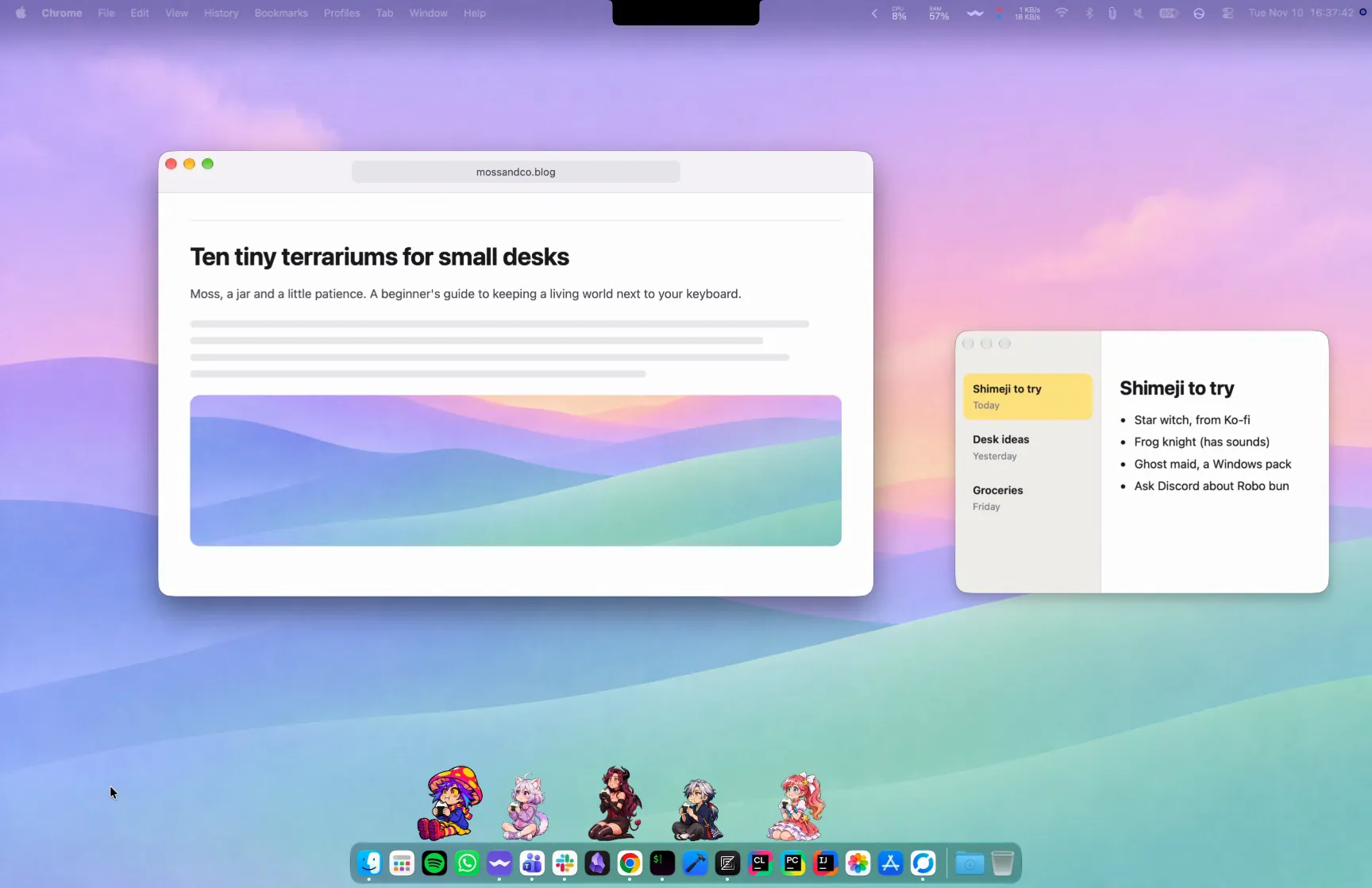
Recorded in the app with Pro, since five different characters share the Dock, the clip shows them sitting down to eat, which is what plugging in the charger does.
The catch for Dock fans: the free version keeps everyone on the main display, so a Dock you parked on a second screen gets visitors only with Pro and Walk across displays, under Settings › General › Multiple displays. Shimejiko is free for macOS 14 Sonoma or later on Apple silicon and Intel, and Pro costs $5.99 once for up to 3 Macs (checked 2026-11-21). Closing its window takes its own icon out of your Dock, since it then lives in the menu bar; Keep the Dock icon, in the same pane, leaves it there. Get Shimejiko, or read about desktop pets on more than one monitor and how they react to the battery.
Questions
Can I put the Dock at the top of the screen?
Not Apple's Dock: its position setting offers Left, Bottom and Right only. uBar's bar can sit on the top edge.
Can I change the color of the Dock?
Apple has no setting for the Dock's own color. On Tahoe and macOS 27, Icon & widget style in Appearance makes the icons dark, clear or tinted, and ActiveDock and uBar offer themes of their own.
Why does my Dock keep jumping to my other monitor?
With Displays have separate Spaces on, the Dock moves to whichever display's bottom edge the pointer rests on. Turn that setting off to keep it on the main display.
How do I reset the Dock to how it came?
System Settings has no reset. In Terminal, defaults delete com.apple.dock; killall Dock restores Apple's layout and settings, and erases yours.



