Mac folder icons: how to change a folder's color, emoji or picture, and how to undo it

Also in日本語한국어繁體中文简体中文EspañolDeutschPortuguês (Brasil)Français
Quick answer
On macOS 26 Tahoe and macOS 27, Customize Folder gives a folder a color, a symbol or an emoji, and Appearance settings change the default color of every folder. On every recent version, Sequoia and Sonoma included, you can paste your own picture onto a folder in Get Info and cut it to go back. This guide covers which folders Apple keeps off limits, how to undo each change, and five apps for icon sets and your own designs, from Tidewater to folderify.
Download for MacOn macOS 26 Tahoe and macOS 27, select a folder in Finder, click the Action button and choose Customize Folder to give it a color, a symbol or an emoji. For your own picture on any recent macOS, copy the image in Preview, select the folder, choose File › Get Info and paste onto the small thumbnail at the top. Edit › Cut on that thumbnail removes it. Sequoia and Sonoma have only the picture method.
We checked every page linked here on 20 November 2026, and app prices are from each maker's own page or App Store listing, checked 20 November 2026. We did not install or test any of the apps. For the rest of the desktop, see 10 ways to customize your MacBook.
What can you change on each macOS version?
Folder colors, symbols and emoji arrived with macOS 26 Tahoe (Apple's Tahoe notes), and macOS 27 Golden Gate, the current version, uses the same steps. Pasting a picture is far older.
| What you want | macOS 27 and 26 Tahoe | 15 Sequoia and 14 Sonoma |
|---|---|---|
| Color, symbol or emoji on one folder | Customize Folder | Not built in |
| A new default color for all folders | Appearance › Folder color | Not built in |
| Your own picture, or another item's icon | Paste it in Get Info | Paste it in Get Info |
| Remove a pasted picture | Edit › Cut in Get Info | Edit › Cut in Get Info |
Sequoia's guide covers pictures only, and its Appearance settings have no folder color.
How do I change a folder's color or add a symbol or emoji?
On macOS 26 or 27:
- Select the folder in a Finder window and click the Action button.
- Choose Customize Folder.
- Click a colored circle for a color, choose a symbol from the list, or click Emoji and pick one.
A color can go with a symbol or an emoji. Apple's Mac guide leaves out that the color is also a tag: its Tahoe feature list says tinting a folder automatically tags it with that color, so a red folder turns up under the red tag. If you sort files by tags, pick colors that agree with them.
To recolor every folder, open System Settings › Appearance and choose a Folder color (Apple). It's offered when Icon & widget style is Default, Dark or Clear; with Tinted, it becomes Icon, widget, & folder color and tints app icons and widgets too. The feature list says the default shows in Finder, in the Dock and on the desktop.
How do I use a picture or another icon on a folder?
The steps are the same from Sonoma to macOS 27 (Apple):
- Double-click the image so it opens in Preview, then choose Edit › Copy.
- Select the folder and choose File › Get Info.
- Click the small thumbnail at the top of the Info window, not the large preview lower down.
- Choose Edit › Paste.
If the folder turns into a generic JPEG or PNG icon, you copied the file rather than the picture inside it, says Sonoma's guide: open the image and copy from there.
To reuse an icon, open Get Info on the item that shows it, click its thumbnail, choose Edit › Copy, then paste into your folder's Info window. That works for a downloaded .icns file too, as folderify's README suggests.
Which folders can't you customize?
You can customize your Home folder, Apple says, but not the other folders that come with your Mac, such as Applications, Library, System and Users. Its page on those folders explains that many are needed for your Mac to work correctly, and that the System folder can't be renamed or moved at all. The note is about Customize Folder and says nothing about pasted pictures, so leave these folders alone.
How do I undo a custom folder icon?
- A pasted picture: select the folder, choose File › Get Info, select the small thumbnail and choose Edit › Cut.
- A color: Apple describes the tint as a sign that the folder has a tag, so removing the tag should clear it. Press Control-0 to remove all of a folder's tags, or click Edit Tags and delete just one (Apple). On macOS 27, Finder › Settings › Tags also lists Tint folders based on tags (Apple): turn it off to keep tags without tinted folders. Apple's Tahoe guide doesn't list it.
- A symbol or emoji: the Mac guide doesn't say. For the same feature in Files, Apple's iPhone guide says to tap Clear below the icons, so reopen Customize Folder and look for Clear.
- The default color: pick your old one again in Appearance › Folder color.
- An app's icons: use the app's reset. Tidewater's is Use Default Icons, and its makers warn it doesn't keep a copy of a custom icon you had before.
Where do good folder icon sets come from?
Start with what your Mac has: Customize Folder's symbols, every emoji and any icon you can copy in Get Info. For drawn sets, use an app's built-in gallery or its maker's own page. An icon is only a picture, an .icns or .png file, so skip any "pack" that comes as an installer or asks for your password.
| App | What you get | Price | Needs |
|---|---|---|---|
| Tidewater | 100 drawn packs, 14 matching icons each | Free with 4 packs; Plus $2.99 a month or $14.99 a year | macOS 13 or later |
| Iconize Folder | Any color, 5,000+ symbols, text, emoji or images | Free; All Access $3.99 once or $1.99 a month | macOS 14 or later |
| Folder Colorizer Pro | Colors, emoji, decals, stock photos or your own image | $3.99 | macOS 11 or later |
| Image2icon | Any picture as an icon, plus templates | Free; everything $9.99 | macOS 10.13 or later |
| folderify | An Apple-style folder with your own shape | Free, open source | Homebrew and Terminal |
Tidewater by GoMain Media is the pick for a whole matching look: allow your home folder once and it dresses Desktop, Documents, Downloads, Pictures, Music and Movies in one pack. Icons you applied stay if you stop paying.
Iconize Folder by Chujiang Wang gives the most control, with batches and .icns export. Its comparison notes that the built-in panel offers a subset of symbols and adds a tag with every color, while Iconize Folder changes the color alone. Version 3.5.2 came out on November 6.
Folder Colorizer Pro by Softorino pulls photos from Unsplash, Pexels and Pixabay and can revert any folder; version 4.11.10, from September 2025, added Tahoe support. Softorino's direct version costs USD 39.96, bundled with 15 other apps.
Image2icon by Shiny Frog turns any picture into an icon, but its App Store page shows no update since version 2.18 in February 2023.
folderify is a free, open-source command-line tool: draw a solid black shape on a transparent PNG, run folderify mask.png /path/to/folder, and the folder gets an icon in Apple's own style. Release 4.1.4 adapted it for macOS 26 and 27.
Where does Shimejiko fit?
We make Shimejiko, so weigh this accordingly. It changes no icons. Once your folders look right, it adds small characters that live on the desktop: they walk along the Dock, climb and sit on windows and, on a MacBook with a notch, sit on the notch, hang from it and peek out. On other Macs they use the menu bar.
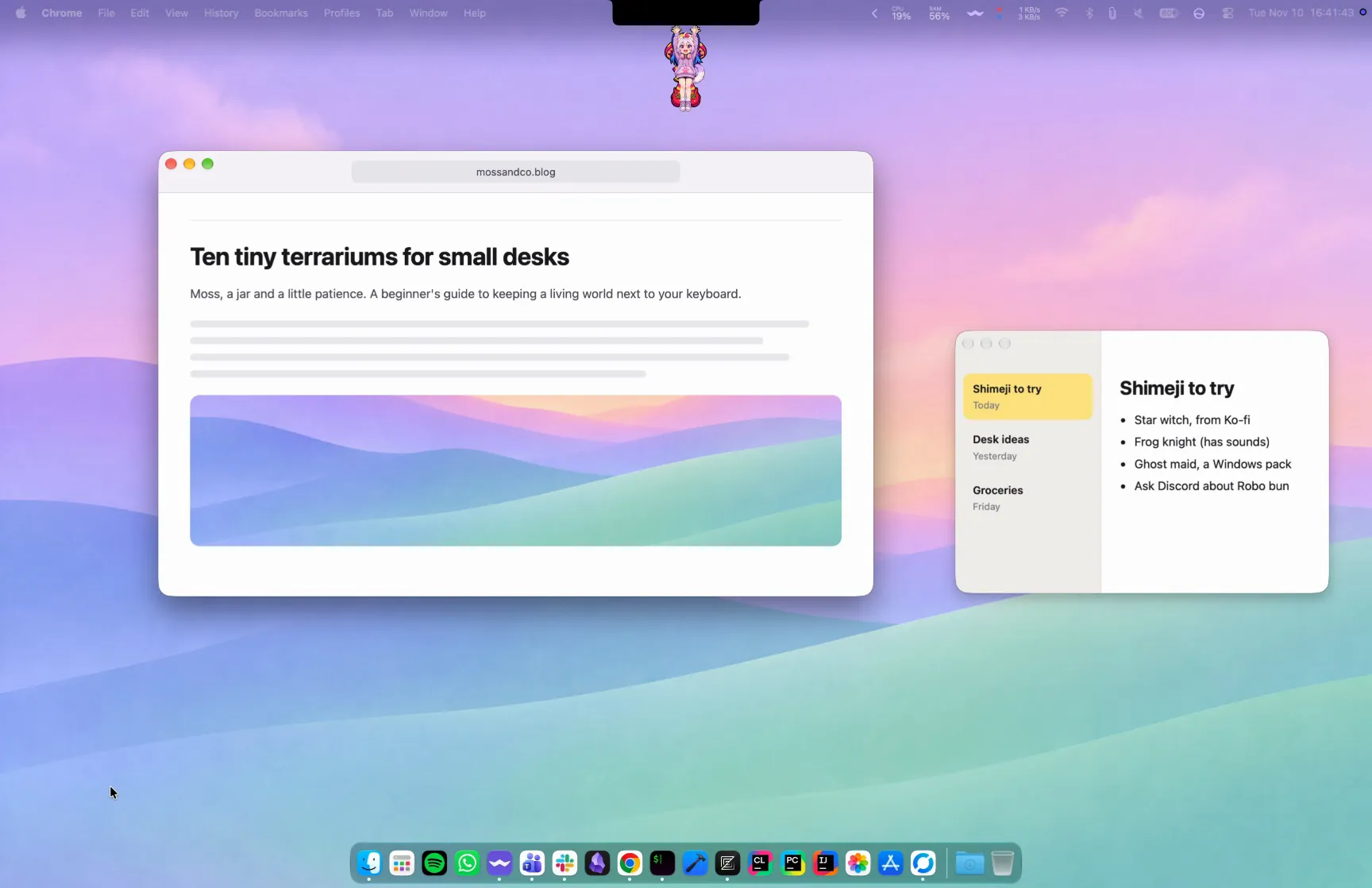
The clip shows Shimejiko leaping up to hang from the notch, then Miyu, a character from the Shop, taking her turn.
Shimejiko is a free download for macOS 14 Sonoma or later, on Apple silicon and Intel, and the notch perch works for every character in the free version. Pro, $5.99 once on up to 3 Macs, lets every character type out at once. See notch apps for Mac and what desktop characters do on a MacBook.
Questions
Can I color every folder at once on Sequoia or Sonoma?
Not with a setting: Folder color arrived with Tahoe. On older versions, Iconize Folder (macOS 14 or later) and Tidewater (macOS 13 or later) change many folders at once.
Why can't I customize the Applications folder?
Apple keeps Customize Folder off the folders that come with your Mac, apart from Home.
What else can I change on my Mac?
Recolor the pointer with the custom cursor options, set a screen saver, or browse fun Mac apps.



