How to customize your MacBook, 10 ways to make your desktop feel like yours

Also in日本語한국어繁體中文简体中文EspañolDeutschPortuguês (Brasil)Français
Quick answer
In System Settings you can change the wallpaper (including slow-motion aerial landscapes), the accent color and icon style, the size and place of the Dock, and whether the menu bar hides. On the desktop itself you can add widgets, give folders their own color or icon, tidy files into Stacks and recolor the pointer. For something that moves, add a desktop pet such as Shimejiko, whose characters walk on your Dock and windows.
Download for MacA new MacBook looks like every other MacBook. A few minutes in System Settings changes that, and none of it needs an extra app until the very last idea. These are the ten changes that make the biggest difference, in the order we'd try them. Setting names are from recent versions of macOS; on older ones a few are named slightly differently.
1. Pick a wallpaper that moves
Open System Settings › Wallpaper. Besides colors and photos, there are Dynamic Wallpapers that follow the time of day and aerial landscapes, cityscapes and underwater scenes that play in slow motion when you lock and unlock your Mac. Shuffle Aerials picks a different one now and then.
2. Make the screen saver match
In System Settings › Wallpaper › Screen Saver, the aerials can also be your screen saver, so the picture you leave turns into the one you come back to.
3. Choose an accent color and icon style
System Settings › Appearance sets the color of buttons and checkboxes, the text highlight color, and on recent macOS the look of icons and widgets: default, dark, clear or tinted, plus a folder color. The tinted style colors your icons, and the clear style makes them see-through.
4. Add widgets to the desktop
Control-click the wallpaper and choose Edit Widgets, then drag a clock, weather, calendar or photos widget onto the desktop. You can also use widgets from your iPhone (System Settings › Desktop & Dock › Widgets). They dim behind your windows so they don't get in the way.
5. Give folders a color, symbol or picture
Select a folder and choose Customize Folder from the Action menu in Finder to give it a color, a symbol or an emoji. For a picture, copy an image, select the folder, choose File › Get Info, click the small icon at the top and paste.
6. Tidy the desktop with Stacks
Choose View › Use Stacks in Finder (or Control-click the desktop). Files pile neatly by kind, date or tag, and the wallpaper and widgets show again.
7. Resize and move the Dock
In System Settings › Desktop & Dock, change the Dock's size, turn on magnification, move it to the left or right side of the screen, or hide it until you point at it.
8. Hide the menu bar
System Settings › Menu Bar can hide the menu bar always, only on the desktop or only in full screen, which gives the wallpaper the whole screen.
9. Recolor the pointer
In System Settings › Accessibility › Display › Pointer, change the pointer's size and its outline and fill colors. A pink or mint pointer is a small change you'll notice all day. Reset Colors brings back the default.
10. Add a desktop pet
Everything above is still. A desktop pet adds a bit of life: Shimejiko puts little illustrated or 8-bit characters on your desktop that walk along the Dock, climb your windows, sit on the notch and nap. On a MacBook they react to the Mac itself: knock on the case and they jump, tilt the lid and they slide, plug in the charger and they sit down to eat.
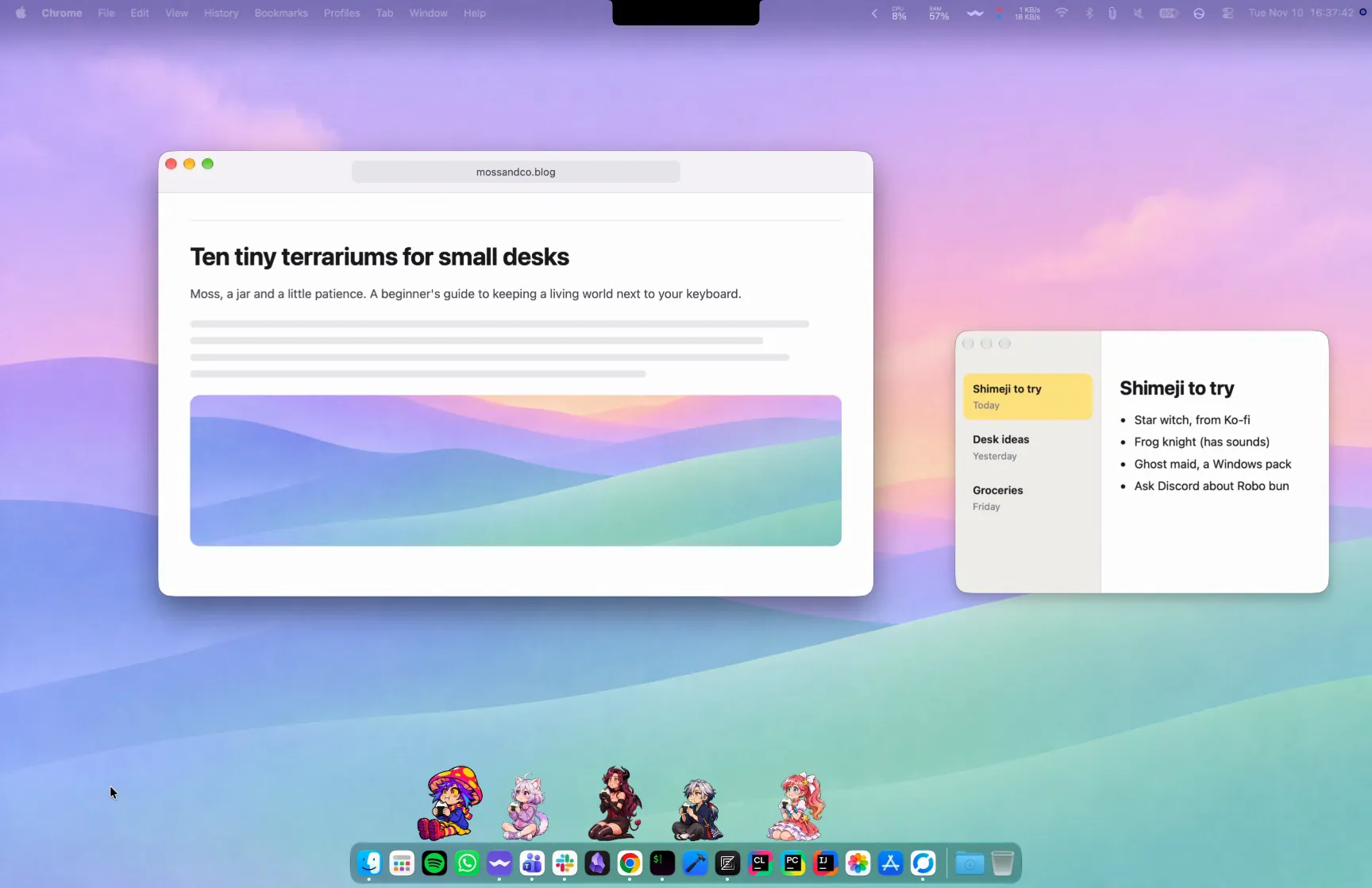
It's free with one character type on screen, and it runs any Shimeji pack you like, or characters from the Shop. More about what they do on a MacBook.
Questions
Can I customize my MacBook without extra apps?
Yes. Ideas 1 to 9 are all built into macOS, in System Settings and Finder.
How do I change the color of the icons in the Dock?
On recent macOS, System Settings › Appearance has an icon and widget style: default, dark, clear or tinted. Tinted gives every icon a single color, and clear makes them see-through.
How do I put widgets on the Mac desktop?
Control-click the wallpaper, choose Edit Widgets and drag the ones you want onto the desktop.
How do I undo a custom folder icon?
Select the folder, open File › Get Info, click the small icon at the top and choose Edit › Cut.
Will a desktop pet slow my Mac down?
A few characters use very little. Shimejiko can also pause when your Mac is on battery, and hides everyone with one shortcut when you need a clean screen.



