How to set a Mac screensaver in 2026, and the best free screen savers that still work

Also in日本語한국어繁體中文简体中文EspañolDeutschPortuguês (Brasil)Français
Quick answer
On macOS 26 Tahoe and later, the screen saver is in System Settings › Wallpaper › Screen Saver, while Sonoma and Sequoia give it its own place in the sidebar. This guide covers the built-in aerials, photos and messages, how to make it start sooner or from a hot corner, and what to do when macOS warns you about a downloaded .saver file. It also names four free screen savers updated for current macOS: Aerial, Fliqlo, Word Clock and Padbury Clock Revived.
Download for MacOn macOS 26 Tahoe and macOS 27, go to System Settings › Wallpaper › Screen Saver, select Custom and pick an aerial, your photos or a message. Start Screen Saver, on the same page, sets the delay. On macOS 14 Sonoma and 15 Sequoia, click Screen Saver in the sidebar and set the delay in Lock Screen. For more choice, Aerial, Fliqlo, Word Clock and Padbury Clock Revived are free and up to date.
We checked every page linked here on 19 November 2026.
How do I change the screen saver on a Mac?
On macOS 26 Tahoe and macOS 27 (Apple's steps):
- Open System Settings and click Wallpaper.
- Click Screen Saver, then select Custom.
- Choose a screen saver, and click Options if it has them.
Hold the pointer over the thumbnail at the top and click Preview to try it. On Sonoma and Sequoia, Screen Saver has its own place in the sidebar, with no Custom switch (Sequoia's settings).
Which screen savers come with macOS?
Apple groups them like this in Screen Saver settings:
| Category | What you get |
|---|---|
| macOS | Slow-motion images |
| Landscape, Cityscape, Underwater and Earth aerials | Slow-motion aerial views. A down arrow means it downloads when you click it |
| Shuffle Aerials | A new aerial at an interval you choose |
| Mac (macOS 27) | Gradient pill shapes that spell "Mac" in shifting colors |
| Other | Your photos and classic screen savers that show a message, a Word of the Day and more |
Since Sonoma, an aerial can be your wallpaper too: on Sonoma and Sequoia, turn on Show as wallpaper (Sonoma's settings). On Tahoe, an aerial wallpaper is also your screen saver by default (wallpaper guide).
How do I use my photos or show a message?
Under Other, click Photos, then Options, and choose Colors, Choose Folder or Photo Library (Apple). For a message, pick the message screen saver under Other. Show message when locked, in Lock Screen settings, adds a note to the login window, such as contact details in case your Mac is lost (Lock Screen settings).
How do I make the screen saver start sooner or later?
- Tahoe and macOS 27: Wallpaper › Screen Saver › Start Screen Saver.
- Sonoma and Sequoia: Lock Screen › Start Screen Saver when inactive (Sequoia's Lock Screen settings).
Apple says the screen saver starts after your idle time "unless your display is turned off," so keep both Turn display off settings in Lock Screen longer than the delay. On Sonoma and Sequoia, a warning symbol flags it when they aren't.
Apple menu › Lock Screen starts the screen saver right away, and any key, the mouse or the trackpad stops it. For privacy, set Require password after screen saver begins or display is turned off.
How do I start the screen saver from a hot corner?
In System Settings › Desktop & Dock, click Hot Corners, choose the screen saver option for a corner, then click Done (Apple). Hold Command, Shift, Option or Control while you choose, and the corner needs that key too, so it won't fire by accident. Sonoma and Sequoia work the same way.
Does a screen saver save energy or protect the screen?
Apple doesn't list it as a way to save energy: its energy tips are to put your Mac to sleep and turn the display off after inactivity. An older Apple article, now archived, says a still image left on a Mac's IPS display for a long time can leave a faint, temporary remnant. Display sleep prevents that, and a screen saver also keeps a still image off the screen.
How do I install a .saver file, and why does macOS warn me?
A third-party screen saver is a .saver bundle that lives in a Library/Screen Savers folder. Screen savers are plug-ins that must match your Mac's chip, says Apple's developer documentation, so one built only for Intel won't run on Apple silicon. To install one, double-click it, as Padbury Clock Revived's instructions say, then pick it in Screen Saver settings.
macOS checks the Developer ID signature of plug-ins from outside the App Store and wants them notarized by default (Apple). If it can't verify the developer, it shows an alert. Apple's advice is to find an alternative: overriding security settings is the most common way a Mac gets malware. If you trust the source, try to open it, then click Open Anyway in System Settings › Privacy & Security, under Security (it stays for about an hour), and enter your login password (Apple).
What are the best free screen savers for Mac?
These four are free (checked 19 November 2026) and updated for recent macOS. We didn't install or test them; the details come from each project's own page.
| Screen saver | What it shows | Latest version | Needs |
|---|---|---|---|
| Aerial | Apple TV aerial videos | 4.1.11, Nov 10, 2026 | macOS 26 or later (4.0.16 for Sequoia) |
| Fliqlo | A large flip clock | 2.2.3, Nov 19, 2026 | macOS 14 or later |
| Word Clock | The time lit up among words | 1.2.1, Dec 19, 2025 | Not stated |
| Padbury Clock Revived | A minimalist digital clock | 1.2.0, Apr 13, 2026 | macOS 13 or later |
Aerial, started by John Coates in 2015 and maintained by Guillaume Louel since 2018, is open source and runs on Apple silicon and Intel. Aerial 4 is an app that works as a screen saver, a still wallpaper or a live wallpaper, and lets you choose exactly what plays, add a clock or the weather and use your own videos. Older Macs get older builds.
Fliqlo 2 is a menu bar app and doesn't appear in Screen Saver settings. Version 1.9.5, fixed for Tahoe in March 2026, is the classic .saver. Its version history says version 2 stopped relying on legacyScreenSaver, a macOS process that older versions had to fix for not quitting.
Word Clock, Simon Heys's artwork shown at the Science Museum in London, highlights the time inside a set of words. Version 1.2.1 moved it to Metal and worked around the screen saver not exiting.
Padbury Clock Revived remakes Robert Padbury's minimalist clock, which hadn't been updated in years. Version 1.2.0 updated it for Apple silicon and macOS 26.
We left out Brooklyn, a favorite in older lists: its last release is from November 2020.
What if you want something alive while you work?
A screen saver plays only while you're away. For life on the desktop while you work, desktop characters are the other way. Shimejiko, which we make, isn't a screen saver: it's a native Mac app whose small characters walk on the Dock, climb windows and can be picked up and thrown. With the Sleepy reaction, they yawn and slow down under 20 percent battery and fall asleep under 10 percent.
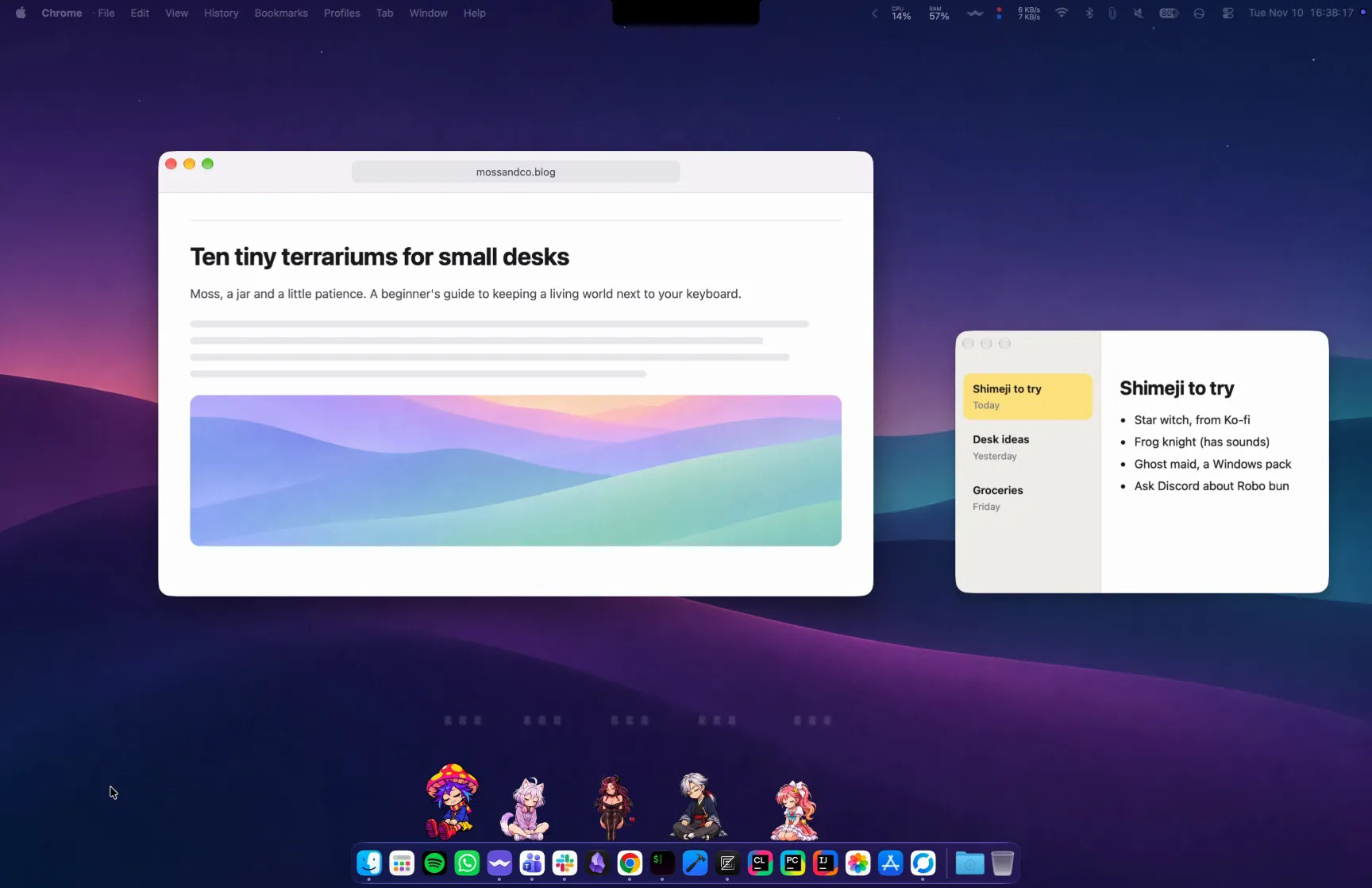
The clip shows the characters dozing off on the Dock as the battery runs low.
Shimejiko is a free download for macOS 14 Sonoma or later. In the free version, Shimejiko herself reacts; Pro, $5.99 once, makes every character react. Get Shimejiko, or read about desktop pets and battery, what they do on a MacBook and other desktop pets for Mac.
Questions
How do I stop the screen saver from starting?
Set a longer delay, or let the display turn off first. Since the screen saver doesn't start once the display is off, a display-off time shorter than the delay gives you a dark screen instead.
Can I show a clock with the screen saver?
On Sonoma and Sequoia, set Show large clock in Lock Screen settings to show it with the screen saver. Otherwise, Fliqlo, Word Clock and Padbury Clock Revived are clocks, and Aerial can add one.
Where can I find more ways to make my Mac my own?
Start with 10 ways to customize your MacBook, then browse fun Mac apps.



