Shimeji on Chromebook and Linux: what works where

Also in日本語한국어繁體中文简体中文EspañolDeutschPortuguês (Brasil)Français
Quick answer
On a Chromebook, a Shimeji browser extension is the place to start if your administrator allows it. The characters stay on web pages. For a Linux desktop, check a Linux project's compatibility list against your desktop environment and X11 or Wayland session. Shimejiko is a separate Mac app and does not run on ChromeOS or Linux.
Download for MacLooking for Shimeji on a Chromebook or Linux? Start with where you want the character to live: inside a web page, or across your desktop. A download named “Shimeji” does not answer that question, because several different programs use the name.
This guide helps you choose a route before installing anything. Compatibility details were checked against the projects' own documentation on November 6, 2026. We have not tested these Linux projects on every listed desktop.
Choose your route
| Your computer | Where to start | What to check first |
|---|---|---|
| Personal Chromebook | A Chrome browser extension | Whether it can run on the pages you use |
| School or work Chromebook | Your administrator's approved extensions | Whether installation is allowed |
| Linux desktop | A Linux Shimeji project | Desktop environment, display session and package support |
| Mac | Shimejiko | macOS 14 or later |
The important distinction is the area the character can reach. A browser companion staying inside a page can be working exactly as intended. If you want a character beside a text editor or on your desktop wallpaper, choose a desktop program that supports your system.
Shimeji on a Chromebook
Can I add Shimeji to ChromeOS?
ChromeOS supports browser extensions. Start from the maker's Shimejis.xyz site and follow its extension link to the Chrome Web Store, then read the publisher and requested permissions before adding it. Google's extension instructions explain the installation steps and restrictions.
Once installed, open a normal website, use the extension's toolbar icon and choose Spawn Shimeji. Its FAQ says the Chrome start page cannot host the characters. Refresh a regular page if a newly added character does not appear. The character stays in the browser; it does not become a pet walking over the whole ChromeOS desktop.
What if my school blocks the extension?
Ask the administrator whether it can be approved. Managed devices can restrict extensions, and Guest mode does not allow adding them. An absent installation button is not a sign that you need a different Shimeji download. Do not disable school management or install an unofficial substitute to get around the restriction.
Does enabling Linux make a Chromebook a desktop Shimeji computer?
Not automatically. Google's Linux setup guide describes a Debian development environment inside ChromeOS, not a promise that every Linux desktop overlay will work. Work or school devices may also restrict this feature.
A Linux mascot can depend on capabilities of the system that draws and arranges windows. Installing a package successfully is therefore different from proving it can roam over ChromeOS windows. Check whether the project's own documentation names ChromeOS before treating a Linux tutorial as Chromebook instructions.
Shimeji on a Linux desktop
What should I check before downloading?
Write down your distribution, desktop environment and whether your current session uses X11 or Wayland. For example, “Ubuntu” alone does not describe the whole setup. Then compare that information with the project's documentation. Keep the first test small: one character, default settings, and a clear way to close it.
Two projects worth checking are:
- ShimeLinux, a Shimeji-ee port with a published compatibility table and several package options.
- wl_shimeji, which targets Wayland and requires compositor support for
wlr-layer-shell.
These are independent projects, not Linux editions of Shimejiko. Follow their current installation instructions instead of mixing commands from guides for other Shimeji programs.
Why does Wayland support depend on the desktop?
“Supports Wayland” does not mean “works on every Wayland desktop.” The compositor manages windows and decides which protocols are available. For instance, wl_shimeji explicitly excludes Mutter because it lacks the layer protocol the project needs. Check the compatibility notes before assuming a missing character means the pack is broken.
Window climbing, interactions and drawing above other applications are separate things to verify. Try the project's default character first. If that works but an imported pack does not, investigate the pack next. Our Shimeji pack checker can inspect a zip for missing images and XML problems, but it cannot certify Linux desktop compatibility.
What if I also use a Mac?
Shimejiko runs Shimeji packs natively on macOS 14 or later, with no Java installation. It is not available for ChromeOS or Linux. The recording below shows importing a character on a Mac, not a Chromebook workaround.
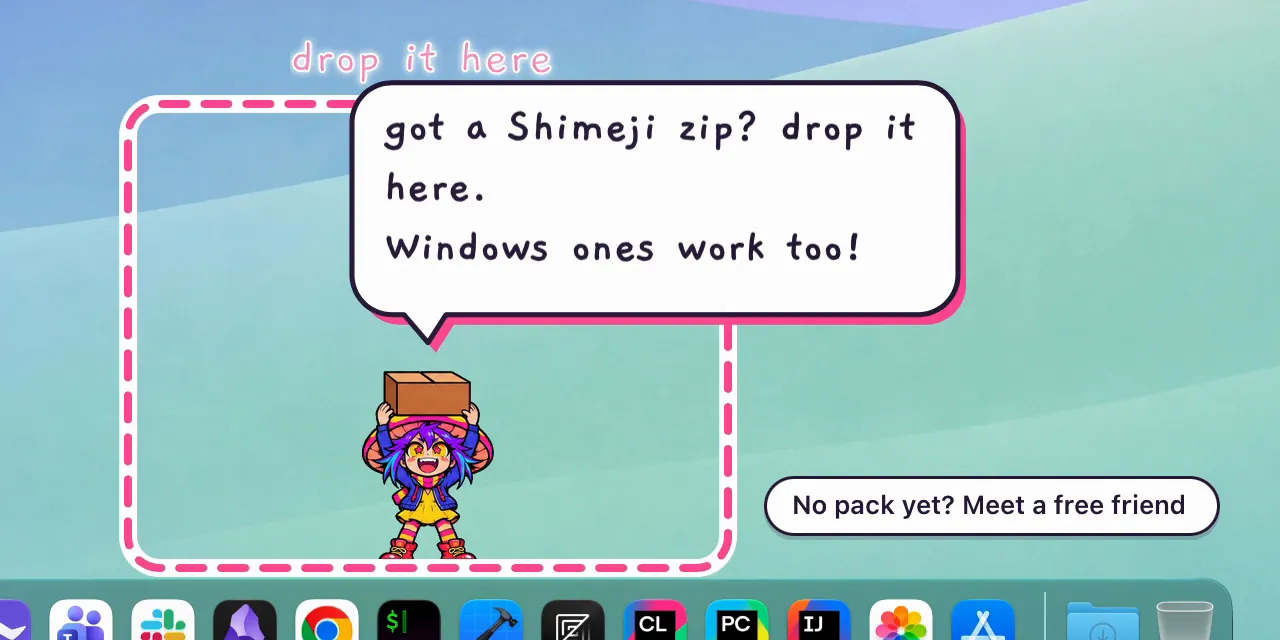
The free Mac app shows one character type at a time, up to 3 copies. If that is the computer you are setting up, follow our Shimeji for Mac guide. For Chromebook and Linux, use the matching route above so the instructions fit the screen in front of you.



