How to test a Shimeji pack before sharing it

Also in日本語한국어繁體中文简体中文EspañolDeutschPortuguês (Brasil)Français
Quick answer
Run moves and behaviors in Shimejiko’s test bench, inspect transitions with Pause and Step, and check the Script console. Then test the final archive on your real desktop. Reaction previews do not test hardware sensors.
Download for MacTo test a Shimeji pack properly, start after the first successful import. A character that walks across the preview has passed one small check. Your audience will also see it fall, hang, get dragged and switch between poses. Those transitions deserve their own pass before you share the ZIP.
This is a quality-check workflow for an already importable pack. For drawing and packaging, use how to make a Shimeji and the sprite-sheet export guide. Keep your editable source separate from the copy you are testing.
Start with a repeatable test
Open your character from the Library and find Test bench. It runs the character in a small simulated desktop with a floor and a window. You can inspect the pack here without putting a new companion on your actual desktop.
Write down the archive filename and the change you are checking. If yesterday’s problem was a scarf jumping sideways during a fall, make that your first test today. A short record such as “falling, normal speed, scarf shifts at the landing” is more useful than “animation looks wrong.” Keep the same starting conditions when comparing revisions.
Read the compatibility findings too. Treat them as clues about the imported pack, not a certificate that every pose and transition is correct. A convincing walking loop can coexist with a broken move you have not run yet.
Check moves, then behaviors
The first move buttons are a convenient shortlist. Open Show all moves and behaviors when it is available, and work through the pack’s full visible list. Names come from the pack, so yours may differ from another artist’s.
A move runs an action directly. A behavior exercises the character’s behavior logic, including the actions it calls and what happens afterward. Test both: manually running a good-looking action does not prove that the character will select it naturally.
- Run the basic poses the pack provides, such as standing, walking and sitting. Check proportions and a consistent point of contact with the floor.
- Run climbing, hanging, jumping and falling where available. Watch the entry and exit, not just the middle of the loop.
- Drag and release the character inside the bench. Check its held pose and the transition back into motion.
- Run the behaviors you intend people to see. Watch the running label so you know which action or behavior is actually playing.
Do not mark an absent move as a defect just because another pack has it. Your checklist should describe what this character promises to do.
Pause where the drawing breaks
Use Pause, then Step to advance the simulation in small increments. Step becomes available while paused. If the same image stays visible for several steps, that can be its intended duration rather than a stuck button. Try the ½× speed option to inspect motion, then return to 1× to judge the finished rhythm.
The frame strip helps connect what you see to image filenames. It shows up to 8 unique images for the current action, rather than a complete frame-by-frame timeline. Repeated images are not repeated in the strip, and an action with no images of its own can leave the previous strip visible. Use it as a locator, not a count of everything you have tested.
Watch for a foot sliding through the floor, an accessory popping out of alignment or a pose changing size unexpectedly. Note the action and filename, fix the source, and test the revised import. Avoid changing several unrelated things before checking whether the original problem disappeared.
Read the console and preview reactions
The Script console reports problems encountered during playback. When available, a message includes its file, XML line and expression. Copy that detail into your test notes before editing. An empty console only tells you that no problem has been reported along the paths you have exercised.
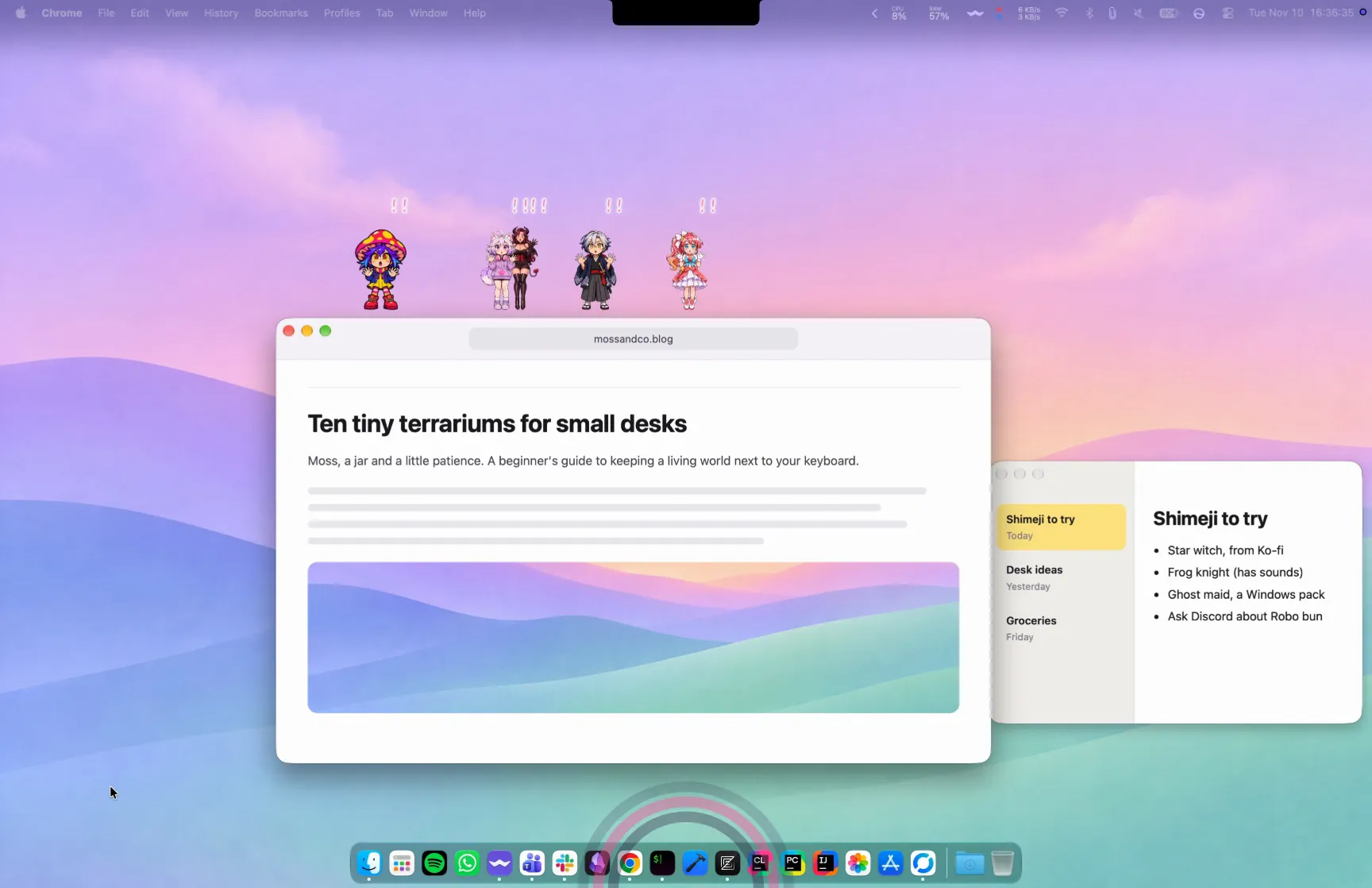
Next, try Knock, Purr and Lid tilt in the Mac magic preview. These buttons trigger reactions on the bench character. Check the pose, transition and recovery, including whether a fallback looks appropriate for your character. Packs without their own reaction frames can use their jump, fall and sit poses.
The recording below shows a knock reaction on a real desktop. It is a visual reference, not a recording of the test bench.
Finish with the copy you will share
Use Put on screen for a final desktop pass. Observe the character in the setting your readers will actually use. The bench’s reaction buttons send simulated events; they do not check a physical knock sensor, lid sensor or trackpad gesture on your Mac. Hardware support and permissions are separate questions.
Before release, import and inspect the actual archive you plan to distribute, not only your working folder. Repeat the checks affected by your last edit and confirm that the intended files reached the archive. For optional Shimejiko-specific additions, see the artists’ page.
Frequently asked questions
Does a successful import mean the pack is ready?
No. It means the app could load it. Test its moves, transitions and behavior paths, then inspect the final archive on the desktop.
Why does a move work when its automatic behavior is turned off?
Per-character behavior settings control what the character picks by itself. The bench can still run those behaviors manually. Those per-character settings come with Pro.
Does a reaction preview prove Mac magic works on my hardware?
No. It checks the character’s response to a simulated event. Actual hardware detection needs a separate check on a supported Mac with the relevant feature enabled.
Download Shimejiko for Mac and give your next pack a deliberate test pass before you share it.



