Mac Night Shift: how to turn it on and schedule it, why it's grayed out, and how it compares with True Tone and Dark Mode

Also in日本語한국어繁體中文简体中文EspañolDeutschPortuguês (Brasil)Français
Quick answer
To use Night Shift on a Mac, open System Settings › Displays, click Night Shift, then pick Sunset to Sunrise or Custom in the Schedule menu, or turn it on until tomorrow, and drag the slider for warmth; Control Center › Display has a quicker switch. This guide compares Apple's Night Shift pages for macOS 27, Tahoe, Sequoia and Sonoma, sets it beside True Tone, Dark Mode and the color profile, and reports what two studies found about sleep.
Download for MacTo turn on Night Shift on a Mac, choose Apple menu › System Settings, click Displays in the sidebar, then click Night Shift. In the Schedule menu, pick Sunset to Sunrise or Custom, or switch on "Turn on until tomorrow" for tonight only, then drag the slider to make the screen warmer or cooler. For a faster switch, click Control Center in the menu bar, click Display, then Night Shift.
The Apple pages behind this guide were all read on 24 November 2026. We set four editions of the Mac User Guide's Night Shift page side by side, for macOS 27 Golden Gate, Tahoe 26, Sequoia 15 and Sonoma 14, and did the same with Change Night Shift settings, the color temperature page, Displays settings, the light and dark appearance page, Appearance settings and the color profile page. Apple's support articles Use Night Shift on your Mac, published February 10, 2026, and Use True Tone on Mac, published March 10, 2026, say which Macs and displays qualify. The sleep findings come from the researchers' own announcements, and the part about Shimejiko comes from the app's source code.
How do you turn on Night Shift on a Mac?
Everything lives in System Settings › Displays › Night Shift, and Apple offers three ways to run it:
| Choice | What you set | What happens |
|---|---|---|
| Schedule › Custom | A start time and an end time | Warm colors between those two times |
| Schedule › Sunset to Sunrise | Nothing more, as long as Location Services is on | Your Mac works out when it gets dark where you are |
| Turn on until tomorrow | One switch | Warm colors right away, until the next day or until you switch it off |
Apple's Night Shift article explains the sunset choice: the Mac reads its clock and your location to find the local sunset, warms the display after it, and in the morning puts the display back on its regular settings.
Two shortcuts reach it without the settings window. In Control Center, click Display, then Night Shift. Apple also says you can ask Siri to turn Night Shift on or off.
How do you make Sunset to Sunrise work?
Apple's Sonoma guide is the only edition that walks through the location part, on its sunset page:
- Open System Settings, click Privacy & Security, then Location Services, and turn Location Services on.
- Scroll down to System Services, click Details, turn on Setting time zone, then click Done.
- Go back to Displays › Night Shift and choose Sunset to Sunrise in the Schedule menu.
The Sequoia, Tahoe and macOS 27 pages only say Location Services must be on. Apple ties your location to the sunset choice alone, so if you'd rather keep Location Services off, Custom with your own hours does the same job.
How do you make Night Shift warmer or cooler?
Open Displays › Night Shift and drag the color temperature slider. Apple's article says warmer settings show more yellow and less blue, and its User Guide adds that warmer colors are easier on your eyes at night or in low light, while less warm ones suit a bright room. The slider sets how warm Night Shift looks every time it runs, scheduled or by hand.
Apple describes Night Shift only as a change of color. Brightness has its own controls: the brightness keys, or the Brightness slider in Displays settings, plus Automatically adjust brightness on Macs with an ambient light sensor (Apple).
What changed between macOS 27, Tahoe, Sequoia and Sonoma?
Apple describes the same three choices and the same settings on all four. What changed is how it writes them up, plus a few details in the settings around Night Shift. The Sequoia, Tahoe and macOS 27 pages for turning it on, for its settings and for the color temperature match word for word apart from their links; Sonoma's differ.
| macOS 27 | 26 Tahoe | 15 Sequoia | 14 Sonoma | |
|---|---|---|---|---|
| Apple's how-to | One page, Shift to warmer colors, with all three choices | Same as macOS 27 | Same as macOS 27 | Three pages: at a set time, at sunset, and manually |
| Opening the controls | Displays › Night Shift | Same | Same | Displays › the Night Shift button on the right |
| Custom schedule | Choose when it begins and ends | Same | Same | Choose when it begins and ends, then click Done |
| Sunset to Sunrise | Location Services must be on | Same | Same | Two steps: Location Services with Setting time zone, then the schedule |
| A note on which Macs qualify | No | No | No | On every Night Shift page, linking Apple's support article |
| Settings: Schedule, Turn on until tomorrow, Color temperature | Yes | Yes | Yes | Yes |
| Night Shift switches off Invert colors and color filters, except Grayscale | Yes | Yes | Yes | Yes |
| Holding Option turns the Night Shift button into Detect Displays | Yes | Yes | Yes | Yes |
| Appearance set to Auto follows the Night Shift schedule | Yes | Yes | Yes | Yes |
| Auto waits until | The Mac has been idle for a minute | Same | The Mac has been idle for a minute, and no app is keeping the display awake, as during media playback | Same as Sequoia |
| Auto when no Night Shift schedule is set | Follows sunrise and sunset | Same | Not on Apple's page | Not on Apple's page |
| Displays that use preset reference modes instead of a color profile | Pro Display XDR, Studio Display XDR, Studio Display, 14- and 16-inch MacBook Pro from 2021 | Same | The same list without Studio Display XDR | Same as Sequoia |
Sources: the four Night Shift pages linked at the top, the four editions of Change Night Shift settings, Displays settings, Use a light or dark appearance, Appearance settings for macOS 27 and Sequoia, the color profile page for macOS 27 and Sequoia, and the accessibility page on display colors.
Three spots in Apple's pages don't agree with each other, and we couldn't settle them on a Mac:
- The manual switch has three names. The steps call it "Turn on until [time]", the settings table calls it Turn on until tomorrow, and Apple's support article says it keeps Night Shift on "until sunrise or the scheduled time". The guide's own wording is that it stays on until the next day or until you turn it off.
- Sonoma's sunset page heads its second step "Turn on Night Shift from Sunrise to Sunset", then tells you to choose Sunset to Sunrise. The menu item is the second one.
- Control Center on Tahoe and macOS 27. The Dark Mode tip says to click the disclosure button next to Display, while the Night Shift tip on the same versions just says to click Display. Either way, Night Shift and Dark Mode sit under Display.
How is Night Shift different from True Tone, Dark Mode and the color profile?
They all change how the screen looks, but each answers to something else: the clock, the room's light, your taste, or the display itself. Here is each one from Apple's own pages.
| Setting | What it changes | What decides when | Where you find it | Which Macs and displays, per Apple |
|---|---|---|---|---|
| Night Shift | The display's colors, toward the warm end | Your schedule, the local sunset, or you | Displays › Night Shift, or Control Center › Display | macOS Sierra 10.12.4 or later, on Macs from 2012 on and Mac Pro from 2013 on; on an external display, it depends on the display |
| True Tone | The display's color and intensity, and the Touch Bar's, to match the light around you | Sensors, all day | Displays, after selecting the display | Macs with a Retina display, Apple Studio Display, Studio Display XDR and Pro Display XDR; other external displays up to 32 inches, not TVs or projectors, connected to a Mac laptop with its lid open or an iMac from 2020 on |
| Automatically adjust brightness | Brightness only | The room's light | Displays; some displays call it Ambient light compensation | Macs with an ambient light sensor |
| Dark Mode | The menu bar, Dock, windows and built-in apps, not the display's colors | Light and Dark never change; Auto follows the Night Shift schedule | System Settings › Appearance, or Control Center › Display | Apple's pages name no hardware limit |
| Color profile | Which color profile the display uses | Your Mac picks the recommended one; it stays until you change it | Displays › Color profile | Displays with preset reference modes use the Preset menu instead (see the table above) |
| Invert colors, Color filters | Inverts the screen, or filters colors for color vision deficiencies | You, or an Accessibility Shortcut | Accessibility › Display | Turning on Night Shift switches both off, except the Grayscale filter |
A few of these work together and a few don't:
- True Tone and Night Shift can run at the same time, Apple says. One adapts the screen to the room, the other to the hour. Apple adds that some accessibility settings, such as inverting colors, a grayscale filter or more contrast, might turn True Tone off, and that the True Tone switch appears only for displays that support it.
- Dark Mode can follow Night Shift. Set Appearance to Auto, and Apple's article says the Mac goes dark whenever Night Shift is on. On Tahoe and macOS 27, Auto follows sunrise and sunset if you haven't set a Night Shift schedule. Apple also says some dynamic wallpapers switch to a still picture so they don't fight the light or dark look; wallpapers that change with the day are covered in our live wallpaper guide.
- The color profile isn't a night setting. Apple says the Mac selects the recommended profile by default and you rarely need to change it. Use Night Shift, not a different profile, to warm the screen in the evening. Other ways to change how your Mac looks are in how to customize a MacBook.
Why is Night Shift grayed out or missing?
Apple's pages point to five causes:
- The Mac or the display doesn't support it. Apple says the Night Shift option is there only on Macs that support it, from 2012 on (Mac Pro from 2013 on). Every Mac on Apple's list for macOS Sonoma, published September 16, 2024, dates from 2017 or later, so on a Mac running Sonoma or a later version the Mac itself is rarely the problem. On a Mac mini, Mac Studio or Mac Pro, or on a second screen, look at the display instead: Apple says Night Shift on an external display depends on that display.
- You're holding Option. Apple's Displays settings page says pressing and holding Option swaps the Night Shift button for Detect Displays. Let go and it comes back.
- A reference mode is on. Pro Display XDR, Studio Display XDR, Studio Display and the 14- and 16-inch MacBook Pro from 2021 have a Preset menu in Displays, and Apple says the options in Displays settings change or are limited depending on the mode. Apple doesn't list Night Shift among them. If the button went dim after you chose a video, print or medical preset, switch back to one Apple marks for general use in office and home, such as Apple XDR Display (P3-1600 nits) or Apple Display (P3-500 nits), and look again.
- Sunset to Sunrise does nothing. Location Services is off. Follow the three steps above, or use Custom.
- An accessibility color setting went away. This one runs the other way: turning on Night Shift switches off Invert colors and every color filter except Grayscale. Apple doesn't say what happens to Night Shift if you turn a filter back on afterward.
Does Night Shift help you sleep?
Apple doesn't promise that. Its Night Shift article says studies have shown bright blue light in the evening can affect your circadian rhythms and make it harder to fall asleep, and its guide says warm colors are easier on the eyes at night. Neither page says Night Shift itself improves sleep. Two studies tested Night Shift directly, both on Apple's phones and tablets, not on a Mac:
- Sleep on an iPhone. A Brigham Young University team, announced April 25, 2021 and published in Sleep Health, followed 167 people aged 18 to 24 in three groups: phone at night with Night Shift on, phone at night without it, and no phone before bed. Wrist trackers measured how long they slept, how well, how long they took to fall asleep and how much they woke. Across the whole sample there were no differences between the three groups. Among those who slept about seven hours, the group without a phone slept better than both phone groups, Night Shift or not. Professor Chad Jensen pointed at what people do on the phone, texting and scrolling, and not only its light.
- Melatonin with an iPad. The Lighting Research Center at Rensselaer announced on February 5, 2018 a study in Lighting Research & Technology: 12 young adults used iPads from 11 p.m. to 1 a.m. Melatonin suppression over the two hours was 19% with Night Shift at its least warm setting and 12% at its warmest, against 23% on regular settings in an earlier study, and the two Night Shift settings didn't differ significantly. The researchers' conclusion was that changing the screen's color alone isn't enough and that brightness should come down too.
So, on what these sources say: Night Shift makes the evening screen warmer, which Apple says is easier on the eyes at night, but the one sleep study found no better sleep with it, and the melatonin study pointed at brightness as well as color. If sleep is a real worry, that's a question for a doctor rather than a display setting.
Do screenshots and screen recordings show the Night Shift tint?
Apple doesn't say either way. Its screenshot guide and its articles on screenshots and screen recording, both published September 14, 2026, never mention Night Shift. LookAway's guide in today's top results, published August 9, 2026, says a screenshot taken with Night Shift on keeps its original colors and looks normal to whoever opens it. None of the sources we read covers recordings, and we haven't tested either on a Mac.
That fits Apple's own wording, which describes Night Shift as shifting the colors of your display, but it's our reading, not an explanation from Apple. In practice: what you see warm on screen is likely to arrive in normal colors, so judge a picture's colors with Night Shift off. LookAway gives the same advice for photo edits and brand colors. Every way to capture the screen is in our screenshot guide.
Is there a keyboard shortcut for Night Shift?
Not in Apple's list. The Mac keyboard shortcuts article, published September 14, 2026, has no key for Night Shift. The fastest routes are Control Center › Display › Night Shift, or asking Siri. Our Mac keyboard shortcuts guide has the keys that do exist.
Do Shimejiko's characters know when it's night?
We make Shimejiko, an app that lets small animated characters loose on a Mac's desktop, where they stroll along the Dock, scale your windows and doze off now and then. We searched its Mac source code for anything tied to the evening. This is all there is:
- They don't read Night Shift, the sunset or your location. Nothing in the app's code or its product spec refers to Night Shift, and the app never asks for Location Services. Since Apple describes Night Shift as a change to the whole display's colors, the characters should warm up along with everything else on screen; the app doesn't react to it either way, and we haven't filmed it.
- They ignore Dark Mode, and so does the app's window. At launch, before any window opens, Shimejiko fixes its own look to its light green design, whatever your Mac's Appearance says. So with Dark, or with Auto after your Night Shift schedule begins, Shimejiko's window and menus stay light. The characters are drawn from each pack's own picture frames, which Dark Mode doesn't touch.
- The one clock is Quiet hours. Settings › Auto-hide › Quiet hours hides everyone between two whole hours you choose and brings them back afterward. It needs Pro and is off until you turn on On a schedule. Out of the box it reads weekdays, 9:00 AM to 5:00 PM; turn off Weekdays only to use it every day, and a span across midnight, such as 10:00 PM until 7:00 AM, works too. The app checks every two seconds. If you bring everyone back in the middle, with ⌥⌘H (Option-Command-H) or from the menu bar, they stay out until the span ends. It follows the Mac's clock, not Night Shift's schedule, so to line them up, give both the same hours. For working hours instead, see a desktop pet while you work.
- Sleepiness follows the battery, not the hour. On a MacBook running on battery, everyone gets sleepy at 20% or less and again at 10% or less, with small z marks above their heads. Shimejiko's own characters yawn and nap for 20 to 40 seconds, then usually stretch and carry on; a pack from elsewhere yawns or sits down at 20% and lies down or sleeps at 10%, if it has those moves. Plugging in serves dinner and gets them up. It's on the free plan and every character on screen joins in. Pause Mac magic, in Settings › Mac magic, stops it, and so does choosing Pause the crew under Settings › Battery while you're on battery. How the two differ is in desktop pets and MacBook battery life.
- Naps at any hour. Separately, Shimejiko's own characters sometimes lie down and nap as part of their everyday routine, morning or night. A pack you import does whatever its artist wrote.
The drawback for evening users is real: Shimejiko takes no hint from your night settings. Its window stays bright in Dark Mode, nothing changes at sunset, and the only schedule, Quiet hours, is a Pro setting in whole hours that you set by hand.
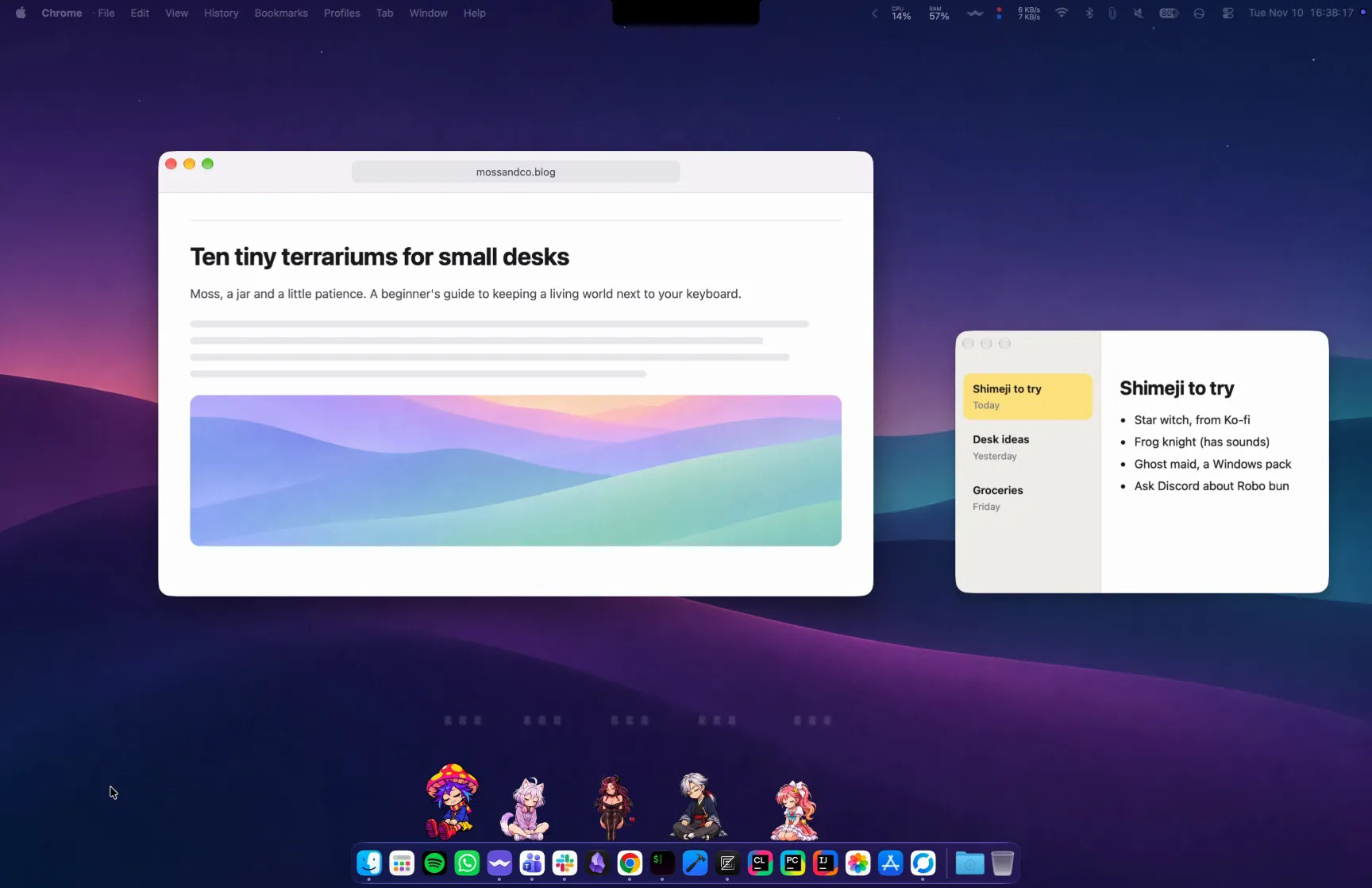
The clip is the app's low-battery reaction, recorded with Pro on a MacBook so five different friends doze at once. The still shows 16:38 in the menu bar, the middle of the afternoon: they nap because of the battery, never because of the time.
Shimejiko is a free download for macOS 14 Sonoma or later, on Apple silicon and Intel. The free plan lets one character type out at a time, up to 3 copies of it; Pro is a single $5.99 payment for up to 3 Macs that lets the whole crew out at once and unlocks Quiet hours (price checked 2026-11-24 on shimejiko.app). Download Shimejiko, or see what the crew does on a MacBook.
Questions
Why does Night Shift turn off in the morning?
That's by design. On Sunset to Sunrise, Apple's article says the display goes back to its regular settings in the morning, and the manual switch keeps Night Shift on only until the next day. For warm colors at other times, set Custom hours.
Can I use Night Shift and True Tone together?
Yes. Apple's True Tone article says the two can run at the same time. True Tone answers to the light in the room and Night Shift to the time of day.
Can Dark Mode turn on with Night Shift?
Yes. In System Settings › Appearance, choose Auto, and the Mac switches to dark whenever Night Shift turns on. Apple notes Auto won't switch until the Mac has been idle for at least a minute.
Does Night Shift work on an external monitor?
It can. Apple says how well Night Shift works on an external display depends on that display's characteristics, so results vary by model. True Tone has its own rules for external screens, listed in the comparison table above.



