Mac widgets: how to add, arrange and tame them on the desktop and in Notification Center

Also in日本語한국어繁體中文简体中文EspañolDeutschPortuguês (Brasil)Français
Quick answer
Since macOS 14 Sonoma, widgets can sit on the Mac desktop as well as in Notification Center, and on macOS 27 you still start by Control-clicking the wallpaper. This guide gives the steps and the setting names for each macOS version, how iPhone widgets work on a Mac, and why widgets disappear behind your windows. It also compares six third-party widget apps, from Fantastical's calendars to Plash, which turns a website into your wallpaper.
Download for MacOn macOS 14 Sonoma or later, Control-click the wallpaper, choose Edit Widgets, and click a widget or drag it into place. For Notification Center, click the date and time in the menu bar, then Edit Widgets. Control-click any widget to edit, resize or remove it. iPhone widgets need iOS 17 and Use iPhone widgets in System Settings › Desktop & Dock. Widgets sit beneath your windows, so click the wallpaper to see them.
We checked every page linked here on 20 November 2026, and every price is from the maker's own page, checked 20 November 2026.
Which Macs and macOS versions have desktop widgets?
macOS 14 Sonoma put widgets on the desktop and made them interactive, so you can tick off a reminder or pause music without opening the app. On macOS 13 Ventura they live only in Notification Center. Apple's Sonoma list goes back to the iMac Pro (2017) and the 2018 MacBook Pro. macOS 27 Golden Gate, now at 27.2.1, runs on every Mac with Apple silicon, from the 2020 M1 models to the MacBook Neo.
The steps haven't changed since Sonoma, but Apple's Desktop & Dock pages for Sonoma and macOS 27 and its Appearance settings show some new names:
| Setting | Sonoma 14 and Sequoia 15 | Tahoe 26 and macOS 27 |
|---|---|---|
| Color or monochrome, in Desktop & Dock › Widgets | Widget style: Automatic, Monochrome, Full-color | Dim widgets on desktop: Automatically, Always, Never |
| What a click on the wallpaper does, in Desktop & Dock | Click wallpaper to reveal desktop: Always or Only in Stage Manager | Show Desktop: Always on Wallpaper Click or Only in Stage Manager on Click |
| The widget look, in Appearance | Not offered | Icon & widget style: Default, Dark, Clear or Tinted |
How do I add widgets to the Mac desktop?
These are Apple's macOS 27 steps, and they're the same on Tahoe, Sequoia and Sonoma:
- Control-click the wallpaper and choose Edit Widgets.
- Search the widget gallery, or click an app in its sidebar.
- Click a widget and macOS finds a spot for it, or drag it exactly where you want it.
- Click Done, at the bottom right of the gallery.
How do I add widgets to Notification Center?
Click the date and time in the menu bar, or swipe left with two fingers from the right edge of the trackpad. Click Edit Widgets at the bottom, then click a widget or drag it to the upper-right corner of the screen. Drag widgets up or down to reorder them, then click Done. To remove one there, hold Option and click its Remove button.
How do I edit, resize or remove a widget?
Control-click the widget, then choose:
- Edit [widget name] to change what it shows, such as the Reminders list or the city. If the menu doesn't offer it, that widget can't be changed.
- A different size to show more or less.
- Remove Widget to take it away.
To hide every desktop widget at once, deselect On Desktop under Show Widgets in Desktop & Dock.
Why do my widgets hide behind windows?
Desktop widgets sit under every window, and Apple describes them as blending into the wallpaper while you work. Dim widgets on desktop (Widget style before Tahoe) decides whether they also turn monochrome. To see them:
- Click the wallpaper, and your windows slide aside. If that happens by accident, choose the Stage Manager option for Show Desktop (Click wallpaper to reveal desktop before Tahoe).
- In Stage Manager, select In Stage Manager under Show Widgets, or they stay hidden.
- Use Notification Center for must-see widgets: it opens over your windows. Apple's settings can't keep desktop widgets on top.
Can I use iPhone widgets on a Mac?
Yes, if your iPhone runs iOS 17 or later, uses the same Apple Account as your Mac, and is near the Mac or on the same Wi-Fi network. Turn on Use iPhone widgets in System Settings › Desktop & Dock › Widgets, and they join the widget gallery. When the app isn't installed on your Mac, clicking its widget shows "Open [app name] on your iPhone to continue."
Which built-in widgets are worth adding?
- Weather: one per city, each in its own size (Apple).
- Clock: City and World Clock widgets. Edit "Clock" picks the cities and their order (Apple).
- Reminders: the List widget shows the list you choose, and you tick items off right on the desktop.
- Shortcuts: the small widget runs one shortcut, the bigger ones a whole folder (Apple).
- Batteries: the charge of connected accessories, such as Beats headphones (Apple).
For the rest of the desktop, from wallpapers to folder colors, see 10 ways to customize your MacBook.
Which third-party widget apps are worth trying?
We haven't tried these apps ourselves, so each description sticks to what its maker publishes.
| App | What it adds | Where it shows | Price | Needs |
|---|---|---|---|---|
| Fantastical | 17 calendar widgets in four sizes | Apple's widget gallery | Free plan, Premium subscription | Not stated |
| Juicy | Battery widgets for Mac, iPhone, iPad and AirPods | Apple's widget gallery | 3-day trial, then $14.99 or $24.99 once | macOS 15 or later |
| Stats | CPU, memory, network and battery readings | Menu bar and Apple's widget gallery | Free, open source | macOS 12 or later |
| WidgetWall | Its own widgets, stickers and wallpapers | The desktop | Free, Premium from $1.99 a month | macOS 12 or later |
| Übersicht | Widgets you write in JavaScript and JSX | The desktop | Free, open source | macOS 12 or later |
| Plash | Any website as your wallpaper | The wallpaper | Free | macOS 26.4 or later |
Fantastical has the widest set of calendar widgets here, up to an extra-large month with upcoming events. The app is free to use, and its Premium subscription starts with a 14-day trial.
Juicy fills a gap its maker points out: Apple's Batteries widget lists only devices connected to the Mac over Bluetooth, so never your iPhone or iPad. Juicy's widgets show both, plus each AirPod and the case, while the app runs. Pro is $14.99 with a year of updates or $24.99 with lifetime updates, each on 2 Macs.
Stats is a free, MIT-licensed system monitor whose menu bar readings stay in view when windows cover your widgets. Its desktop widgets stay empty until you turn on macOS widgets in Stats settings.
WidgetWall by Amico Apps has 12 free widgets, from a clock to a lava lamp. Premium adds Pomodoro, Calendar and more for $1.99 a month, $19.99 a year or lifetime from $39.99. Its support page says widgets on other Spaces and external monitors can jumble onto the main screen, because macOS doesn't yet give developers the APIs to prevent it.
Übersicht shows the output of commands in widgets you write or download. Its gallery warns that widgets can run any code, so read one before you install it.
Plash by Sindre Sorhus makes a website, such as a calendar or a dashboard, your wallpaper. Clicks pass through to the desktop until you turn on Browsing Mode.
What if you want something alive on the desktop?
Widgets show information, and they hold still. Shimejiko, which we make, isn't a widget: its small characters stroll along the Dock, climb windows and sit on top of them, and you can grab one with the pointer and toss it. They follow the battery too. Connect the charger and it's dinner time; below 20 percent they yawn and slow down, and below 10 percent they doze off. Next to a Batteries widget, you get the number and the mood.
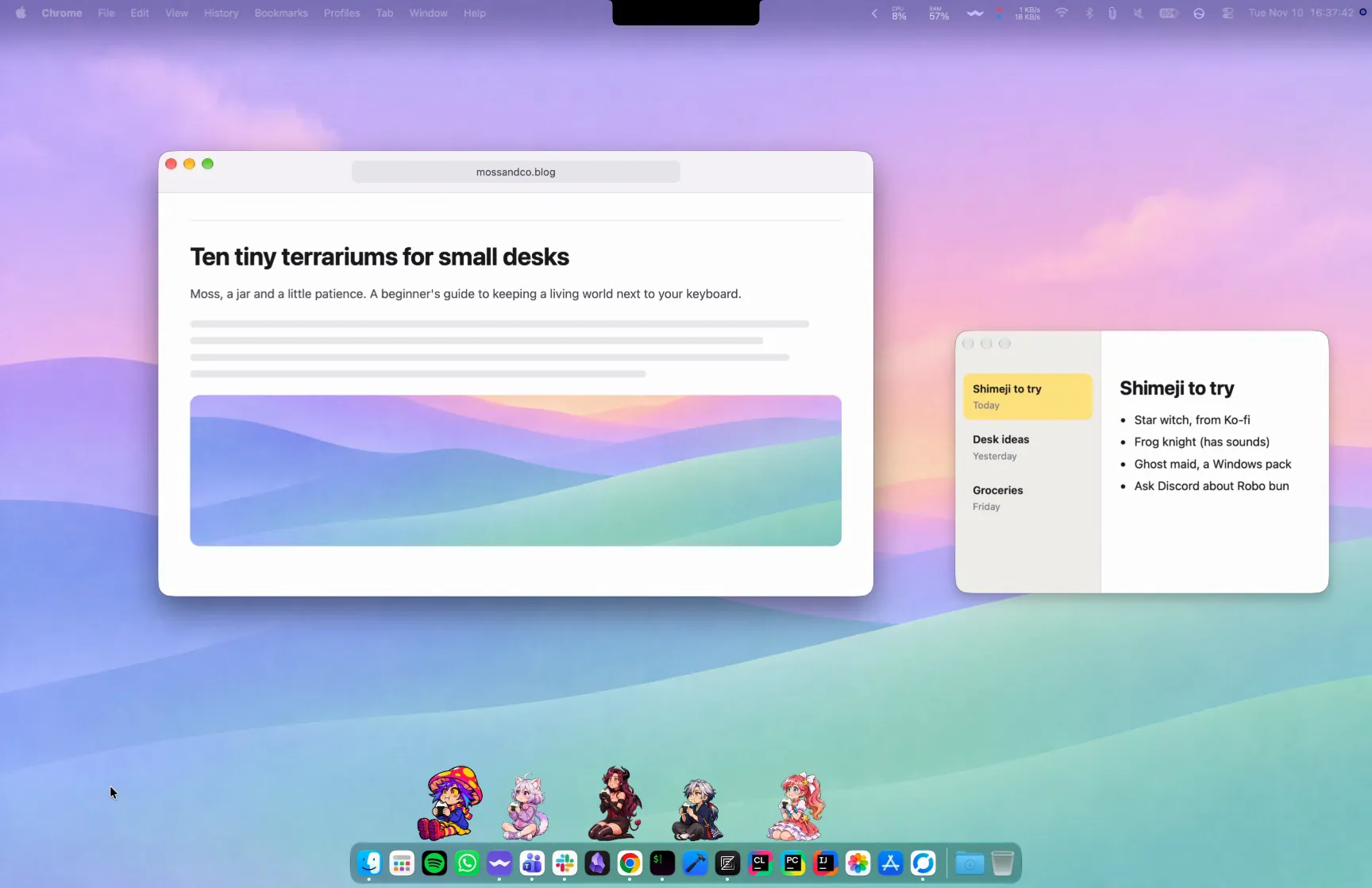
The clip, recorded in the app with Pro so several characters share the Dock, shows them starting dinner the moment the charger goes in.
Downloading Shimejiko is free, for macOS 14 Sonoma or later on Apple silicon and Intel, and dinner time and sleepy work for every character in the free version. Pro is $5.99 once, on up to 3 Macs. Get Shimejiko, or read how desktop pets react to the battery and what they do on a MacBook.
Questions
Why is Edit Widgets missing when I Control-click the desktop?
Desktop widgets need macOS 14 Sonoma or later; on Ventura, use Edit Widgets at the bottom of Notification Center. Apple menu › About This Mac shows your version.
Why doesn't a widget app show up in the gallery?
Open the app once after installing it: Juicy's setup steps say that's how macOS registers its widgets.
Can widgets stay on top of my windows?
Not Apple's. Click the wallpaper, keep the key ones in Notification Center, or put live numbers in the menu bar with an app like Stats.
Where can I find more desktop ideas?
Try apps for the MacBook notch, a screen saver to match and fun Mac apps.



