Desktop pets and MacBook battery life · what to adjust

Also in日本語한국어繁體中文简体中文EspañolDeutschPortuguês (Brasil)Français
Quick answer
Start with Shimejiko’s Battery settings, keep a small crew and compare energy use on your own Mac. Calm mode and sleepy reactions serve different purposes.
Download for MacA desktop pet on a MacBook adds animation to your everyday workspace. If battery life matters during a class, a train ride or a long afternoon away from an outlet, start with the app’s actual controls. In Shimejiko, you can change what the crew does on battery, limit automatic copies and check the result on your own Mac.
Which desktop pet battery setting should you choose?
Open Settings › Battery and find On battery. There are three choices:
- Keep everything is the default. Unplugging does not automatically reduce or pause the crew.
- Reduce animation caps movement animations at 30 frames a second while on battery. The characters still move normally.
- Pause the crew leaves characters visible but stops their usual movement while on battery. Plugging in brings them back to life.
Pause is not an absolute freeze: grabbing a character can wake the crew briefly, and the welcome show and Shop try-ons keep playing. Choose Reduce animation if you still want movement, or Pause the crew when a still companion suits the moment. These are behavior choices, not a promise of extra hours.
How can you check energy use on your own Mac?
Open Activity Monitor and look for Shimejiko in Energy. Apple describes Energy Impact as a relative measure of current energy use, not a battery percentage. Use Apple’s guide to the Energy pane if a column is unfamiliar.
Compare similar stretches of your normal work with the same screen brightness, open apps and character pack. Change one Shimejiko setting at a time. Watch more than a single moment, especially if another app is downloading, compiling or playing video.
The CPU view adds a different perspective on processor activity. Apple’s CPU guide explains that view. Neither a CPU reading nor Energy Impact alone tells you exactly how long the battery will last. If needed, quit Shimejiko for a comparison, then reopen it afterward.
Which other controls make the crew easier to manage?
Start with one companion rather than several copies. Under Settings › Behaviors, leave Cloning off if you do not want packs to create copies automatically. It is off by default; turning it off also removes automatic copies already created. For individual removals, see how to remove Shimeji characters.
Calm mode slows the crew and disables automatic cloning and window throwing. It is useful for a quieter desktop, but it is separate from Battery settings. Read the working and studying guide for a less distracting routine.
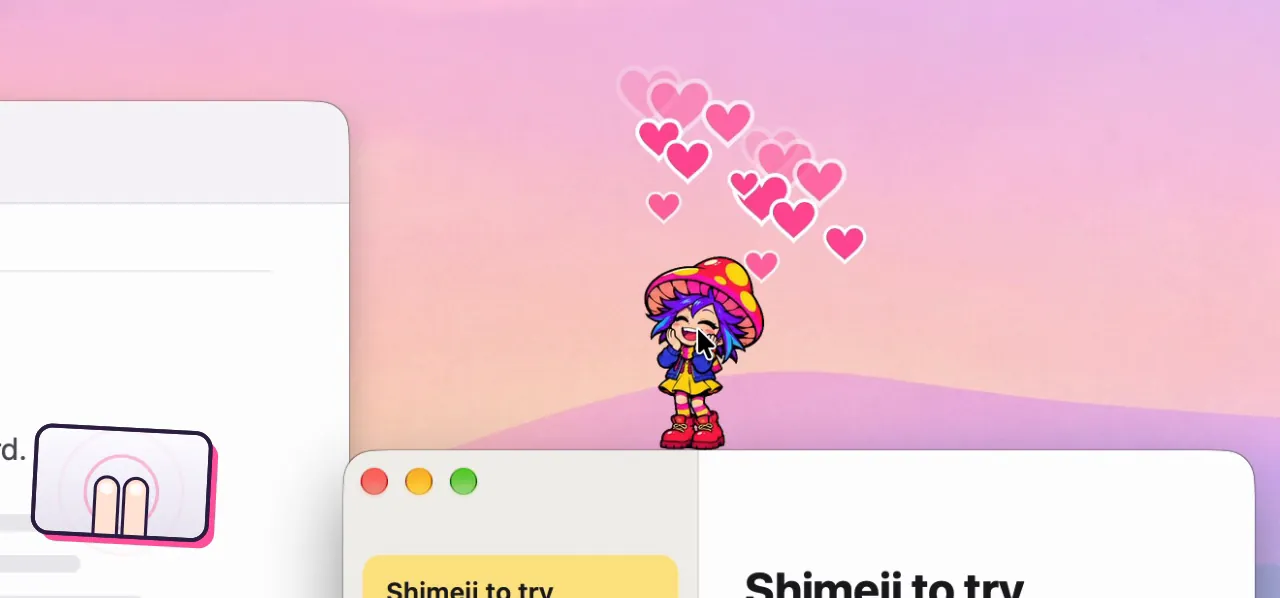
This clip shows character interaction, not a battery test or a comparison between settings.
What should you know before choosing a battery routine?
Is a sleepy character the same as pausing on battery?
No. The low-battery sleepy reaction is a character behavior. Choose Pause the crew in Battery settings when you want the on-battery pause described above.
Will reducing animation add a fixed amount of battery life?
No. Your Mac and workload affect battery life. Compare the settings on your own setup rather than expecting a fixed number of extra minutes.
Should I choose pixel art to save battery?
Do not choose by that assumption. Shimejiko’s illustrated mascot and her Pixel twin offer different looks, not a published battery ranking. Try Shimejiko on your Mac, choose a companion you like and check your own setup.



