The best Mac apps by job in 2026: 8 picks with checked prices, the Macs they need, and what macOS 27 already does

Also in日本語한국어繁體中文简体中文EspañolDeutschPortuguês (Brasil)Français
Quick answer
The best Mac apps for most people, one per job: Raycast to find and launch anything, Maccy for clipboard history, Bartender for a crowded menu bar, Bitwarden for passwords beyond Apple devices, IINA for video, AppCleaner to remove apps and AlDente for MacBook battery care. Before you pay, check your macOS: Tahoe and macOS 27 already keep a clipboard history, hide other apps' menu bar icons and, from 26.4 on Apple silicon, cap charging.
Download for MacThe best Mac apps do a job macOS leaves half done. Our picks, one per job: Raycast to find and launch things, Maccy for clipboard history, Bartender for a crowded menu bar, Bitwarden for passwords that also work on Windows and Android, IINA for video, AppCleaner to remove apps and AlDente for MacBook battery care. On Tahoe or macOS 27, check the built-in tools first: they cover part of four of those jobs.
We read every page linked here on 23 November 2026: Apple's Mac User Guide for macOS 27 Golden Gate and, where a feature differs, its Tahoe, Sequoia and Sonoma editions, plus each app's own site, Mac App Store listing or GitHub releases. Prices are what each maker's page or checkout showed for the US that day. We didn't install or test these apps; what each one does and needs comes from its maker.
Which are the best Mac apps for each job?
| Job | App | Price, checked 2026-11-23 | Needs | Built into macOS |
|---|---|---|---|---|
| Find and launch anything | Raycast | Free; Pro $10 a month or $96 a year | Current version: macOS Tahoe and Apple silicon | Spotlight |
| Clipboard history | Maccy | Free from its site; $9.99 on the Mac App Store | macOS 14 or later | Spotlight's clipboard, Tahoe 26 or later |
| A crowded menu bar | Bartender | $25 once; Pro $20 a year; Mega Supporter $80 for life | Bartender 7 on macOS 27, Bartender 6 on Tahoe and Sequoia | Allow in the Menu Bar, Tahoe 26 or later |
| Passwords beyond Apple devices | Bitwarden | Free; Premium $19.80 a year | macOS 12 or later | Passwords app, Sequoia 15 or later |
| Video | IINA | Free, open source | macOS 12 or later; macOS 11 on Intel | Generated subtitles, macOS 27 with M1 or later |
| Removing apps | AppCleaner | Free | Version 3.7 on macOS 15 or later; 3.6.8 on 10.14 to 15.6 | Drag to the Trash, or the app's Uninstaller |
| MacBook battery care | AlDente | Free; Pro $24.99 once or $13.99 a year | macOS 12 to 27, Apple silicon and Intel MacBooks | Charge Limit, Tahoe 26.4 or later on Apple silicon |
| Something alive on the desktop | Shimejiko (ours) | Free; Pro $5.99 once, up to 3 Macs | macOS 14 or later, Apple silicon and Intel | No equivalent |
Each section below covers what the app is for, its one real drawback, and when the macOS feature is enough on its own.
What does your Mac already do without an app?
More than most lists assume, and it depends on the version. We put the same Apple page from each edition of the Mac User Guide side by side; "No" means Apple's guide has no such page or setting for that version.
| Job | What macOS has | macOS 27 | 26 Tahoe | 15 Sequoia | 14 Sonoma |
|---|---|---|---|---|---|
| Clipboard history | Spotlight: Command-Space, then Command-4 | Yes, kept 30 minutes, 8 hours or 7 days | Yes, with an on or off switch only | No | No |
| Third-party menu bar icons | System Settings › Menu Bar › Allow in the Menu Bar | Yes | Yes | No: Control Center settings list Apple's items only | No, as Sequoia |
| Battery | Charge Limit from 80% to 100%, Apple silicon only | Yes | From 26.4 | No | No |
| Passwords | The Passwords app, with passkeys and verification codes | Yes | Yes | Yes | No edition of Apple's Passwords guide |
| Windows | Tiling: drag a window to a screen edge | Yes | Yes | Yes | No |
| Video | Generated and translated subtitles, M1 or later | Yes | No | No | No |
| PDFs | Quick Actions › Create PDF combines files | Yes | Yes | Yes | Yes |
Sources: Apple's pages on clipboard history and Spotlight settings (Tahoe's settings page has only a Clipboard Search switch), Menu Bar settings against Sequoia's Control Center settings, Charge Limit, the Passwords User Guide, which offers editions for macOS 27, Tahoe and Sequoia, window tiling ("In macOS Sequoia 15 or later"), subtitles and Create PDF. Not sure which version you run? macOS 27 runs only on Macs with Apple silicon, back to the M1 models of 2020.
How do you find and launch anything faster?
Start with Spotlight. On macOS 27, Apple's Spotlight page lists math such as "15% of 85", unit and currency conversion, word definitions, Quick Look with the Space bar, Quick Actions with Tab and the clipboard history. If that covers your day, you can skip this pick.
Raycast is a launcher you open from a keyboard shortcut, like Spotlight, with extensions from its own store. The free plan includes clipboard history kept for 3 months, snippets, quicklinks, a calculator, an emoji picker and window management commands. Pro, $10 a month or $96 a year, keeps clipboard history without a limit, lets you make custom window commands, and adds AI, which the free plan doesn't have at all. The drawback: the download button says "macOS Tahoe and Apple Silicon required". The same page links an older version 1 without saying what that one needs, so on an Intel Mac, Sequoia or Sonoma, look at Alfred first.
For an Intel Mac, Alfred is the long-running alternative. Version 6 runs on macOS 12 or later, Intel and Apple silicon, and its free core opens apps, finds files, calculates and searches the web. Clipboard history, snippets, hotkeys and workflows need the Powerpack: £40 for a version 6 license, or £70 with free lifetime upgrades. Its shop shows pounds only.
How do you keep a clipboard history?
On Tahoe and macOS 27, nothing to install: press Command-Space, then Command-4, type to search what you copied, and press Command-C on an item to copy it again. macOS 27's Spotlight settings let you keep that history for 30 minutes, 8 hours or 7 days, and Clear Clipboard History empties it. Sequoia and Sonoma have no clipboard history in Spotlight.
Maccy is a clipboard manager that does that one job from the menu bar. Per its README, Shift-Command-C opens the list, typing filters it, Option-Shift-Enter pastes without the formatting and Option-P pins an item to the top. Its site says the history stays on your computer, and that when a password manager removes a copied password from the clipboard, Maccy removes it too. It's free and open source from maccy.app or Homebrew, or $9.99 on the Mac App Store, version 2.8.0 from October 26, 2026, and needs macOS 14 Sonoma or later. That makes it the pick for Sonoma and Sequoia, or for anyone who wants pinned items. The drawback: pasting straight into the app you're in needs the "Paste automatically" setting and Maccy switched on under Privacy & Security › Accessibility; without them, selecting an item only copies it. The README also warns that fake sites such as maccyapp.net and maccyapp.com spread malware under its name, and that maccy.app is the only official one.
How do you tidy a crowded menu bar?
Since Tahoe, System Settings › Menu Bar has an Allow in the Menu Bar list with one entry per app that adds a menu bar item; deselect an app to take its icon away. Apple's macOS 27 page on the menu bar adds that you can hold Command and drag an icon to move it, or drag it off the bar to remove it. On Sequoia and Sonoma the nearest place is Control Center settings, and those list Apple's items only.
Bartender goes further: it hides items until you need them, shows hidden ones in a separate Bartender Bar, and brings items back on triggers, such as Battery when you unplug or your VPN on public Wi-Fi. It can also hide the items the notch would cover and bring them back with a click or a hotkey. Version 7 adds a Command Bar that searches menu bar items, and your clipboard history, from the keyboard. Bartender 7 costs $25 once, Bartender Pro $20 a year after a 14-day free trial, and Mega Supporter $80 for lifetime access; the page shows each next to a higher crossed-out price under a Launch Discount label, and offers a 4-week trial of the app itself. Bartender 7 is built for macOS 27; on Tahoe, the same key activates Bartender 6, and the FAQ says Tahoe support for 7 will follow shortly after launch. The Bartender 6 page disagrees with itself about Sonoma: one paragraph names Tahoe, Sequoia and Sonoma, its FAQ only Tahoe and Sequoia, so Sonoma owners should ask before buying. The drawback: to show pictures of your own menu bar items it uses Screen Recording permission. Without it, the page says, it still works but shows app icons instead.
The free alternative, Ice, needs macOS 14 or later, but its last stable release, 0.11.12, is from October 29, 2024. Its fixes for Tahoe are in a beta from September 16, 2025, and GitHub lists nothing newer.
Which password manager works beyond Apple devices?
If every device you own is an Apple one, the Passwords app may be all you need. It holds app and website passwords, passkeys, verification codes, Wi-Fi passwords and passwords shared with groups, and they follow you to every device signed in to the same Apple Account with Passwords turned on in iCloud settings (Apple). Click Security in the app for advice on weak passwords.
Bitwarden is the pick when you also use Windows, Linux or Android. Its download page lists desktop apps for macOS, Windows and Linux and browser extensions for Edge, Chrome, Safari, Firefox, Opera, DuckDuckGo, Vivaldi, Brave and Tor. Basic password management is free for good, and Premium costs $19.80 a year, shown as $1.65 a month; Families is $47.88 a year for up to 6 people. The Mac App Store version is free, needs macOS 12 or later and was updated to 2026.11.0 on November 19, 2026. The drawback: the built-in authenticator for verification codes is a Premium feature, along with file attachments, emergency access and security reports, while Apple's Passwords app keeps verification codes at no extra cost.
Which video player is worth adding?
macOS 27 improved the player you already have in one way: on Macs with M1 or later, supported apps can generate English subtitles (U.S. and Canada) for a video that has none, and translate existing English subtitles into another of your preferred languages, according to Apple's subtitles page. Tahoe's edition of that page mentions neither.
IINA is a free, open-source player built on mpv, with no tracking, designed to feel like a Mac app: trackpad gestures, media controls, Picture in Picture and Live Text. Version 1.5.0, its biggest redesign, brought a Layout sidebar, docked panels, a rewritten Settings window and community plugins you can find and install from Settings (release post, September 28, 2026); 1.5.1 followed on November 5. It needs macOS 12 on Apple silicon, or macOS 11 on Intel, and the team wrote that 1.5.0 is expected to be the final version supporting macOS 11. The drawback, in its developers' own words: a very small team, so development can move slowly, and HDR and color-management issues are still waiting for the next major version.
How do you remove a Mac app completely?
Apple's way, from its page on uninstalling apps: open Applications in the Finder; if the app sits in a folder with an Uninstaller, run that, and otherwise drag the app to the Trash. It's removed for good when the Trash is emptied, and until then File › Put Back restores it. Apps macOS needs, such as Mail, Music, Notes, Maps and Stocks, can't be removed.
AppCleaner by FreeMacSoft also finds the small files an app spread around your system: drop the app onto its window, look over what it lists and click Delete. It's free, with a donation link. Version 3.7 is for macOS 15 and later, while Sonoma owners get 3.6.8, made for macOS 10.14 up to 15.6, and older versions stay listed for older systems. The drawback: the page has no release notes or change log, so you can't see what a new version changed before you update, and the only contact is an email address.
How do you stop a MacBook charging to 100%?
On Tahoe 26.4 or later with Apple silicon, use Charge Limit: open System Settings › Battery, click the info button next to Charging, choose a Charge Limit between 80% and 100% and click Done. The Mac stops within a few percentage points of your limit and shows "Charged to [%] Limit" in the battery menu; Charge to Full Now in the same menu lifts it before a trip. Apple adds that it still charges to 100% now and then to keep its battery estimates accurate.
AlDente by AppHouseKitchen has limited charging since February 2020, and it covers the MacBooks Apple's setting leaves out: Intel models and anything not on 26.4 yet. Its compatibility list runs from Intel MacBook Air and MacBook Pro models of 2013 to the M5 models and the MacBook Neo, on macOS 12 Monterey to 27 Golden Gate; Macs running OpenCore Legacy Patcher aren't supported. Free has the Charge Limiter and Discharge. Pro adds Heat Protection, Sailing Mode, Calibration Mode, a Schedule, MagSafe LED control, sleep controls and Shortcuts support, for $24.99 once or $13.99 a year in US prices from its checkout, with one key for up to three macOS user accounts; its site announces 30% off Pro for Black Week, until 1 December. The drawback: on an Apple silicon MacBook with 26.4 or later, the free version mostly repeats what macOS now does. The makers' own post on Apple's limiter says Apple's version "may cover the basic use case", so there the reason to install AlDente is Pro.
What about windows, screenshots, notes and the Dock?
Those jobs have their own guides here, each with Apple's steps for every recent macOS and a dated comparison of apps, so we don't repeat them:
- Two windows side by side: tiling is built in from Sequoia; six window manager apps are compared in split screen on Mac.
- Screenshots and screen recordings: Shift-Command-5 opens Apple's own tool; every shortcut is in how to screenshot on a Mac.
- A note that stays on screen: Stickies, Quick Note and seven note apps, in sticky notes on Mac.
- The Dock: every setting by macOS version and six Dock apps, in how to customize the Dock.
- Keys and hidden features: Mac keyboard shortcuts by task and MacBook tips and tricks.
Where does Shimejiko fit?
In the fun column, which has lists of its own on this blog: 12 fun Mac apps, desktop pets for Mac, notch apps, widget apps and live wallpapers.
We make Shimejiko, a desktop pet. Its small characters walk along the Dock, climb and sit on your windows and hang from the notch; it does none of the jobs above, and it's here for owners who want one app that's simply for fun. Since this list covers battery care, here is what its code does about yours. Settings › Battery has an On battery choice of Keep everything, Reduce animation (drawn at 30 frames a second while the crew still moves normally) or Pause the crew, and the note under it says that with three friends out, Shimejiko uses about 1% of one core. A guard checks the app's own CPU use every 2 seconds: if it stays above 25% for 10 seconds, say with a pack that keeps splitting in two, some friends go to rest and calm mode turns on. Connecting the charger serves dinner, and below 20% battery everyone gets sleepy.
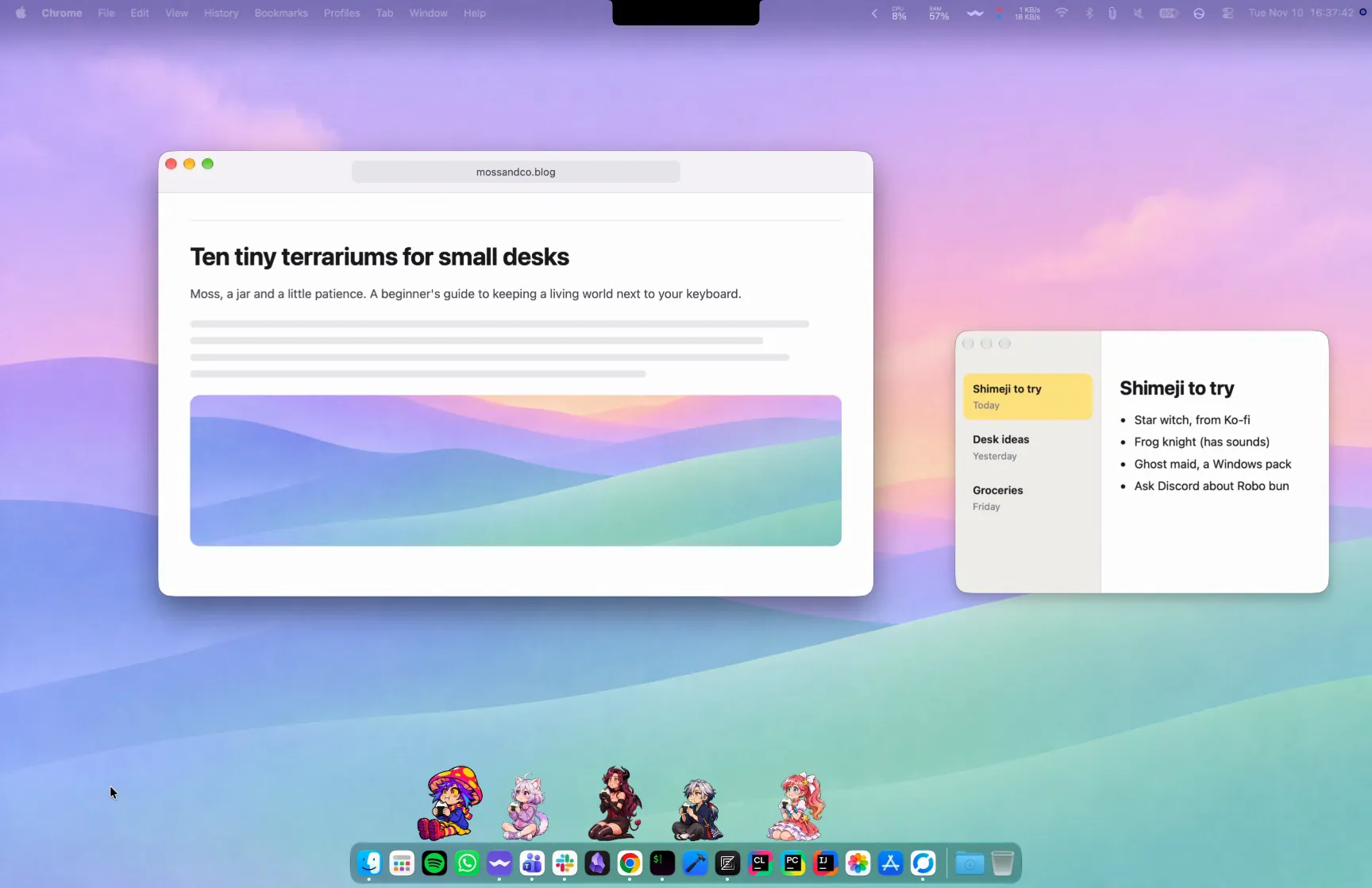
The clip was made in the app on Pro, because the free plan shows one type at a time, and it shows the five friends at the dinner a charger brings.
The catch: the free plan puts one character type on screen at a time, up to 3 copies, and the knock, lid and purr reactions work on Shimejiko herself only. Pro lets every type out together and gives all of them those reactions, which also depend on the sensors inside your MacBook. If friends get in the way, press Option-Command-H (⌥⌘H) to hide everyone from any app, and again to bring them back.
Shimejiko is free to download for macOS 14 Sonoma or later on Apple silicon and Intel, and Pro costs $5.99 once for up to 3 Macs (checked 2026-11-23). Get Shimejiko, see what the characters do on a MacBook, or tune them for battery life.
Questions
What apps should I get on a new Mac?
Start with the jobs your old computer did for you: Bitwarden if you also use Windows or Android, Raycast as a launcher (Alfred on an Intel Mac) and AppCleaner for the day you remove something. On Tahoe or macOS 27, try Spotlight's clipboard history, Menu Bar settings and Charge Limit before you pay for an app that does the same.
What are the best free Mac apps?
Free with nothing to unlock: IINA, AppCleaner and Maccy from its own site. Free with paid extras: Raycast, Alfred, Bitwarden and AlDente.
Do I still need a clipboard manager on macOS 27?
Not for simple use. Command-Space, then Command-4, opens Spotlight's clipboard history, kept for up to 7 days. A manager such as Maccy adds pinned items and pasting without formatting, and works on Sonoma and Sequoia too.
Do I need an app to uninstall Mac apps?
No. Drag the app from Applications to the Trash, or run its Uninstaller if it came with one, as Apple describes. AppCleaner adds a list of the related files the app left elsewhere, so you can delete those as well.



