Shimeji ZIP, RAR and JAR files: which one do you import?

Also in日本語한국어繁體中文简体中文EspañolDeutschPortuguês (Brasil)Français
Quick answer
Import the complete ZIP, RAR, 7z archive or extracted folder into Shimejiko. Keep artwork and configuration together; you do not need to run the Java launcher bundled with some older packs.
Download for MacA Shimeji ZIP, RAR or JAR download can be confusing when all you wanted was a little character on your Mac. Older downloads often bundle artwork, movement instructions and a program together. For Shimejiko, look for the character's images and configuration, not a launcher to run. Here is how to tell them apart before importing.
ZIP, RAR and JAR do different jobs
- ZIP is an archive that can hold a whole character pack. Shimejiko imports it directly, so you do not need to unpack it first.
- RAR is another archive format. Shimejiko imports RAR directly too, along with 7z. Converting a RAR to ZIP is not a required step.
- JAR is a Java archive. In many older Shimeji downloads, a
.jarbelongs to the program that runs the character. It is not the file to double-click for a Shimejiko import.
The extension alone does not prove that a download contains a usable character or that its source is trustworthy. If a page offers only a Java program, look for the artist's complete character pack instead. Our download guide covers where to start looking.
Find the portable part of the pack
If you inspect an extracted copy, leave the original download intact. Look for these pieces:
- Images, often in
imgorimg/CharacterName, with names such asshime1.png. Some packs use other image names or subfolders. - Movement configuration, commonly
actions.xmlandbehaviors.xmlinconf. Older Japanese packs may use動作.xmland行動.xml. - Optional extras, such as a
soundfolder orshimejiko.json, which can describe the character and its Mac magic reactions.
Keep the folder structure together. A shared conf folder may sit beside img, rather than inside one character's folder. Dragging out just the PNGs can lose the artist's custom movements. Shimejiko recognizes several layouts, including extra enclosing folders, so start with the complete pack rather than rearranging it.
A pack without configuration is not automatically broken. Shimejiko can use standard behaviors for standard-frame artwork. That does not recreate custom movements that were left behind in another folder.
Import the pack, not its bundled program
- Save the artist's ZIP, RAR or 7z archive, or keep the complete extracted folder.
- Open Shimejiko's Library and drop the archive or folder into its import area. You can also click the area to choose a file.
- Read the import result. Check any skipped items before putting the character on screen.
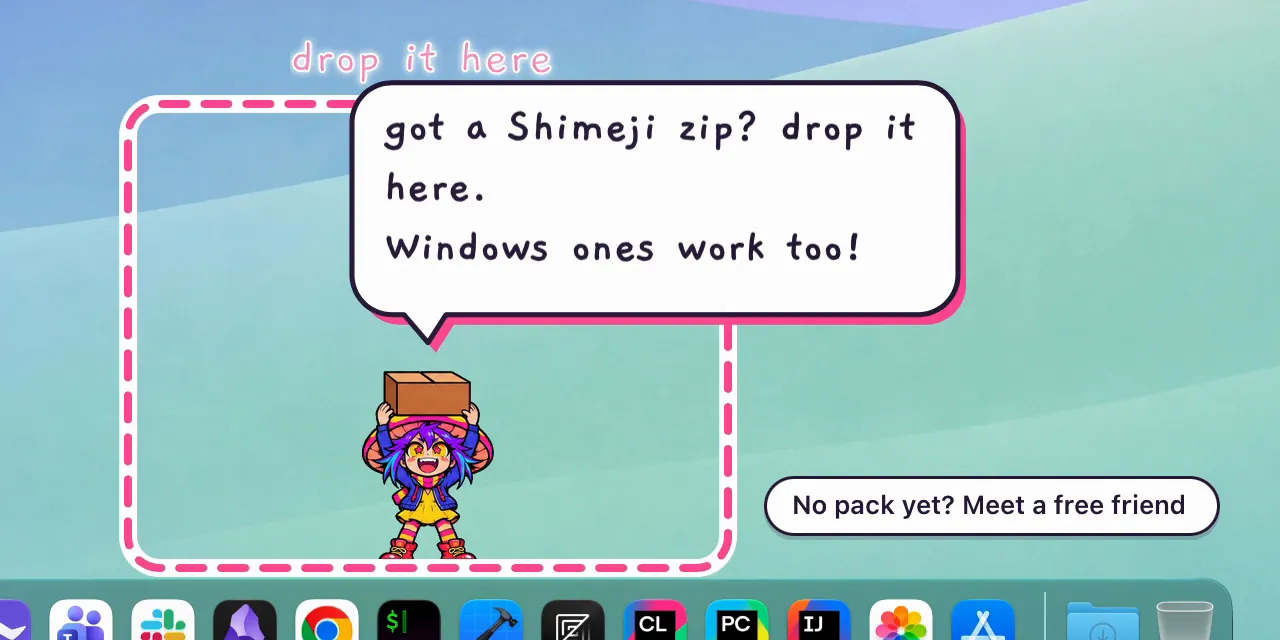
The clip shows the app's welcome drop area. Its on-screen bubbles are in English.
Shimejiko ignores bundled .jar, .class, .exe, .dll and .bat files while collecting pack contents. It reads the character data without running those launchers. There is no need to install Java or run a bundled script for this import. For broader source checks, see is Shimeji safe?.
If the import fails, keep the reported reason and consult Shimeji not working. Renaming .jar to .zip does not create missing artwork or fix configuration. Download Shimejiko for Mac when your pack is ready.
Questions about Shimeji file formats
Can I import a JAR like a ZIP?
Do not treat every .jar as a character pack. The file chooser offers pack archives and folders, not JAR as a listed pack type. Prefer the full archive or folder containing the artwork and configuration.
Do I need to extract a RAR first?
No. Shimejiko reads RAR directly. If you already extracted it, import the complete folder and keep shared configuration with the images.
Does a successful import mean the download is safe?
No. Import success tells you that character data loaded, not that every bundled file is trustworthy. Keep using the artist's original source and do not run unfamiliar launchers.

