How to use Shimeji: the controls, menus and tricks on Windows and Mac

Also in日本語한국어繁體中文简体中文EspañolDeutschPortuguês (Brasil)Français
Quick answer
To use Shimeji, start the program and play with the mouse: drag a character to pick it up, let go to throw it, and right-click it for its menu. Here is every control in Shimeji-ee on Windows and Shimejiko on a Mac, from adding characters and hiding them all to stopping the multiplying, with a short guide to the browser extension and the Android app.
Download for MacTo use Shimeji, start the program, then play with the characters using your mouse: drag one to pick it up, let go mid-swing to throw it, and right-click it for a menu that calls another copy, makes it do a move or sends it away. On Windows, Shimeji-ee keeps its options for everyone on its tray icon. On a Mac, Shimejiko keeps them in a mushroom in the menu bar, and ⌥⌘H hides everyone.
We make Shimejiko. Facts about Shimeji-ee come from kilkakon.com, the readme in its download and its published source code, and facts about the other apps from their own pages, all checked on 15 November 2026.
What are the basic Shimeji controls?
Drag to pick a character up, let go to throw it, and right-click it for its menu. The rest lives on the tray icon in Windows or the menu bar on a Mac.
| What you want | Shimeji-ee (Windows) | Shimejiko (Mac) |
|---|---|---|
| Start | Double-click Shimeji-ee.jar |
Open Shimejiko, then Put on screen in the Library |
| Another copy | Right-click › Call Another | Right-click › Call another |
| A new character | Copy its folder into img |
Drop its zip on the window or the menu bar icon |
| Pick up and throw | Drag, then let go | Drag, then let go |
| A specific move | Right-click › Set Behaviour | Right-click › Do something |
| Hide everyone | No hide; Pause Animations freezes them | ⌥⌘H |
| Stop multiplying | Untick Breeding/Cloning | Cloning is off unless you turn it on |
| Quit | Tray icon › Dismiss All | Menu bar icon › Quit Shimejiko |
| Size | Scaling, 0.5x to 8x | Size, 0.5× to 2.5× |
| Speed | No setting | Walking speed, 0.5× to 2× |
| Windows they climb | Only titles on a list you keep | Every window, except apps you exclude |
How do you start Shimeji?
Start the program that runs the characters, and they drop onto your screen.
- On Windows: download Shimeji-ee from kilkakon.com and unzip it. Its readme asks for Windows Vista or later and Java 8. Double-click
Shimeji-ee.jar: one character appears for each character folder inimg, and its icon appears in the notification area of the taskbar. Shimeji-ee starts in English, and Language on that icon's menu switches it. - On a Mac: download Shimejiko from shimejiko.app and open it. It runs on macOS 14 or later, Apple silicon or Intel, with no Java. After a short welcome show, open the Library, click a character and choose Put on screen. Our guide to getting Shimeji on a Mac goes step by step.
How do you add more characters?
Call another copy from a character's right-click menu, and add a new character by importing its pack.
In Shimeji-ee, right-click a character and choose Call Another, or right-click the tray icon and choose Call Shimeji for one of your active characters at random. A new pack goes into the img folder as its own folder, and Choose Shimeji... on the tray menu picks which ones are active.
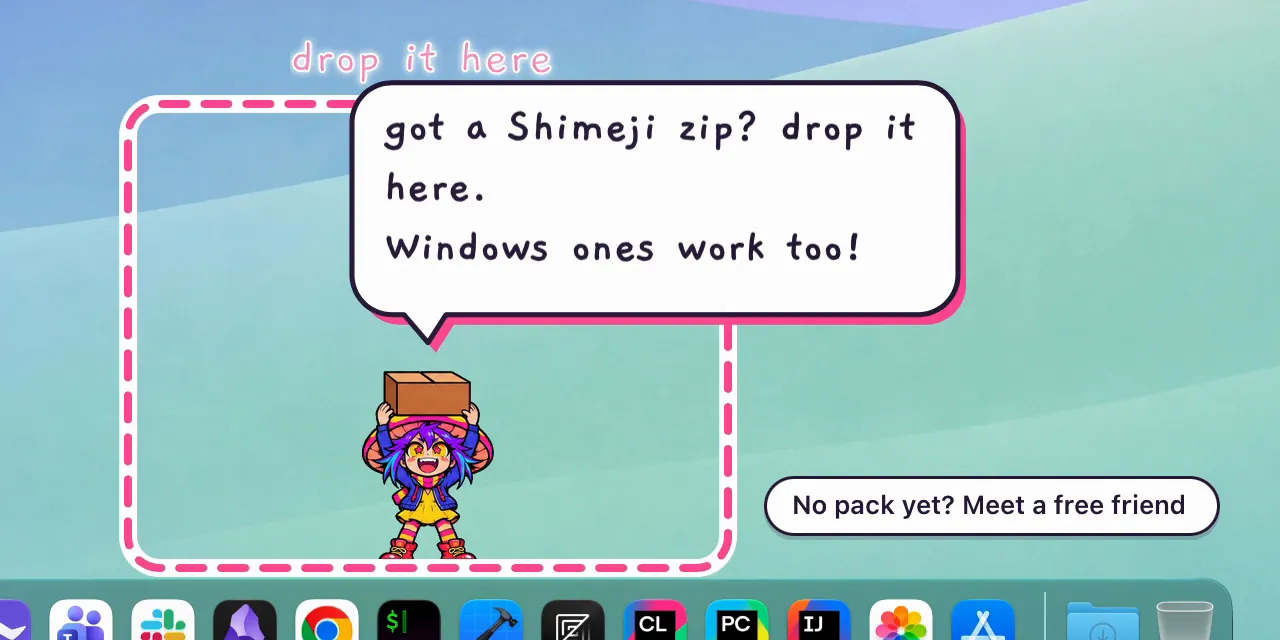
In Shimejiko, drop the pack's zip, rar or 7z file, or its folder, on the Shimejiko window or the menu bar mushroom, or choose File › Import a Shimeji Pack…. Windows packs work as they are. For copies, choose Call another, or open Add a friend in the menu bar and click or drag one of your 5 most recent characters onto the screen.
Our catch: the free version shows one character type at a time, up to 3 copies. Pro, a one-time $5.99, lets every type out together.
How do you pick up and throw a Shimeji?
Press on a character and drag: it dangles from the pointer. Let go while you're still moving and it flies off at the speed of your pointer. Both programs work this way, because the pack's own Dragged and Thrown moves do it.
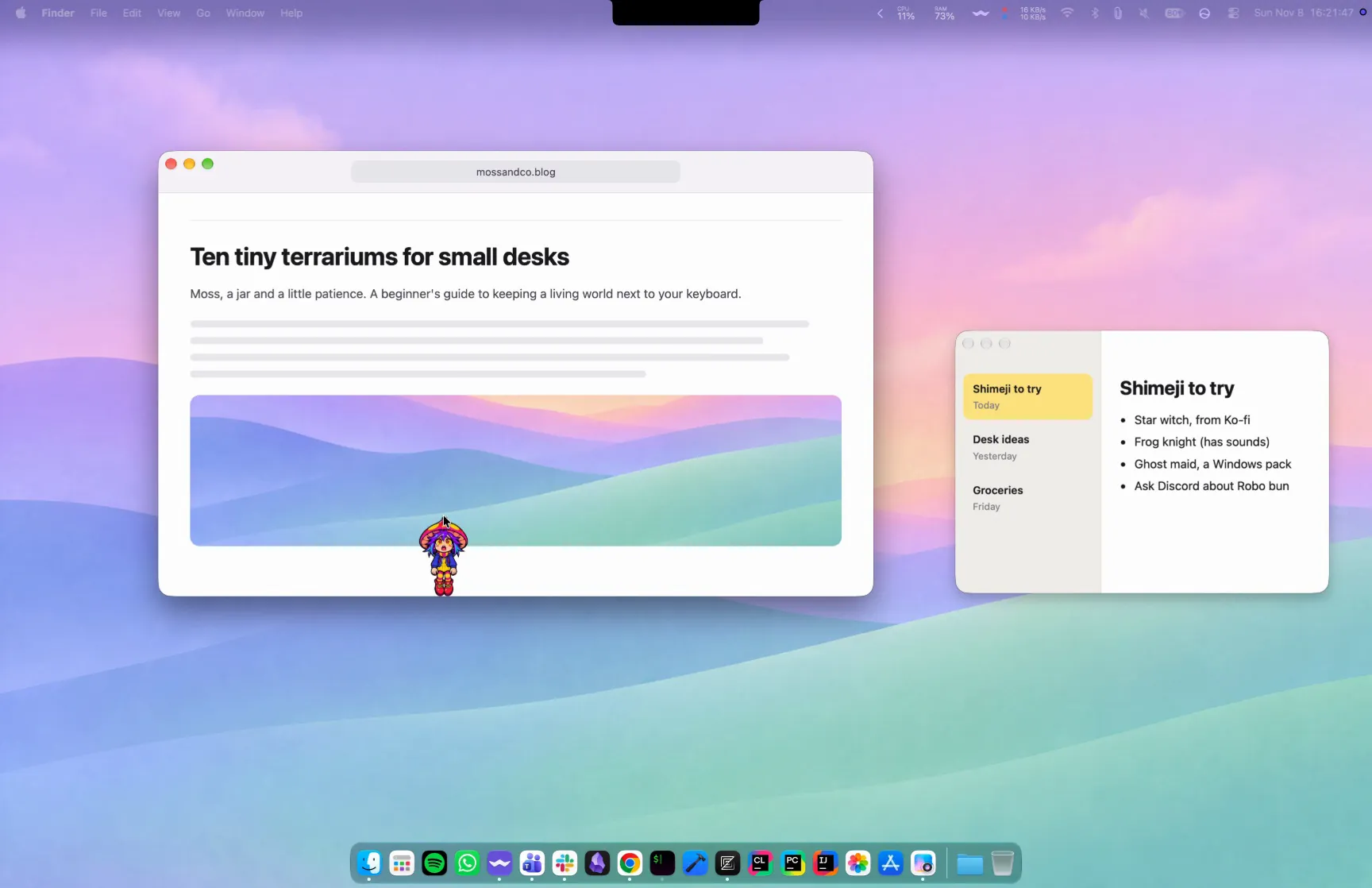
On a Mac, clicks around the characters reach the app underneath. A MacBook adds Mac magic: stroke the trackpad with two fingers over a character and it purrs, and on MacBooks with the sensor, a knock makes them jump. In the free version Mac magic works on Shimejiko herself.
What does each item in the right-click menu do?
Right-click a character for its own menu. In Shimeji-ee:
- Call Another: one more copy of this character.
- Follow Cursor: every copy of this character chases your pointer.
- Restore Windows: puts back the windows they threw.
- Reveal Statistics: its position and current move.
- Set Behaviour: a list of its moves, to run one now.
- Allowed Behaviours: switches for Breeding/Cloning, Transients, Transformation, Throwing Windows, Sound Effects and Move Between Screens.
- Pause Animations: freezes this one until you resume it.
- Dismiss, Dismiss Others, Dismiss All Others: send away this one, the other copies of this character, or every other character.
- Dismiss All: closes Shimeji-ee.
In Shimejiko, under the character's name:
- Do something: the pack's own moves, to run one now. Right-click moves in Settings › Behaviors hides this list.
- Call another and its name: one more copy.
- Find on screen: draws a ring around it, handy when it's tiny.
- Dismiss, or Dismiss every and its name: sends away this one or all its copies. The pack stays in the Library.
- Hide everyone: hides the whole crew until you bring them back.
- Open in Library…: its page, with its settings and the test bench.
- Settings…: opens Settings at Characters.
What's on the tray icon and the menu bar icon?
They hold the options for everyone. Right-click Shimeji-ee's tray icon for Call Shimeji, Follow Cursor, Reduce to One, Restore Windows, Allowed Behaviours, Choose Shimeji..., Settings, Language, Pause Animations and Dismiss All.
Click Shimejiko's menu bar mushroom for a switch that shows or hides everyone, Add a friend, Hide everyone, Calm mode, Pause Mac magic, Open Shimejiko…, Shop…, Replay the welcome show and Quit Shimejiko. Closing the Shimejiko window doesn't stop the characters. In the window, the Crew screen shows who is out and where, with buttons to find, pause, call another or dismiss each one.
How do you hide them all for a moment?
On a Mac, press ⌥⌘H, and press it again to bring everyone back. It works from any app, even full screen, and Settings › General lets you change it. Option-clicking the menu bar mushroom does the same, and Settings › Auto-hide can hide them while you present in Keynote or PowerPoint or a video plays full screen. For quieter company, Calm mode means fewer copies, no window throwing and slower walks.
Shimeji-ee has no hide button or shortcut. Pause Animations on the tray menu freezes everyone in place, and Dismiss All closes the program. Shimeji-ee's catch: it needs Java, runs only on Windows, and can't clear your screen for a minute without quitting.
How do you stop Shimeji from multiplying?
Turn cloning off. In Shimeji-ee, Breeding/Cloning stays on until you untick it under Allowed Behaviours, on the tray icon or any character. Reduce to One on the tray menu then leaves a single character, and Dismiss Others leaves one copy of the character you right-clicked.
In Shimejiko, cloning is off from the start. If you turned it on, switch Cloning off in Settings › Behaviors: packs stop splitting and the copies they made leave. New copies per minute in Settings › Characters sets how often they may split while it's on. More in Shimeji multiplying on Mac.
How do you close Shimeji or remove a character?
Dismiss sends one character away in both. To quit Shimeji-ee, right-click the tray icon and choose Dismiss All, as its readme says. To keep a character from loading, move its folder into img/unused; to uninstall, delete the unzipped folder.
In Shimejiko, the × next to a character on the Crew screen dismisses it too, and Quit Shimejiko in the menu bar (⌘Q) quits. To remove a pack for good, right-click it in the Library and choose Delete…. See how to remove Shimeji characters.
How do you change their size and speed?
In Shimeji-ee, open Settings from the tray icon: the General tab has Scaling, from 0.5x to 8x, and Opacity, and the characters reload at the new size. There's no speed setting; how fast a character walks is written in its pack's actions.xml.
In Shimejiko, open Settings › Characters: Size goes from 0.5× to 2.5×, Walking speed from 0.5× to 2×, and there's Opacity. Changes apply right away. With Pro, each character also gets its own Size and Speed, on the Crew screen or its Library page. More in how to change Shimeji size and speed.
How do you let them climb and throw your windows?
Shimeji-ee only climbs windows whose title contains a word on its list, in Settings › Interactive Windows. The download starts with Chat, Notepad, Friends and Windows Live Messenger, so add a word from each window's title bar. Throwing Windows under Allowed Behaviours lets them toss windows aside, and Restore Windows brings them back.
Shimejiko's characters climb, sit on and ride every window without any permission (Climb and ride windows in Settings › Behaviors). Throwing windows also needs Window access, the macOS Accessibility permission, which you can allow in the same pane. A list there keeps them off certain apps' windows, and Pro lets you change it. Our guide to Shimeji Mac permissions explains what Accessibility allows.
How do you use the Shimeji browser extension?
Click the orange mushroom icon at the top right of Chrome and choose Spawn Shimeji. Right-click a character to give it a command, and switch the extension off from the same mushroom icon. That's how the FAQ of the Shimeji Browser Extension by Shimejis.xyz describes it. The catch: the characters stay inside web pages, and the free extension is funded by ads on its site. Compare it in Shimeji browser extension or Shimejiko.
How do you use Shimeji on Android?
Install Shimeji: Play with Screen Pets by Digital Cosmos from Google Play, open it, allow it to display over other apps when it asks, then pick a character and select it. Its listing says you can tap, drag and toss them, run up to 10 at once, turn on Ghost Mode so they ignore your touches, and import compatible PC Shimeji packs. The catch: the listing shows ads and in-app purchases. More in Shimeji on Android.
Questions
How do you get Shimeji?
On Windows, download Shimeji-ee from kilkakon.com; it needs Java. On a Mac, download Shimejiko free from shimejiko.app. Chrome has the Shimeji Browser Extension, and Android has apps on Google Play. Then add character packs from artists you trust.
How do you check a pack that acts oddly?
In Shimejiko, open it in the Library and run its test bench. It plays every move frame by frame and shows any mistake in the pack's files with its line number.
Do my Shimeji-ee packs work on a Mac?
Yes. Shimejiko runs Shimeji and Shimeji-ee packs, Windows-only ones included, from a zip, rar or 7z file or a folder, without Java.
The controls make more sense in your hands. Download Shimejiko free, pick Shimejiko up off a window and throw her.



