Mac lock screen: every way to lock your Mac, and what you can change on macOS 27, Tahoe, Sequoia and Sonoma

Also in日本語한국어繁體中文简体中文EspañolDeutschPortuguês (Brasil)Français
Quick answer
To lock a Mac, press Control-Command-Q, choose Apple menu › Lock Screen, press the Touch ID key on keyboards that have one, or move the pointer into a hot corner set to Lock Screen. What the Mac lock screen shows is split between two places in System Settings: Lock Screen for the message, the password delay and the login window, and Wallpaper for the picture and, on Tahoe and macOS 27, the clock. This guide compares Apple's pages for all four versions setting by setting.
Download for MacTo lock your Mac screen, press Control-Command-Q or choose Apple menu › Lock Screen. On a keyboard with Touch ID, one press of the Touch ID key locks it too. To change what the Mac lock screen shows, open System Settings: Lock Screen holds the message, the password delay and the login window, and Wallpaper holds the picture and, on macOS 26 Tahoe and macOS 27, the large clock.
Every Apple page linked in this guide was read on 23 November 2026. For the comparison, we put four editions of Apple's Mac User Guide page Change Lock Screen settings next to each other, for macOS 27 Golden Gate, Tahoe, Sequoia and Sonoma, and did the same with the wallpaper, screen saver, Touch ID, Apple Watch and hot corner pages. Keys come from Apple's Mac keyboard shortcuts article, published September 14, 2026. What Shimejiko does at the end comes from the app's own source code.
Which ways can you lock a Mac?
| Way | What you do | Worth knowing |
|---|---|---|
| Keys | Control-Command-Q | Needs no special key, so any keyboard will do |
| Apple menu | Apple menu › Lock Screen | Apple's screen saver page says this starts the screen saver as well |
| Touch ID key | Press it once | Only on keyboards with Touch ID. It's also the power button: pressing and holding it forces the Mac to turn off |
| Hot corner | Push the pointer into a corner you've set to Lock Screen | Set up in System Settings › Desktop & Dock › Hot Corners |
| Close the lid | Shut a MacBook's display | The Mac goes to sleep, and asks for your password on waking if Require password is set |
| Walk away | Leave it idle | The display turns off after the time you chose in Lock Screen settings, and the password follows the same rule as above |
Locking isn't the same as logging out. A locked Mac keeps your apps and windows open behind the password. Shift-Command-Q logs you out of your account instead, after asking you to confirm, and Option-Shift-Command-Q logs out at once. Apple menu › Sleep, or Option-Command-Media Eject on keyboards with that key, puts the whole Mac to sleep (Apple). The rest of the system keys are in our Mac keyboard shortcuts guide.
Apple adds a warning worth reading once: locking the screen doesn't stop someone else from turning off the Mac, restarting it and logging in. If an app you use doesn't save changes on its own, save before you get up.
How do you make a hot corner lock the Mac?
From Apple's hot corners page for macOS 27:
- Open System Settings and click Desktop & Dock in the sidebar, the pane our Dock guide walks through.
- Click Hot Corners.
- Open the pop-up menu for the corner you want and choose Lock Screen.
- Click Done.
To avoid locking by accident when the pointer drifts, keep Command, Shift, Option or Control held down while the pop-up menus are open, and the corner will lock only with that key pressed. Leave the bottom-right corner alone if you use Quick Note, its default job. More corner ideas are in MacBook tips and tricks.
How do you unlock a Mac without typing the password?
Touch ID. In System Settings › Touch ID & Password, click Add Fingerprint, enter your password and follow the prompts, then choose to use Touch ID to unlock your Mac. Apple allows three fingerprints per user account and five per Mac. You still type the password when the Mac starts up, every 48 hours, and after five fingerprints it didn't recognize (Apple).
Apple Watch. In the same Touch ID & Password pane, go to Apple Watch and turn on the switch beside your watch's name. Then press any key, or lift a MacBook's lid, while wearing the watch, and the Mac unlocks. Apple's checklist: the same Apple Account on both devices, Wi-Fi, Bluetooth and two-factor authentication on for the Mac, a passcode on the watch, and both devices meeting Auto Unlock's system requirements (Apple). The same switch lets the watch approve requests, such as viewing passwords: double-click its side button.
Apple's Sonoma edition of the watch page says more about which hardware qualifies: watchOS 6 or later and a Mac from mid-2013 or later. To check yours, it suggests Apple menu › About This Mac › More Info › System Report, then Wi-Fi under Network, where the Mac says "Auto Unlock: Supported".
On a shared Mac, an administrator's name and password unlock the screen for that administrator or a standard user, but not for a different administrator (Apple).
What can you change on the Mac lock screen?
Here is each job and where macOS keeps it. The first column of places covers macOS 26 Tahoe and macOS 27, which Apple documents identically for these settings; the second covers Sonoma and Sequoia.
| You want to change | macOS 27 and Tahoe | Sequoia and Sonoma |
|---|---|---|
| The picture behind it | Wallpaper | Wallpaper |
| The large clock, and whether it shows | Wallpaper › Clock Appearance, with a font and weight | Lock Screen › Show large clock |
| A message, such as how to return a lost Mac | Lock Screen › Show message when locked | The same |
| Your picture | Users & Groups, click your picture | The same |
| A list of users, or typing name and password | Lock Screen › Login window shows | The same |
| Sleep, Restart and Shut Down buttons | Lock Screen › Show the Sleep, Restart, and Shut Down buttons | The same |
| Password hints | Lock Screen › Show password hints | The same |
| How soon the password is asked | Lock Screen › Require password after screen saver begins or display is turned off | The same |
| When the screen turns off | Lock Screen › Turn display off on battery when inactive, and on power adapter | The same |
| When the screen saver starts | Wallpaper › Screen Saver › Start Screen Saver | Lock Screen › Start Screen Saver when inactive |
A few of these deserve a note.
- Your picture is shared. Apple says the login picture also becomes your Apple Account picture and your My Card in Contacts. In Users & Groups, click the picture beside your login name, pick a Memoji, an emoji, a monogram, a photo from the camera or Photos, or a suggestion, drag and zoom it in the circle, then click Save (Apple). You can't change it for another user who is logged in at the time.
- Password hints appear when someone clicks the question mark in the password field, or after three wrong passwords in a row.
- The wallpaper is the one place for the picture: none of Apple's four Lock Screen pages offers a separate image. On macOS 27 and Tahoe, Apple's wallpaper page says the Landscape, Cityscape, Underwater and Earth aerials animate as you lock or unlock, and become your screen saver by default. Motion beyond that takes an app, compared in our live wallpaper guide.
What changed between macOS 27, Tahoe, Sequoia and Sonoma?
Below is every row of Apple's Lock Screen settings table in each edition, in Apple's order, with the wallpaper and screen saver lines that changed around it.
| Setting | macOS 27 | 26 Tahoe | 15 Sequoia | 14 Sonoma |
|---|---|---|---|---|
| Start Screen Saver when inactive | In Wallpaper › Screen Saver instead | In Wallpaper › Screen Saver instead | Yes | Yes |
| Turn display off on battery when inactive | Yes | Yes | Yes | Yes |
| Turn display off on power adapter when inactive | Yes | Yes | Yes | Yes |
| Require password after screen saver begins or display is turned off | Yes | Yes | Yes | Yes |
| Show large clock | In Wallpaper › Clock Appearance instead | In Wallpaper › Clock Appearance instead | Yes | Yes |
| Show 24-hour time | Not on Apple's page | Not on Apple's page | Yes | Not on Apple's page |
| Show user name and photo | Not on Apple's page | Not on Apple's page | Yes | Not on Apple's page |
| Show password hints | Yes | Yes | Yes | Yes |
| Show message when locked | Yes | Yes | Yes | Yes |
| Login window shows | Yes | Yes | Yes | Yes |
| Show the Sleep, Restart, and Shut Down buttons | Yes | Yes | Yes | Yes |
| Accessibility Options | Yes | Yes | Yes | Yes |
| Where the screen saver lives | Wallpaper › Screen Saver | Wallpaper › Screen Saver | Its own item in the sidebar | Its own item in the sidebar |
| Aerial wallpapers | Animate as you lock or unlock | Animate as you lock or unlock | Still images | Still images |
| Mac wallpaper and screen saver, pill shapes spelling Mac | Yes | No | No | No |
| Hot corner menu, Apple's examples | Notification Center, Apps, Lock Screen | The same | Notification Center, Launchpad, Lock Screen | The same |
Sources: the four Lock Screen pages linked at the top, Apple's Wallpaper settings pages for macOS 27 and Sequoia, its Screen Saver settings pages for macOS 27 and Sonoma, and the four hot corner pages. On Tahoe and macOS 27, Clock Appearance turns the large clock on or off, shows it on the Lock Screen alone or on both the screen saver and the Lock Screen, and adds a choice of font and weight. Sequoia's and Sonoma's Show large clock has the same placements, or neither, with no font choice.
Two things in Apple's pages don't line up, and here is what we did with each:
- What Turn display off controls. All four Lock Screen pages describe both Turn display off settings as how long the Mac can be inactive "before the screen saver starts". Apple's screen saver pages for Tahoe and macOS 27 say these settings decide when the display is turned off, that the screen saver has its own Start Screen Saver delay, and that it doesn't start once the display is off. Apple's sleep settings page also uses them to set when the Mac sleeps. We went with the setting's name and those two pages: it turns the display off.
- Show 24-hour time and Show user name and photo appear only in Sequoia's table. Sonoma's table doesn't list them, and neither do the Tahoe and macOS 27 Lock Screen or Wallpaper pages. We couldn't check a Mac on each version, so the table above reports what Apple's pages list, no more.
How do you put a message on the lock screen?
- Choose Apple menu › System Settings, then click Lock Screen in the sidebar. You may need to scroll down.
- Turn on Show message when locked.
- Type a short message.
Apple says the message shows in the login window when the Mac is locked, to anyone trying to log in, and suggests it for contact details in case the Mac is lost. A phone number or an email address you check is enough; skip anything you wouldn't put on a luggage tag. The steps and the setting's name are the same on all four versions.
How do you change how soon a Mac locks itself?
Two timers decide it, both in System Settings › Lock Screen:
- Turn display off on battery when inactive and Turn display off on power adapter when inactive set how long the Mac waits, idle, before turning the screen off, one for running on battery and one for when it's plugged in.
- Require password after screen saver begins or display is turned off sets how long after that the password is needed. Click its pop-up menu and choose a time (Apple).
For a Mac that locks the moment you look away, pick short times in both. For one that stays open through a long read, lengthen the display timers. On a MacBook, Battery › Options has "Prevent automatic sleeping on power adapter when the display is off"; on a desktop Mac, Energy has "Prevent automatic sleeping when the display is off". Apple notes that some options depend on the Mac. If you also run a screen saver, its own delay and choices are in our Mac screensaver guide, so we won't repeat them here.
Can the Mac lock screen show widgets or a live wallpaper?
Apple doesn't document widgets there. None of its Lock Screen or Wallpaper pages for these four versions mentions widgets on the Lock Screen, and the macOS 27 and Tahoe "What's new" pages don't mention a change there. What moves is the wallpaper: on Tahoe and macOS 27 Apple's aerials animate as you lock and unlock. Some third-party wallpaper apps say they play on the Lock Screen as well; their claims, prices and requirements are in the live wallpaper guide.
What happens to Shimejiko's characters when you lock your Mac?
We make Shimejiko, a desktop pet for Mac: small characters that walk along the Dock, climb your windows and nap. They belong to the desktop, not to the Lock Screen, and the app's code shows exactly how they behave around a lock.
- They don't show on the Lock Screen. Shimejiko draws them in see-through windows of its own, one per display, above your apps. Nothing in the code draws on the Lock Screen or the login window, and Apple's settings pages for these versions have no spot for another app there. Apple says Lock Screen starts the screen saver, which hides the desktop, and the characters are on the desktop.
- A lock doesn't send them away. The app never listens for the Mac locking (macOS's
com.apple.screenIsLockedsignal), and only the welcome show below watches for the display going to sleep. So nothing hides, pauses or resets your crew when you lock, and whoever was out is still on the desktop when you unlock. How far they wander while the Lock Screen covers them depends on how much time macOS gives an app nobody can see, which we haven't measured. - Closing the lid gets a goodbye. On a MacBook with a lid angle sensor, the characters wave as the lid goes below about 30 degrees, and yawn and stretch once it's back above about 40. Those moves belong to Shimejiko's own characters; a pack without them sits down, then stands back up. It needs Settings › Mac magic › Lid tilt switched on and a MacBook Air with M2 or later, or a 14- or 16-inch MacBook Pro from the M1 Pro and M1 Max on. The M1 MacBook Air, the 13-inch MacBook Pros, the MacBook Neo and Intel Macs have no lid sensor the app can read (which MacBooks have one). On the free plan only Shimejiko herself reacts, and Pro brings it to every friend. If your Mac asks for the password the moment it wakes, the stretch may play behind the Lock Screen while you type; we haven't checked which happens first.
- Waking from sleep. With Sync with iCloud on, in Settings › General, the app syncs your crew, settings and imported packs through your own iCloud five seconds after the Mac wakes.
- The welcome show waits for you. On first launch, Shimejiko plays a short show on the desktop where each step waits a while for you, then moves on. Its code stops that clock while the displays sleep or your user session switches out, as when another person logs in with fast user switching, and you come back to the same step. It doesn't listen for a lock as such, and Apple's developer notes on switching out don't say whether locking counts, so a lock with the screen still lit may use up part of a wait. If the show went on without you, Replay the welcome show is in the menu bar panel and in Help.
The drawback is plain: they're company while you work, not Lock Screen decoration. While the Mac is locked nobody sees them, and Shimejiko changes nothing about what the Lock Screen shows. If you'd rather find them gone in the morning, Settings › Auto-hide › Quiet hours, a Pro setting, hides everyone during the hours you pick and brings them back after, and ⌥⌘H (Option-Command-H) hides everyone at once from any app.
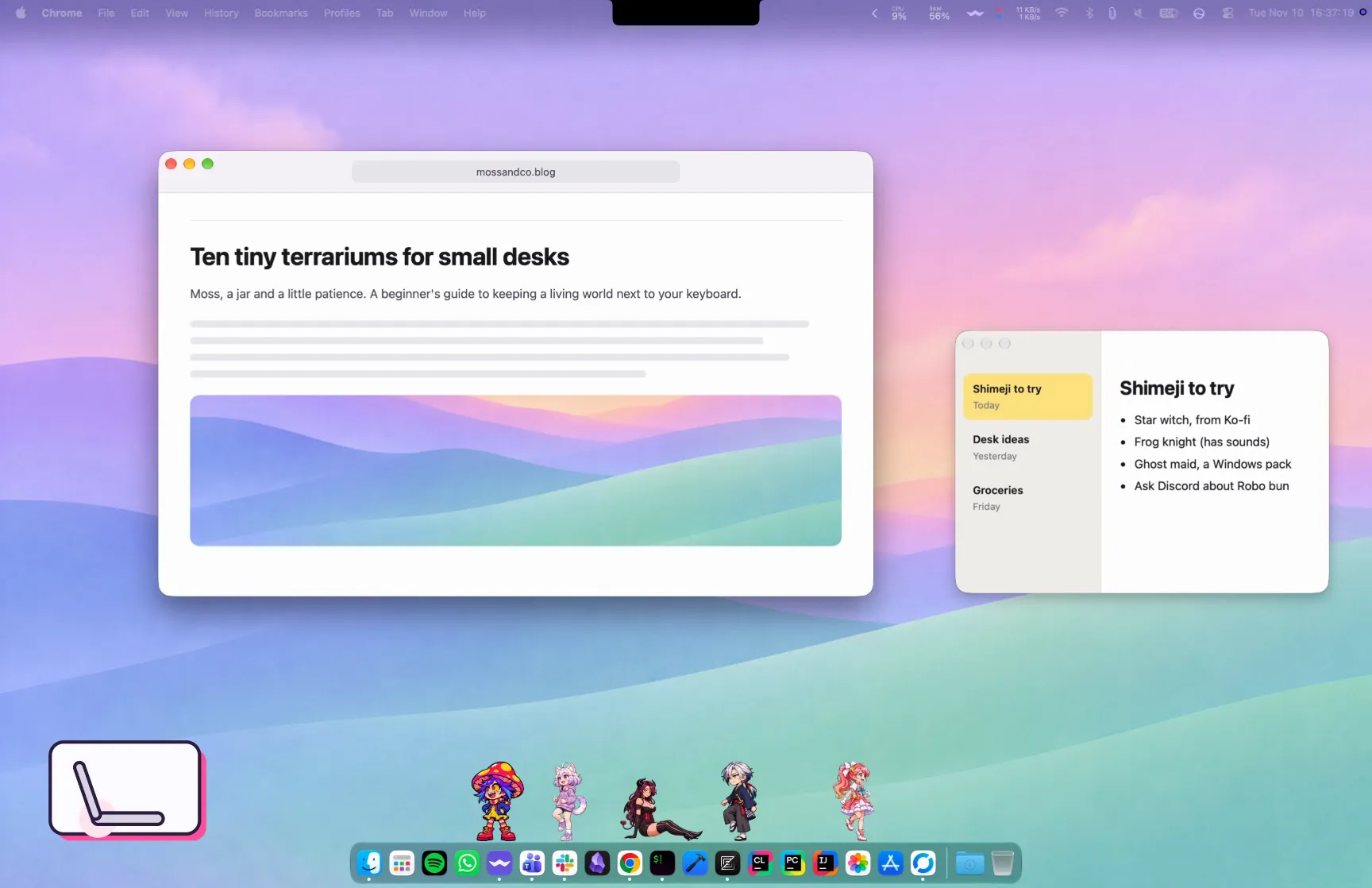
Recorded in the app with Pro on a MacBook, the clip shows the tilt part of the lid reaction: five friends on the Dock sliding with the screen's angle. The wave comes later, as the lid closes past about 30 degrees.
Shimejiko is free for macOS 14 Sonoma or later, on Apple silicon and Intel, with one character type on screen at a time and up to 3 copies of it. Pro costs $5.99 once, works on up to 3 Macs and lets every type out together (checked 2026-11-23 on shimejiko.app). Get Shimejiko, see how the crew reacts to a MacBook, or set them up to stay calm while you work.
Questions
How do I lock my Mac with the keyboard?
Press Control-Command-Q. On a keyboard with Touch ID, a single press of the Touch ID key locks the screen too; don't hold it, since holding forces the Mac to turn off.
Where did the lock screen clock settings go?
On macOS 26 Tahoe and macOS 27, open System Settings › Wallpaper and look for Clock Appearance, which sets where the large clock shows and its font and weight. On Sonoma and Sequoia it's Show large clock in Lock Screen settings.
Does locking a Mac close my apps?
No. Your apps and windows stay open behind the password, which is why Apple suggests saving your work first: a lock doesn't stop someone from restarting the Mac. Logging out with Shift-Command-Q is what closes your session.
Can the lock screen and the desktop have different pictures?
Not with Apple's settings. None of the Lock Screen pages for macOS 27, Tahoe, Sequoia or Sonoma offers a picture of its own; the only picture Apple describes is the wallpaper, in System Settings › Wallpaper. Apps that claim more are in our live wallpaper guide.



