Mac dictation: how to turn it on, the shortcut and Microphone key, every spoken command, what stays on your Mac, and what to do when it stops working

Also in日本語한국어繁體中文简体中文EspañolDeutschPortuguês (Brasil)Français
Quick answer
Mac dictation is built into macOS: turn it on under System Settings › Keyboard › Dictation, click where the words should go, press the Microphone key, Fn-D or your Dictation shortcut, and talk. This guide sets Apple's dictation pages for macOS 27, Tahoe, Sequoia and Sonoma side by side and covers the shortcut, every punctuation command, languages, what is sent to Apple, Voice Control for editing by voice, other voice to text apps, and fixes for dictation that isn't working.
Download for MacDownload on the App StoreTo dictate on a Mac, open System Settings, click Keyboard, turn on Dictation and click Enable. Then click where the text should go, press the Microphone key in the top row, press Fn-D or your Dictation shortcut, or choose Edit › Start Dictation, and start talking when the cursor pulses. Say punctuation as words, such as "comma" or "new paragraph", and press Esc, the Microphone key or the shortcut again to stop; the Shortcut pop-up menu in the same Dictation settings changes which keys start it.
What follows rests on pages opened on 26 November 2026. The core is the Mac User Guide topic Dictate messages and documents on Mac in four editions, macOS 27 Golden Gate, Tahoe, Sequoia and Sonoma, dated November 9, 2026, August 10, 2026, July 29, 2025 and May 13, 2024 in Apple's page data. We compared the same four editions of Commands for dictating text on Mac, If Dictation on Mac doesn't work as expected and Use Voice Control commands, and read older editions of the dictation page back to Catalina's, dated October 27, 2020. Keys come from Apple's articles Mac keyboard shortcuts, published September 14, 2026, and How to use the function keys on your Mac, published December 8, 2025, plus the MacBook Air keyboard page, dated November 5, 2026. Languages are from Apple's macOS Golden Gate Feature Availability page, and privacy from Apple's Siri, Dictation & Privacy notice, which carries no date. Claims from today's top results are credited to MeowTXT, iAccessibility or AbilityNet, app details to each maker, and the Shimejiko section comes from the app's source code. None of it was tried on a Mac.
How do you turn on dictation on a Mac?
These are Apple's macOS 27 steps. Tahoe and Sequoia print the same ones:
- Choose Apple menu › System Settings, then click Keyboard in the sidebar (scroll down if you don't see it).
- Go to Dictation and turn it on.
- Click Enable.
- If macOS asks about improving Siri and Dictation, click Share Audio Recordings to let Apple store the audio of your Siri and Dictation requests from this Mac, of which Apple may review a sample, or click Not Now.
You can change that answer later in System Settings › Privacy & Security › Analytics & Improvements, with the Improve Siri & Dictation switch. The switch from step 2 turns Dictation off again.
Nothing has to be installed. One of today's top results is titled as a guide to downloading Apple Dictation, but Dictation is part of macOS, and no Apple page we read sends you to a store or a website for it. The one download Apple mentions is for languages: its Feature Availability page marks on-device dictation "Requires download of speech models."
How do you use dictation on a Mac?
- In any app, click where the words should appear, so the insertion point sits there.
- Press the Microphone key if your keyboard has one, use the Dictation keyboard shortcut, or choose Edit › Start Dictation. Press and release the Microphone key: holding it down activates Siri instead, if Siri is on.
- Talk once the cursor is highlighted and pulsing, or after the tone that says your Mac is ready. On Sequoia and Sonoma a microphone icon appears by the cursor instead.
- Speak punctuation and layout as you go: "comma", "question mark", "new line" for one press of Return, "new paragraph" for two. Apple notes the new line or paragraph shows up once you finish dictating, not the moment you say it.
- Stop with Esc, the Microphone key or your shortcut. There's no limit on length, Apple says, and Dictation also stops by itself after 30 seconds without speech.
Two details make fixing mistakes easier. On a Mac with Apple silicon you can type while Dictation keeps listening: the cursor stops pulsing while your fingers are busy and starts again when they stop. And words Dictation wasn't sure of get a blue underline; Apple's example is "flour" where you meant "flower". Click the underlined word to pick another, or type or dictate over it.
On macOS 27, Apple adds that with Apple Intelligence, dictation runs an on-device model to improve spelling, punctuation and capitalization. That part works in English on Macs with M3 or later and at least 12GB of unified memory.
What is the dictation shortcut on a Mac?
Every way Apple documents to start Dictation:
| Way | What you do | What Apple adds |
|---|---|---|
| Microphone key | Press and release it in the top row | F5 on a MacBook Air; press and hold for Siri |
| Dictation shortcut | Press whatever Keyboard › Dictation › Shortcut is set to | Starts and stops Dictation |
| Fn-D | Hold Fn (or Globe) and press D | "Start or stop dictation"; the article says you may be able to set a different shortcut |
| Fn or Globe pressed twice | Works when "Press fn key to" or "Press Globe key to" is set to Start Dictation | You may be asked to enable dictation first |
| Edit › Start Dictation | Choose it from the app's menu bar | Listed beside the keys in step 2 |
To choose the shortcut:
- Choose Apple menu › System Settings, then click Keyboard in the sidebar.
- Go to Dictation, click the Shortcut pop-up menu, and choose a shortcut.
- For one that isn't listed, choose Customize and press the keys you want; Apple's example is Option-Z.
Pick Press Fn (Function) Key Twice and macOS switches the "Press fn key to" option, or "Press Globe key to" on some models, to Start Dictation (Press Fn Twice) on its own. On macOS 27 that option has four settings: Change Input Source, Show Emoji & Symbols, Start Dictation and Do Nothing. Our Mac emoji keyboard guide explains why the same double press can open emoji on one Mac and dictation on another.
Which shortcut is the default? Apple's current pages don't say. The last edition that did is Catalina's: "By default, you press the Fn (Function) key twice to start or stop keyboard dictation." MeowTXT's 2026 guide still calls Fn twice the usual default. On your own Mac, whatever the Shortcut pop-up shows is the answer.
Two neighbors cause confusion. In Apple's shortcuts article, Fn-Fn opens the Character Viewer, and pressing Command twice opens Type to Siri (Siri Classic); Fn pressed twice starts dictation only when the setting above says so. And if you've made the top row act as F1, F2 and so on (System Settings › Keyboard › Keyboard Shortcuts › Function Keys › "Use F1, F2, etc. keys as standard function keys"), Apple's function key article explains the setting but doesn't say what it does to the Microphone key; if that key stops dictating, try it with Fn held, or use Fn-D. The rest of the Mac's keys are in Mac keyboard shortcuts.
Which words turn into punctuation and symbols?
Apple's commands page says these work any time you're dictating. They're identical on macOS 27 and Tahoe; Sequoia and Sonoma say "open bracket" and "close bracket" where the newer pages say "open square bracket" and "close square bracket".
| Group | What to say |
|---|---|
| Punctuation | period (or point, dot, full stop), comma, question mark, exclamation mark, colon, semicolon, apostrophe, hyphen, dash, ellipsis, quote and end quote, begin single quote and end single quote, open and close parenthesis, open and close square bracket, open and close brace, open and close angle bracket |
| Typography | ampersand, asterisk, at sign, backslash, forward slash, caret, center dot, large center dot, degree sign, hashtag or pound sign, percent sign, underscore, vertical bar |
| Formatting | new line, new paragraph, tab key, numeral (the next phrase as a number), roman numeral, no space on, no space off |
| Capitalization | caps on (the next phrase in Title Case), caps off, all caps (the next word), all caps on, all caps off |
| Math | equal sign, greater than sign, less than sign, minus sign, multiplication sign (an x), plus sign |
| Currency | dollar sign, cent sign, pound sterling sign, euro sign, yen sign |
| Emoticons | smiley face, frowny face, winky face, cross-eyed laughing face (XD) |
| Intellectual property | copyright sign, registered sign, trademark sign |
Two extras depend on the language. Auto-punctuation drops in commas, periods and question marks while you talk; switch it off under Keyboard › Dictation › Auto-punctuation if you'd rather say every mark. Emoji by name, such as "heart emoji" or "car emoji", is the other. Apple's Feature Availability page lists 33 language and region entries for each.
Can you edit text by voice with Mac dictation?
Not with standard Dictation. Apple's list for it covers punctuation, layout, capitals and symbols, with nothing that selects, deletes, undoes or moves the cursor. Sonoma's edition of the commands page said so plainly: for commands to "select or delete text, capitalize or italicize words, or press the Return key", use Voice Control. While dictating, your editing tools are the blue underline, the keyboard (on Apple silicon, without stopping) and dictating the right word over one you've selected by hand.
MeowTXT's guide tells readers to say "select last sentence" or "delete that" in macOS Dictation. In Apple's guide, commands like those belong to Voice Control, whose example is "Replace cat with dog", and they aren't on Dictation's list.
How is Voice Control different from Dictation?
Voice Control is the larger tool: it types, edits and runs the whole Mac by voice. To turn it on, choose Apple menu › System Settings, click Accessibility, then Voice Control, and turn it on; or ask Siri to "Turn on Voice Control". The first time, the Mac needs the internet for a one-time file download from Apple, and after that it doesn't.
| Dictation | Voice Control | |
|---|---|---|
| Where you switch it on | Keyboard › Dictation | Accessibility › Voice Control |
| What it does | Turns speech into text where the insertion point is | Text plus editing, clicking, scrolling and opening apps |
| How it listens | When you start it with a key or the Edit menu | Whenever it's on; "Stop listening" and "Start listening" pause and resume it |
| Editing by voice | No | "Replace cat with dog", or "Delete" or "Uppercase" with an item's number |
| Spelling letter by letter | No | Spelling mode, with code words such as "Alfa Bravo Charlie" for abc |
| Internet | See the note under Dictation in Keyboard settings | Once, for the first download |
| Both at once | When Voice Control is on, standard Dictation isn't available | Voice Control does the dictating |
Voice Control's modes, per Apple's macOS 27 page:
- Dictation mode, on by default: anything that isn't a command is typed.
- Spelling mode: character by character, for passwords and web addresses.
- Command mode: it ignores everything but commands, so nothing lands in a text field by mistake.
- Swift mode, on Tahoe and macOS 27: it writes Swift code, placing spaces, operators and capitals itself.
Say "Show commands" to see what works in the app in front, "Show numbers" or "Show names" to label what's on screen, and "Show grid" to aim at a spot. Apple suggests a half-second pause between commands said in quick succession. The full list is in System Settings › Accessibility › Voice Control › Commands, and Open Tutorial there walks you through the basics.
Is Mac dictation processed on your Mac or sent to Apple?
It depends on the Mac and the language, and Apple's wording has moved over the years:
| Edition of Apple's dictation page | What it says about processing |
|---|---|
| Catalina 10.15 (2020) | Your words "are sent to Apple servers to be analyzed" |
| Big Sur 11 and Monterey 12 | "your dictated utterances are sent to Apple" |
| Ventura 13 | The same line, plus: on Apple silicon, requests are processed on your device "in many languages", no internet needed |
| Sonoma 14 | On Apple silicon, on your device for supported languages; on an Intel Mac or in a language without on-device support, sent to Apple; text dictated into a search box may go to the search provider |
| Sequoia 15, Tahoe 26, macOS 27 | Look under Dictation in Keyboard settings to see whether voice input and transcripts for general text are processed on your device and not sent to Siri servers; dictating in a search box is the stated exception |
The Feature Availability page has the language side: 48 entries for on-device dictation against 63 for Dictation itself. Catalan, Croatian, Czech, Greek, Hindi, Hungarian, Indonesian, Polish, Portuguese (Portugal), Romanian, Slovak and Ukrainian are among those in the second list only, which, by the rule Sonoma's page spelled out, means speech in them is sent to Apple.
Apple's privacy notice adds what happens on Apple's side. Audio isn't stored by Apple "unless you opt in to Improve Siri and Dictation" (or Improve Siri & Apple Intelligence). Request data is tied to "a random, device-generated identifier that rotates multiple times per hour", not your Apple Account, and Apple may keep it for up to two years. Dictation may also send context such as contact names and the names of your apps, and the history of your requests is stored on your device.
To delete what Apple holds, Tahoe's guide says: open System Settings, click Apple Intelligence & Siri (or Siri), click Delete Siri & Dictation History, then Delete. It needs the internet and covers requests less than six months old. The macOS 27 dictation page no longer mentions it, and asking for the macOS 27 edition of that page lands on the guide's welcome page, so we can't confirm where the button lives on macOS 27.
Two places show what is listening right now. Apple's macOS 27 page on microphone access says System Settings › Privacy & Security › Microphone lists the apps allowed to use it, each with its own switch, and its Control Center page says clicking a privacy dot in the menu bar shows which app is using the microphone, camera or system audio.
Which languages can you dictate in, and how do you switch?
- Choose Apple menu › System Settings, then click Keyboard.
- Go to Dictation and click Edit next to Languages.
- Select each language and region you want; deselect one to remove it.
With more than one language set up, switch while dictating by clicking the language abbreviation next to the cursor, or press the Globe key and choose one. What the Feature Availability page for macOS Golden Gate lists, counted on 26 November 2026:
| Feature | Language and region entries |
|---|---|
| Dictation | 63 |
| On-Device and Modeless Dictation | 48, with "Requires download of speech models." |
| Auto-Punctuation | 33 |
| Dictate Emoji | 33 |
| More advanced Dictation, with Apple Intelligence | 9, all English, from Australia to the United States |
If dictation spells British words the American way, or the reverse, check that the region matches; MeowTXT makes the same point about choosing English (U.S.) or English (U.K.).
What changed between macOS 27, Tahoe, Sequoia and Sonoma?
Sonoma to Sequoia rewrote the privacy wording; Tahoe swapped the microphone icon for a pulsing cursor; macOS 27 added Apple Intelligence and dropped the pointer to deleting your history.
| macOS 27 | 26 Tahoe | 15 Sequoia | 14 Sonoma | |
|---|---|---|---|---|
| Date in Apple's page data | November 9, 2026 | August 10, 2026 | July 29, 2025 | May 13, 2024 |
| Privacy at the top | Check the note in Keyboard settings | Same | Same | Spells out on-device on Apple silicon, sent to Apple on Intel |
| Apple Intelligence | On-device model for spelling, punctuation and capitals; English, M3 or later, 12GB | None | None | None |
| On and off | One section, Turn Dictation on or off | Same | Same | Turn on Dictation, and a separate Turn off Dictation |
| Ready signal | Cursor highlighted and pulsing, or a tone | Same | A microphone icon by a highlighted cursor, or a tone | Same as Sequoia |
| While you type | The cursor stops pulsing | Same | The microphone icon disappears | Same as Sequoia |
| How to stop | Esc, the Microphone key or the shortcut | Same | Same | The shortcut or Esc |
| Languages | Own section, "language and region" | Same | Same | Inside the turn-on steps, "language and dialect" |
| Switching language | The abbreviation next to the cursor, or Globe | Same | Next to the microphone icon, or Globe | Same as Sequoia |
| Delete history note | Gone | Present | Present | Present |
| Commands page | "open square bracket" | Same | "open bracket" | Same as Sequoia; intro sends editing to Voice Control |
| Troubleshooting page | "You may need an internet connection" | Same | Same | States on-device on Apple silicon, internet for Intel |
| Voice Control page | Swift mode; Open Tutorial | Same | Show text numbers; Open Tutorial, no Swift mode | Open Guide; no text numbers |
Before Sonoma the page looked different again. Ventura, Monterey and Big Sur describe a feedback window that "gauges your speaking volume" and end dictation with the shortcut, the Return key or a Done button; Catalina's is the one that names Fn pressed twice as the default.
Sources: the four editions of each page linked at the top, plus Voice Control's turn on page, Keyboard settings for macOS 27 and Sequoia (the Dictation rows match), Delete Siri and Dictation history for Tahoe, Control access to the microphone and the dictation page for Ventura, Monterey and Big Sur.
What do the top results get wrong or leave out?
Google's first page for "mac dictation" is mostly old or video. Following its links on 26 November 2026, we found:
- The top result is a 2019 YouTube video, and two more results are videos. The one titled "Let your Mac do the typing" is an Instagram reel, not an Apple support page.
- The second result is a Reddit post, "Dictation on macOS: Setup, Apps, and Pro Tips", in a subreddit about AI dictation apps. Reddit refused our request, so we couldn't read it.
- MeowTXT's "2026 guide" (dated March 27, 2026 in Google's results) promotes "Enhanced Dictation" for offline use and says that by default your words go to Apple's servers. No edition of Apple's page we opened, back to Catalina, mentions Enhanced Dictation, and Sonoma's says Apple silicon Macs process supported languages on the device. It also tells you to click "Done" below the microphone icon, which matches Ventura's feedback window rather than anything current, presents Voice Control phrases as Dictation commands, and quotes an accuracy of 75 to 85 percent from an unnamed buyer's guide; Apple publishes no figure.
- iAccessibility's command list dates from December 11, 2016. It says "Caps On" turns on Caps Lock; Apple's current page says caps on puts the next phrase in Title Case, and all caps on is the one for capitals. It also lists "Em Dash" and "Reverse question mark", which aren't on Apple's Mac list today.
- The download page ("How to Download Apple Dictation for Mac Easily?") sits on a help desk whose text didn't load for us. There's nothing to download beyond the speech models Apple's Feature Availability page mentions.
- AbilityNet's Sequoia walkthrough, cited in Google's AI Overview, follows Apple's steps for that version closely.
What none of the pages we could read covers: Fn-D, the Microphone key's press-versus-hold split with Siri, Voice Control switching standard Dictation off, the function key setting, macOS 27's Apple Intelligence model, or where your audio goes per macOS version.
Which other voice to text tools work on a Mac?
| Tool | What it's for | Cost and needs |
|---|---|---|
| Dictation | Speech into any text field | Free, in macOS |
| Voice Control | Dictating, editing and running the Mac by voice | Free, in macOS; one download the first time |
| Write with Siri | Asking Siri AI to compose, rewrite or proofread | Beta on macOS 27; Apple Intelligence Macs with M1 or later or a MacBook Neo; English, French, Japanese, Korean, Portuguese and Spanish to start |
| Wispr Flow | Dictation in any app, 100+ languages, on Mac, Windows, iPhone and Android | Free with limited words a week; Pro $15 per user a month, or $12 billed yearly (checked 2026-11-26) |
| Superwhisper | Voice to text with local and cloud models; says it works offline | Free tier after a 3,000-word Pro trial; Pro monthly, yearly or lifetime, prices not readable in our copy of the page (checked 2026-11-26) |
Write with Siri comes from Apple's Siri AI page, dated November 9, 2026; Apple says Siri AI isn't available in China mainland or to users under 13. Superwhisper's FAQ adds that Intel Macs work best with its cloud models, since its offline models run well only on Apple silicon. Any app that hears you needs microphone access, which you grant or take back in Privacy & Security › Microphone. We haven't tested either app. If you want your voice recorded rather than typed, that's a screen recording or QuickTime job; our Mac screen recording guide shows where to pick the microphone.
Why is dictation not working on your Mac?
Apple's troubleshooting page is the same on macOS 27, Tahoe and Sequoia. Its checks, with what the other pages add:
- Dictation is off. Open System Settings › Keyboard and check the Dictation switch.
- Voice Control is on. Then standard Dictation isn't available, and Voice Control takes what you say. Turn it off under Accessibility › Voice Control, or dictate with it.
- The shortcut isn't what you think. Look at the Shortcut pop-up under Dictation, and at "Press fn key to" or "Press Globe key to": a double press of Fn or Globe starts dictation only when that setting says Start Dictation.
- The Microphone key doesn't respond. If "Use F1, F2, etc. keys as standard function keys" is on, try the key with Fn held, or use Fn-D.
- The wrong microphone. A Mac with no built-in microphone needs an external one connected and chosen as the Microphone source under Keyboard › Dictation, or in Sound settings. Automatic picks the device you're most likely to use.
- Too quiet. For an external microphone, raise its input volume in System Settings › Sound › Input.
- Something covers the microphone. Apple names clothing and your own body; your Mac's guide shows where the microphone sits.
- Noise or echo. Apple suggests a headset microphone in a loud or echoing room, and speaking at a normal volume from your usual position.
- The language or region is wrong. Pick the one you're speaking under Languages.
- No internet. Some setups still need it; the note under Dictation in Keyboard settings says whether yours does, and Network settings shows your connection.
- It stops on its own. That's the 30 seconds of silence; start it again.
- "New line" seems ignored. Line breaks appear only after you stop dictating.
- Nothing appears. Click into a text field first; Dictation types where the insertion point is.
Does Shimejiko listen while you dictate?
We make Shimejiko, a free Mac app that sets small characters loose on your desktop to walk the Dock, climb windows and doze off. Dictation is when people start asking what else on their Mac is listening, so we read the app's source code for any use of the microphone and for how its typing cheer counts. This is what the code does; we didn't run it next to Dictation on a Mac.
- No microphone, anywhere in the code. Neither the app nor its two engine packages imports Apple's audio capture or speech frameworks; its sound code only plays sounds, such as the ones some packs include, and the Sounds setting for packs starts off. The website edition's Info.plist has no microphone usage description, the text macOS shows when an app asks for the microphone, and the app is built with the hardened runtime but without the Audio Input entitlement, which Apple's developer documentation describes as what lets such an app record with the built-in microphone. Nothing in it would put Shimejiko in Privacy & Security › Microphone or behind the menu bar's privacy dot. Is Shimeji safe? covers the rest of what it does and doesn't touch.
- The typing cheer counts key presses, not text. Once you allow Accessibility, it asks macOS for key-down events in other apps and keeps only the moment each key went down, skipping a held key's repeats. 120 presses inside 40 seconds sets off a cheer, at most every 2 minutes: up to three characters cheer with sparkles and confetti (packs without a cheer hop instead), and at most every half hour one of them adds a bubble telling you you're on a roll.
- So dictated words don't feed it, as far as the code goes. Nothing in the cheer watches text appear; it sees keys going down and nothing else. Words that arrive by voice without a key press don't add to the 120, and keys you do press, including the typing Apple silicon allows mid-dictation, still count. We haven't checked on a Mac whether macOS reports any part of Dictation as key presses.
- Turning it off. The Typing card on the Mac magic screen has a "Cheer while I type" switch, on by default once access is allowed, and Pause Mac magic in the menu bar mushroom stops it along with the other reactions.
- Esc during the welcome show. While Shimejiko's first-run show plays, it holds Esc from every app so you can skip the show, and the code notes other apps don't get Esc until the show ends, about two minutes at most, or the first Esc skips it. If you're dictating then, that first Esc skips the show; press it again, or stop with the Microphone key or your shortcut.
- Its own text boxes take dictation. The Library and Shop search fields are standard macOS search fields. The Library search filters on your Mac and reports nothing; the Shop search sends its anonymous analytics only how many results a settled search found, never the words, whether you typed or spoke them.
- Characters and the insertion point. Clicks pass through to the app underneath except over a character's drawn pixels. If one sits where you need to click, press Option-Command-H (⌥⌘H), a hot key that needs no permission, to hide everyone, and press it again to bring them back. Our guide to a desktop pet while working has more ways to keep them out of the way.
- A knock is felt, not heard. Knock reads the MacBook's motion sensor, the accelerometer in its base, and ignores anything within a quarter second of a key press or click, using only the timing.
The catch is the flip side of counting keys and nothing more: the cheer can't reward work it never sees, so a page you speak rather than type may pass without one, and no setting counts dictation instead.
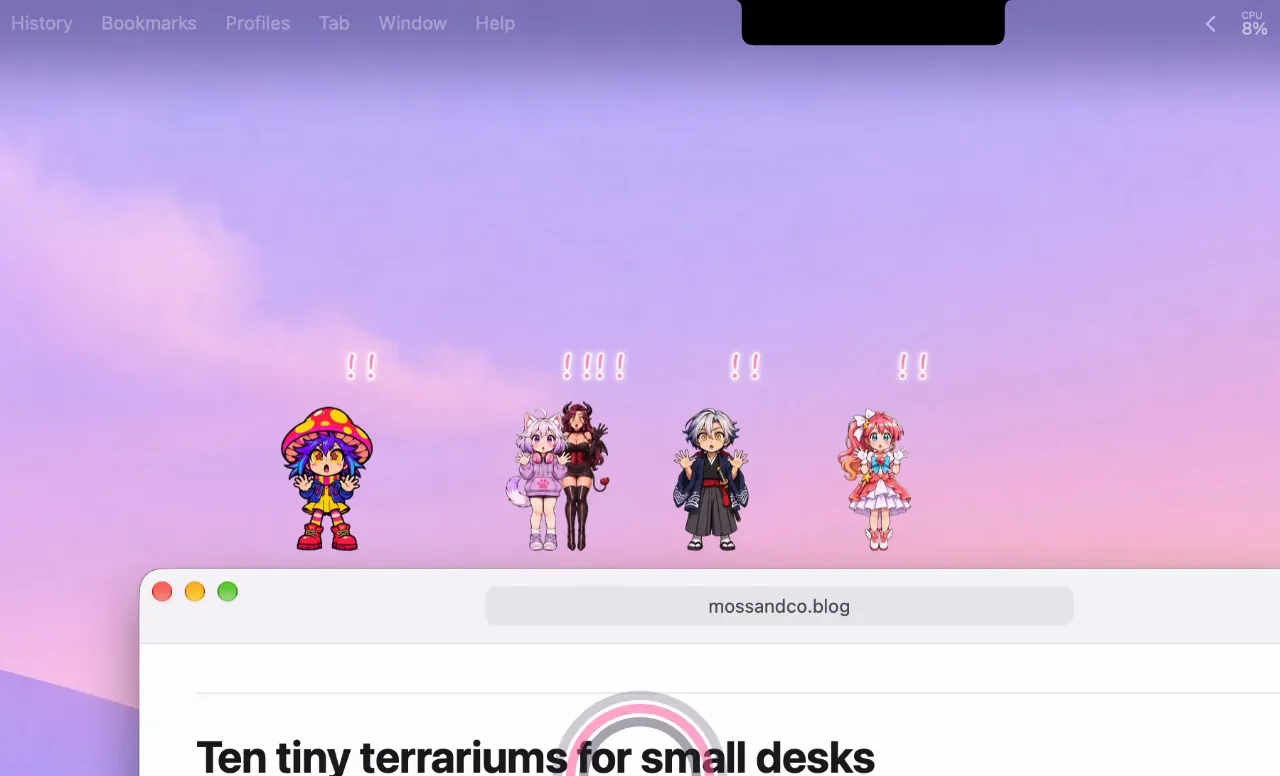
Recorded in the app with Pro, since five different characters are out together: a knock makes them jump with exclamation marks overhead, and a harder one sends them falling through the window. Knock comes from the motion sensor, not from sound. On the free plan only Shimejiko herself reacts to a knock, and it needs a MacBook with that sensor, which our guide to slapping a MacBook explains.
Shimejiko is a free download for macOS 14 Sonoma or later, on Apple silicon and Intel. The free plan lets one character type out at a time, up to 3 copies of it; Pro is a single $5.99 payment for up to 3 Macs that brings the whole crew out together, each reacting to knocks, the lid and purrs (price checked 2026-11-26 on shimejiko.app). Download Shimejiko, or see which Mac permissions it asks for, and why.
Questions
Is dictation on a Mac free?
Yes. Dictation and Voice Control are both part of macOS, and you switch them on in System Settings rather than buying or installing anything. The only downloads Apple mentions are speech models for on-device dictation and Voice Control's one-time file.
Does Mac dictation work offline?
Often, on Apple silicon. Sonoma's page says those Macs process supported languages on the device with no internet needed, while Intel Macs and unsupported languages send speech to Apple. On Sequoia and later, the note under Dictation in Keyboard settings tells you which applies to your Mac.
Why does Mac dictation stop by itself?
Apple says Dictation stops automatically after 30 seconds without speech. There's no limit on how long you talk, so start it again with the Microphone key or your shortcut and carry on.
What's the difference between Dictation and Siri on a Mac?
Dictation types what you say; Siri answers or acts on it. The Microphone key does both: press and release it to dictate, press and hold it to talk to Siri. On macOS 27, Write with Siri can also draft or rewrite text for you if Siri AI is on.
How do you dictate and edit text by voice on a Mac?
Use Voice Control, under System Settings › Accessibility › Voice Control. It dictates like Dictation and also takes editing commands such as "Replace cat with dog"; while it's on, standard Dictation isn't available.