How to use AirDrop on a Mac: send, receive and find your files

Also in日本語한국어繁體中文简体中文EspañolDeutschPortuguês (Brasil)Français
Quick answer
To AirDrop from a Mac, open Finder › AirDrop and drag a file onto the recipient. Going the other way, tap Share › AirDrop on the iPhone and pick the Mac. Here’s how to find what arrived and what to check when a device doesn’t appear or asks for a code.
Download for MacDownload on the App StoreTo use AirDrop on a Mac, turn on Wi-Fi and Bluetooth on both devices and keep them within 30 feet (10 meters). To send from your Mac, open Finder › AirDrop and drag the file onto the recipient. To send from an iPhone to your Mac, open the item on the iPhone, tap Share › AirDrop and select the Mac. If the Mac asks you to accept, do so and look in Downloads first.
How do you turn on AirDrop on a Mac?
Open Control Center in the Mac menu bar and click the AirDrop icon. Blue means it’s on. Open the options next to AirDrop to pick Contacts Only or Everyone. On an iPhone or iPad, open Control Center, press and hold the connectivity controls, then tap AirDrop and choose Contacts Only or Everyone for 10 Minutes. The setting that matters when a device doesn’t show up is the one on the receiving device.
How do you AirDrop from a Mac to an iPhone or another Mac?
- On the receiving device, turn on AirDrop and choose who can send to it.
- On the sending Mac, click AirDrop in the Finder sidebar, or press
⇧⌘Rin Finder. Drag the file onto the intended recipient. If the item is already open in an app with a Share button, choose Share › AirDrop there instead and select the recipient. - On the receiving device, select Accept if prompted. Transfers between devices signed in to the same Apple Account are accepted and saved automatically.
How do you AirDrop from an iPhone to a Mac, and where does the file go?
- On the iPhone, open the item in an app such as Photos or Files. Tap Share, then AirDrop, and choose your Mac. The same steps work on an iPad.
- On the Mac, click Accept if prompted. If the AirDrop window is open in Finder, look for the prompt there rather than in Notification Center.
- Look in Downloads (in Finder, press
⌥⌘L). Some items offer a choice: if you opened a photo in Photos instead of saving it to Downloads, look in Photos. On an iPhone or iPad, a photo sent from Photos generally goes to Photos; other files may appear in Files.
When does AirDrop ask for a code?
Apple’s guides for macOS 27 Golden Gate and macOS 26 Tahoe describe AirDrop codes starting with macOS 26.2, iOS 26.2 and iPadOS 26.2. The macOS 15 Sequoia and macOS 14 Sonoma guides don’t show this step.
When the code prompt appears for someone outside your contacts, the recipient chooses to continue and gets the code on their device. The sender enters it on theirs. Apple says the pair can share again for 30 days without another code. Everyone for 10 Minutes is a separate setting: it makes the iPhone discoverable temporarily and doesn’t skip the code when one is required.
Why isn’t AirDrop working on your Mac?
- No device appears. Check Wi-Fi, Bluetooth and AirDrop on both devices, move them within 30 feet (10 meters), and check the receiver’s AirDrop setting. If Personal Hotspot is on, disconnect it before retrying.
- Contacts Only isn’t finding you. The recipient needs a contact card for you with the email address or phone number tied to your Apple Account. For a one-off transfer, the recipient can temporarily choose Everyone on a Mac or Everyone for 10 Minutes on an iPhone or iPad. Confirm the recipient before sending.
- You can select the device, but nothing arrives. Check the receiving device for an acceptance or code prompt. If it still fails, restart and retry with one small file.
Steps checked against Apple’s Mac guides above, the iPhone User Guide, iPhone and iPad AirDrop support and Mac keyboard shortcuts on November 27, 2026. We didn’t test transfers between specific devices or software versions.
What if the file is a Shimeji pack?
Here’s a handoff we care about: a friend sends you a Shimeji pack they’ve made. AirDrop gets the .zip to the Mac; it doesn’t install the character. With Shimejiko open, choose File › Import a Shimeji Pack… and select the ZIP you received. See how to use a Shimeji pack for the next steps.
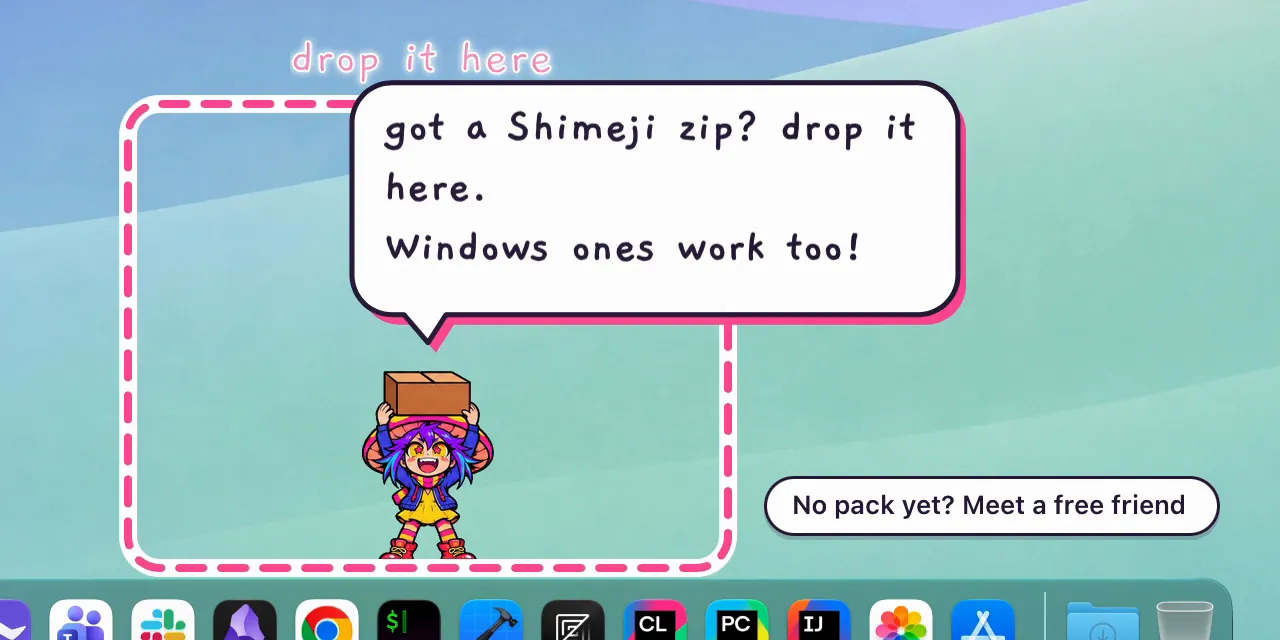
This clip shows Shimejiko’s welcome show importing a pack after the file is already on the Mac. It doesn’t show an AirDrop transfer.
Questions
Can you AirDrop a file to yourself?
Yes. When both devices are signed in to the same Apple Account, the receiving device accepts and saves the item automatically.
Do both devices have to join the same Wi-Fi network?
No. For a nearby transfer, turn on Wi-Fi and Bluetooth and keep both devices close. Apple Platform Security explains that AirDrop connects the devices directly over Wi-Fi. The Mac guide notes that a transfer already underway can continue over the internet if the devices go out of range.



