Mac Launchpad: what replaced it in macOS Tahoe and 27, every way to open and organize apps now, and the apps that bring the grid back

Also in日本語한국어繁體中文简体中文EspañolDeutschPortuguês (Brasil)Français
Quick answer
The Mac Launchpad, the full-screen grid of apps in Sonoma and Sequoia, is gone from macOS 26 Tahoe and macOS 27. Apple's guide now sends you to the Apps icon in the Dock, which opens Spotlight's app view, and Fn-Shift-A, a hot corner or a pinch of thumb and three fingers open it too. This guide sets Apple's pages for all four versions side by side, gathers every route to an app, covers folders and deleting apps, and reports what WIRED, MacKeeper and the replacement apps say.
Download for MacDownload on the App StoreOn macOS 26 Tahoe and macOS 27 Golden Gate, the Mac has no Launchpad. Apple's guide replaces it with Spotlight's app view: click the Apps icon in the Dock, or click Spotlight in the menu bar and press Command-1, then type an app's name and press Return, or click its icon. Fn-Shift-A, a hot corner set to Apps, and pinching your thumb and three fingers together on a trackpad open the same view. On macOS 15 Sequoia and 14 Sonoma, Launchpad is still there: click the Launchpad icon in the Dock.
All of Apple's pages cited here were opened on 25 November 2026. Apple kept one help topic, ID mh35840, through the change and only renamed it, so its four editions line up directly: Use Launchpad to view and open apps on Mac for Sonoma and Sequoia, and View and open apps on Mac for Tahoe and macOS 27 Golden Gate. We compared the pages around it in the same four editions, and took keys and gestures from Apple's articles Use Multi-Touch gestures on Mac, published November 20, 2026, Mac keyboard shortcuts, published September 14, 2026, and Delete or uninstall apps on Mac, published June 8, 2026. Claims about getting the grid back are credited to WIRED, MacKeeper or an app's maker, and the Shimejiko part comes from the app's source code. Nothing here was tried on a Mac.
What happened to Launchpad on the Mac?
No Apple page we read announces a removal; the guide just stops naming Launchpad. Sequoia's edition of topic mh35840 begins "Launchpad on your Mac is a central location where you can view all of your apps and quickly open them." Tahoe's begins "Spotlight is the central location where you can search, browse, and open your apps." The neighboring pages followed, down to the Dock page, whose example of something you reach every day went from "Launchpad and the Trash" to "Safari and the Trash". Apple's What's new in macOS Tahoe describes the new Spotlight as a place to "browse your apps, files, and the contents of your Clipboard".
Others put it more plainly. WIRED's Justin Pot wrote on November 19, 2025 that Apple "has retired the Mac's Launchpad". Wikipedia's list of built-in macOS apps says Launchpad arrived with OS X Lion and that Tahoe replaced it with an Applications interface tied into Spotlight, sorting apps into categories much like the App Library on iPhone and iPad.
So has Launchpad been removed from the Mac? On Tahoe and macOS 27, as far as Apple's documentation goes, yes: no Launchpad page, no Launchpad row in Trackpad settings, no Launchpad among the hot corner choices, and no setting on any page we read that brings it back. Apple calls the new button "the Apps icon" in the Dock and "the Applications icon" inside Spotlight; both open what this guide calls the app view.
How do you open apps on macOS Tahoe and 27 without Launchpad?
Every route Apple documents, and what the same move does on the older versions:
| Route | What you do | On Tahoe and macOS 27 | On Sequoia and Sonoma |
|---|---|---|---|
| The Apps icon | Click it in the Dock | Opens the app view | The Launchpad icon sits there instead |
| Spotlight's Applications icon | Click Spotlight in the menu bar, then the Applications icon, or press Command-1 | Opens the app view | No app view; type a name |
| Command-Space bar | Type the app's name, press Return | Opens the best match | Same |
| Fn-Shift-A | Press it on a keyboard with an Fn or Globe key | Shows or hides Apps | Shows or hides Launchpad |
| Pinch | Thumb and three fingers together on a trackpad | Shows your installed apps | Displays Launchpad |
| Hot corner | System Settings › Desktop & Dock › Hot Corners | Choose Apps | Choose Launchpad |
| The Spotlight key | F4 on a MacBook Air, then Command-1 | Spotlight, then the app view | Spotlight only |
| Siri | Ask Siri to open the app | Opens it | Same; these pages suggest "Open Calculator" |
| Recent Items | Apple menu › Recent Items | Apps you used lately | Same |
| Finder | Applications in the sidebar, then double-click | Opens the app | Same |
| The app's Dock icon | Click it | Apple's "quickest way" | Same |
Sources: the four editions of Open apps on Mac and of the hot corners page, the keyboard shortcuts article for Fn-Shift-A, the gestures article and Trackpad settings for the pinch, and Apple's Magic Keyboard page for MacBook Air, dated November 5, 2026, which labels F4 "Spotlight Search". Pressing Command-1 after F4 is our combination of two Apple pages, not a step Apple prints. In the hot corner pop-up, Apple adds, you can hold Command, Shift, Option or Control to tie a corner to a key; our Mac lock screen guide walks through that pane. The rest of Spotlight's keys are in Mac keyboard shortcuts.
Inside the app view, Apple's Tahoe and macOS 27 pages describe these moves:
- Type in the search field and press Return, or click an icon.
- Press the arrow keys to move between apps.
- Click a category along the top, such as Productivity & Finance.
- Click the More button and choose Grid or List; the same menu can show your iPhone apps.
- Drag an app to the Dock, or to the desktop "for easy access".
- Press Esc, or click outside the Spotlight window, to close it.
Games from Apple Games land in an Arcade category, which a compatible game controller can browse.
What changed between Sonoma, Sequoia, Tahoe and macOS 27?
Tahoe made the break; macOS 27 kept Tahoe's page word for word apart from the name of a Screen Time link. The topic, edition by edition:
| macOS 27 | 26 Tahoe | 15 Sequoia | 14 Sonoma | |
|---|---|---|---|---|
| Title | View and open apps on Mac | Same | Use Launchpad to view and open apps on Mac | Same as Sequoia |
| Date in Apple's page data | November 9, 2026 | August 10, 2026 | July 29, 2025 | May 13, 2024 |
| First sentence | "Spotlight is the central location where you can search, browse, and open your apps." | Same | Launchpad is where you "view all of your apps and quickly open them" | "easily" in place of "quickly" |
| How to open it | Apps icon, or Spotlight's Applications icon | Same | Launchpad icon in the Dock | The Dock, "or use the Control Strip" |
| How to close it | Click outside the Spotlight window, or Esc | Same | Click anywhere except on an app, or Esc | Same as Sequoia |
| Getting around | Arrow keys and categories | Same | Arrow keys; pages by swiping, Command-Left or Right Arrow, or the dots at the bottom | Pages by swiping or Command-Left or Right Arrow |
| Layout | Grid or List, iPhone apps optional | Same | Pages you arrange | Same as Sequoia |
| Folders | None documented | None documented | Drag one app onto another to make one; rename, add, remove; Return opens, Escape closes | The same, without those two keys |
| Deleting apps | No section | No section | Click and hold until icons jiggle, then Delete | Same |
| Games | Arcade category, from Apple Games | Same | Games folder, from the App Store | Same |
| Apps not from the App Store | Drag them to the Applications folder | Same | Same | Same |
| Dragging an app out | To the Dock or the desktop | Same | To the Dock | Same |
| Screen Time limits | Dimmed icons with an hourglass | Same | Same | Same |
The pages around the topic changed in step:
| Apple page | macOS 27 and Tahoe | Sequoia and Sonoma |
|---|---|---|
| Open apps on Mac | Click the Apps icon, then an app | Click the Launchpad icon |
| Use hot corners | "such as Notification Center, Apps, or Lock Screen" | "such as Notification Center, Launchpad, or Lock Screen" |
| Change Trackpad settings, More Gestures | No row for the pinch | "Pinch your thumb and three fingers to display Launchpad." |
| Spotlight keyboard shortcuts | Command-1 searches Applications; 2 to 4 search Files, Actions, Clipboard | No numbered shortcuts |
| Install and uninstall apps | No App Store line | "To uninstall apps you downloaded from the App Store, use Launchpad." |
| Apps included on your Mac | See them with the Apps icon, or type a name in Spotlight | See them with the Launchpad icon |
| Mac keyboard shortcuts article | Fn-Shift-A is Apps on "macOS Tahoe 26 or later" | Launchpad "on earlier versions of macOS" |
Sources: the four mh35840 pages linked at the top, plus the four editions each of Open apps, Use hot corners (Sonoma's), Change Trackpad settings (Sequoia's), Spotlight keyboard shortcuts (Sequoia's), Install and uninstall apps (Sequoia's), Apps included on your Mac and Use the Dock.
Two gaps stand out. Tahoe's and macOS 27's Trackpad settings pages dropped the Launchpad row without adding an Apps row, while the gestures article still lists "Apps: Pinch your thumb and three fingers together to show your installed apps." Apple documents the pinch, then, but not a switch for it, and we couldn't look at the pane. And the folder and delete sections vanished with no page saying where those jobs went.
What happened to your Launchpad folders and pages?
Apple doesn't say. Its Tahoe and macOS 27 pages document categories, Grid or List and search, and nothing you arrange by hand. WIRED describes the app view as an alphabetical list of apps from your Mac and iPhone, and names "the lack of folders, and the missing full-screen option" as reasons you might not want it. MacKeeper says it puts your most-used apps at the top and the rest alphabetically below, with no custom folders, no drag-to-reorder and no full-screen look.
Is the old layout still on your Mac? Three replacement apps say they can read it. LaunchNext's README says its one-click import reads the old Launchpad's own database file to recreate your folders, app positions and layout; LaunchOS lists "Import Native Launchpad Layout"; Launchie says it imports from the original Launchpad, LaunchNext or LaunchOS for free. That's the makers' word. Apple documents none of it, and we haven't tried an import.
Apple's own ways to group apps on Tahoe and macOS 27 are plainer:
- The Dock. Apps go left of the separator line, files and folders right of it, and you drag icons to reorder them. Dragging one off until Remove appears deletes only the alias. Settings and Dock apps are in how to customize the Dock on a Mac.
- The Applications folder as a Dock grid. Drag the Applications folder to the files side of the Dock, or, as MacKeeper describes, Control-click Applications in a Finder sidebar and choose Add to Dock. Control-click it in the Dock and Apple's folders in the Dock page offers Display as Folder or Stack, sorting by name, date added or date created, and viewing contents as a Fan, Grid or List. MacKeeper calls it the quickest workaround with no download, and WIRED suggests it too. Any secondary click works instead of Control-click, as our right-click guide explains.
- The desktop. Apple's tip: drag an app from the app view onto the desktop.
- Finder folders. WIRED suggests sorting apps into real folders in the Finder. Apple doesn't say whether the app view still lists an app moved into a subfolder of Applications, so move one and check before you move fifty.
How do you get the old Launchpad grid back?
Not from Apple, on any page we read. MacKeeper's guide of June 11, 2026, by Yana Khodun, says Apple "hasn't provided a native way to restore the classic full-screen grid" and that a Terminal command that worked during the macOS 26 beta "was blocked in the official release". WIRED reported that projects reviving Apple's actual Launchpad needed a lot of hacking and broke with updates, and Pot found none working. With no source showing a command working on Tahoe or macOS 27, this guide gives none.
What those writers point to instead is a separate app that draws its own grid. Each claim and price below is from the maker's own page, checked 2026-11-25:
| App | What its maker says it does | Price | Needs |
|---|---|---|---|
| Launchie | A full-screen grid you arrange, folders, sections it calls Spaces, search, hidden apps; imports an old layout | Free, with an optional Pro | macOS 26 or later |
| LaunchOS | A Launchpad-style grid that imports the native layout; Pro adds hot corners, the F4 key, a custom grid and complete uninstalls | Free Basic plan; lifetime Pro $11.99 for 1 Mac, $18.99 for 2, $35.99 for 5, 7-day trial | macOS 26 or later |
| LaunchNext | The classic look, with one-click import of the old Launchpad's folders and layout | Free, open source under GPL-3.0 | macOS 26 or later |
Launchie was WIRED's pick as the best free replacement. In November 2025 Pot found it free in the Mac App Store with no in-app purchases; its site now lists an optional Pro. He minded that it scrolls as one list rather than separate panels, and liked its folders and its full-screen or window choice. MacKeeper adds that it runs on Apple silicon only.
LaunchNext impressed WIRED with its import, but then it couldn't run without working around macOS security settings, which Pot didn't recommend, and he found it a touch slow. Its README now says releases from 2.4.2 on are signed and notarized by Apple, while warning that the developer may not renew the membership behind that.
LaunchOS puts opening its grid from a hot corner or the F4 key, and uninstalling apps, in its paid Pro.
MacKeeper also names AppGrid Launcher and AppHub; its article doubles as an advert for its own paid support. We didn't test any of these apps.
How do you delete apps now that Launchpad can't?
On Sonoma and Sequoia, Launchpad was Apple's documented way to remove App Store apps: click and hold until the icons jiggle, then click Delete. Tahoe's and macOS 27's pages drop that, and Apple's support article gives one Finder route for any app:
- Quit the app.
- Find it: click Applications in a Finder sidebar, or choose Go › Applications. Some apps sit in the Applications folder inside your home folder (Go › Home). From Spotlight, hold Command and double-click a result to show it in the Finder.
- If the app isn't Apple's, look beside it for an Uninstall or Uninstaller app. Apple calls that the best way, since it also removes login items, extensions and data stored elsewhere.
- Otherwise drag it to the Trash, or choose File › Move to Trash, entering an administrator's password if asked.
- Choose Finder › Empty Trash. Until then, File › Put Back returns the app.
You can't delete apps your Mac needs, which Apple says include Mail, Music, Books, Notes, Podcasts, Maps, News and Stocks, or anything in the System folder. Deleting an app keeps the documents you made with it and doesn't cancel a subscription bought through it. To look for data an app kept elsewhere, our guide to showing hidden files opens the hidden Library folder.
What's the best app switcher on a Mac?
Opening and switching are different jobs: the app view opens apps, a switcher moves between open ones. Apple's built-in switchers are Command-Tab, which moves to the next most recently used open app; Option-click on the current app's Dock icon, which switches back and hides it; Option-Command-click on another icon, which switches and hides the rest; and Mission Control, on a MacBook Air's F3 key, which shows every space and app window. Stage Manager is a fourth. Apple doesn't rank them, and we didn't test third-party switchers.
Where do you find Shimejiko on a Mac without Launchpad?
We make Shimejiko, a desktop pet for the Mac: small characters that walk along the Dock, climb the window in front and nap. People go looking for it in exactly the places this guide covers, and it stays out of one, the Dock, on purpose. This is what its source code does; we haven't checked it against the app view on a Mac.
- It lands where the app view looks. The website download, version 1.4.2, is a disk image whose window holds a shortcut to the Applications folder; drag Shimejiko onto it. Apple says an app not from the App Store appears in Spotlight once it's in Applications. It declares itself an Entertainment app, but Apple doesn't say how the app view picks categories, so search by name.
- No Dock icon once its window closes. Shimejiko is built as a menu bar app: its icon shows in the Dock only while its window is open. Settings › General › Keep the Dock icon, off by default, keeps it; the setting's note says otherwise "Shimejiko lives in the menu bar when this window is closed".
- The mushroom in the menu bar is the way in. Click it for a panel with Hide everyone, Calm mode, Pause Mac magic, Open Shimejiko… (Command-O), Shop…, Replay the welcome show and Quit Shimejiko (Command-Q). Option-click it to hide or show everyone, or drop a pack's zip on it to import the pack.
- Opening it again shows its window. macOS can tuck menu bar icons behind the notch or into an overflow, and the code plans for that. Opening Shimejiko from the app view, Spotlight or the Applications folder while it runs arrives as a reopen request, which the code answers by opening its window, so that should work when the mushroom is hidden.
- At login it comes back without a window. Open at login is on by default in the website edition, but the code registers it only after the welcome show ends, since macOS announces each new login item. Started that way, Shimejiko brings the characters back and leaves its window closed. Turn it off in Settings › General › Open at login; it uses macOS's own login item service, so it should also be listed under System Settings › General › Login Items & Extensions.
- A character can stand on the Apps icon. Clicks pass through to the Dock except over a character's own drawn pixels, so one parked on the Apps icon catches clicks on the part it covers. Drag it aside, or press Option-Command-H (⌥⌘H) to hide everyone and again to bring them back.
The catch is the flip side of keeping out of the way: once its window is closed, nobody finds Shimejiko in the Dock, and on a crowded menu bar the mushroom may be hidden too. The app view is then the reliable way back, or turn on Keep the Dock icon.
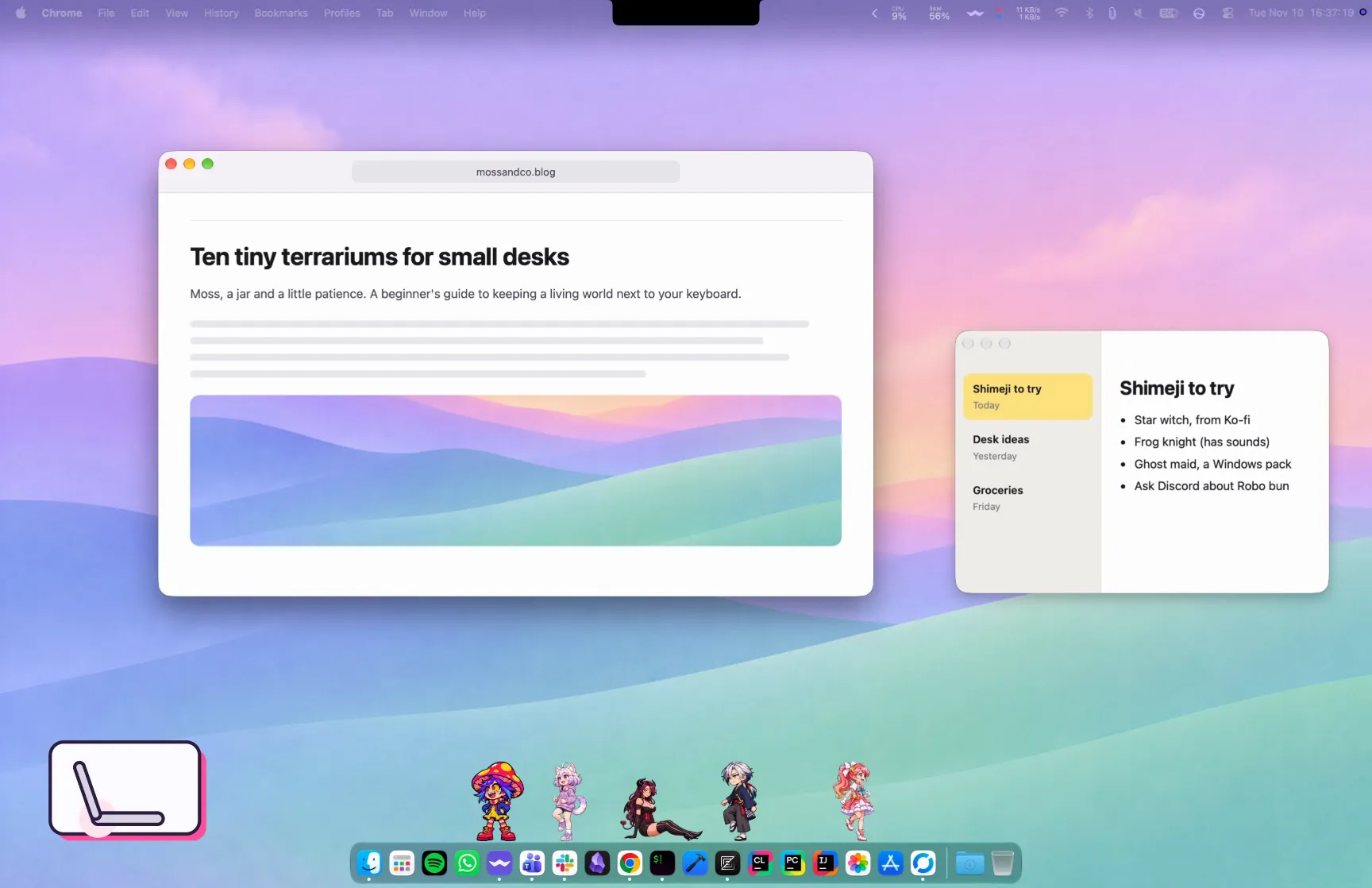
Recorded in the app with Pro, since five different characters are out together: moving a MacBook's lid sends the crew off the Dock and onto the browser window while the drawing in the corner tracks the lid. On the free plan the lid reaction reaches Shimejiko herself only, and it needs a Mac with a lid sensor, which our lid angle sensor guide lists.
Shimejiko is a free download for macOS 14 Sonoma or later, on Apple silicon and Intel. The free plan lets one character type out at a time, up to 3 copies of it; Pro is a single $5.99 payment for up to 3 Macs that brings the whole crew out together, each reacting to knocks, the lid and purrs (price checked 2026-11-25 on shimejiko.app). Download Shimejiko, or see what the characters do on a MacBook.
Questions
How do you activate Launchpad on a Mac?
On Sonoma or Sequoia, click the Launchpad icon in the Dock, press Fn-Shift-A, pinch your thumb and three fingers together on a trackpad, or set a hot corner to Launchpad. On Tahoe and macOS 27 there's no Launchpad to switch on; the same moves open the Apps view.
Can a Terminal command bring Launchpad back?
Not on the released versions, says MacKeeper: the command that worked in the macOS 26 beta was blocked. Apple documents none, and WIRED found no working way to restore the original, so both point to third-party grids.
Why are some app icons dimmed with an hourglass?
That's Screen Time. All four editions of Apple's page say icons dim and show an hourglass during downtime or after you reach a time limit set for apps.
Can the Apps view show iPhone apps?
Yes. Apple says the More button lets you show iPhone apps alongside your Mac's; WIRED found them in the list and hid them from the same three-dot menu.