Mac Activity Monitor: how to open the Mac's task manager, read CPU, memory pressure and Energy Impact, quit or force quit safely, and what kernel_task does

Also in日本語한국어繁體中文简体中文EspañolDeutschPortuguês (Brasil)Français
Quick answer
Activity Monitor is the Mac's task manager, built into every Mac: press Command-Space bar, type Activity Monitor and press Return, or find it in Applications › Utilities. This guide sets Apple's Activity Monitor User Guide for macOS 27, Tahoe, Sequoia and Sonoma side by side and explains each tab, memory pressure and swap, Energy Impact and App Nap, Quit versus Force Quit, kernel_task and WindowServer, the Dock graphs and how it differs from Task Manager.
Download for MacDownload on the App StoreActivity Monitor is the Mac's task manager, and every Mac already has it: press Command-Space bar, type Activity Monitor and press Return, or in the Finder choose Go › Utilities (Shift-Command-U) and double-click it. Click CPU, Memory, Energy, Disk or Network at the top of its window, then click a column heading to sort the list and see what is busiest. To end something, select it, click the Stop button in the upper-left corner and choose Quit, or Force Quit if Quit doesn't work; for a frozen app, Option-Command-Esc opens the Force Quit window without Activity Monitor.
What follows rests on pages opened on 26 November 2026. Activity Monitor has a user guide of its own: the current one, for version 10.14 of the app, has an edition for every macOS from Mojave to macOS 27, and an older one covers High Sierra. We compared all 13 of its pages in four editions: macOS 27 Golden Gate, Tahoe, Sequoia and Sonoma, dated in Apple's page data September 17, 2026, October 17, 2025, September 16, 2024 and September 26, 2023. From the Mac User Guide we compared the same four editions of What's it called on my Mac?, Open apps, Quit apps, If an app freezes or quits unexpectedly, Save energy on your Mac, Apps included on your Mac and Open items automatically when you log in. Apple's support articles: How to force an app to quit on Mac, published December 8, 2025; If kernel_task is using a large percentage of your Mac CPU, March 18, 2025; About Spotlight indexing and search results on Apple devices, August 25, 2026; Mac keyboard shortcuts, September 14, 2026; Mac tips for Windows switchers, April 6, 2026; and Use an external graphics processor with your Mac, January 12, 2024. Two archived Apple developer guides, both last updated September 13, 2016, fill gaps the user guides leave: the Energy Efficiency Guide for Mac Apps, on App Nap and energy monitoring, and the Cocoa Event Handling Guide. The Windows keys come from Microsoft's Keyboard shortcuts in Windows, dated September 2, 2026 in its page data. The Shimejiko section was read from the app's source code. Nothing in this guide was run or measured on a Mac.
How do you open Activity Monitor on a Mac?
Apple's page for people coming from Windows answers the naming question in one row, the same in all four editions: Task Manager on a PC is Activity Monitor on a Mac, "located in the Utilities folder in the Applications folder." Every way in that Apple documents:
| Route | What you do | macOS versions |
|---|---|---|
| Spotlight | Press Command-Space bar, type Activity Monitor, press Return | All four |
| The Apps view | Click the Apps icon in the Dock or press Fn-Shift-A, then type its name or click its icon | Tahoe 26 and macOS 27 |
| Launchpad | Click the Launchpad icon in the Dock, then the app | Sequoia and Sonoma |
| The Utilities folder | In the Finder, choose Go › Utilities or press Shift-Command-U, then double-click Activity Monitor | All four |
| Siri | Ask Siri to open it | All four |
| Recent Items | Apple menu › Recent Items, if you opened it lately | All four |
| The Dock, next time | While it's open, Control-click its icon and choose Options › Keep in Dock | All four |
Apple's keyboard shortcuts article lists Fn-Shift-A for Apps "(macOS Tahoe 26 or later)", Shift-Command-U for the Utilities folder and Command-Space bar for Spotlight, but no key that opens Activity Monitor itself. The nearest thing is Option-Command-Esc, which opens the Force Quit window for apps. Activity Monitor is the place for everything else: Apple's guide says processes "can be apps, system apps used by macOS, or invisible background processes." More launch routes are in our guide to Launchpad and the Apps view, and more keys in Mac keyboard shortcuts.
What does each tab in Activity Monitor show?
Apple's guide documents five tabs that every Mac shows, a sixth that only appears with content caching turned on, and a GPU graph that opens in a window of its own:
| Tab or window | What the list and the bottom of the window show, per Apple |
|---|---|
| CPU | How much CPU time each process uses; at the bottom, System (processes that belong to macOS), User (apps you opened and the processes they opened) and Idle, plus the number of open processes and threads |
| Memory | Memory Pressure, Physical Memory, Memory Used, App Memory, Wired Memory, Compressed, Cached Files and Swap Used |
| Energy | Energy Impact, 12 hr Power (laptops only), App Nap, Graphics Card, Preventing Sleep and User; on a laptop, battery figures below |
| Disk | How many times the Mac reads from and writes to the disk, and how much data |
| Network | Packets in and out, data received and sent, and both as per-second rates |
| Cache | Content caching figures such as Data Served and Maximum Cache Pressure, only when Content Caching is on |
| Window › GPU History | How hard the GPU has been working; Window › Afterburner History if that card is connected |
The controls are the same on every tab:
- Click a column heading to sort the list; click the arrow in that heading to reverse the order.
- Type a name in the search field to find a process or app.
- Select a process and double-click it, or click the Info button, for details about it.
- Choose View › Columns to add or hide columns.
- Use the View menu to filter the list. Its choices run from All Processes and My Processes to System Processes, Active Processes, Windowed Processes ("usually apps," Apple says), GPU Processes and Applications in last 12 hours.
- Choose View › Update Frequency to change how often the numbers refresh. The default is every 5 seconds, and Apple warns that faster updates "may affect your overall system performance"; it suggests watching the CPU Time column while you try a setting.
The GPU page adds one piece of advice that needs a footnote. If the GPU History shows "many tall blue bars packed tightly together," Apple suggests an external GPU, but its eGPU article says "a Mac with an Intel processor is required."
How do you read memory pressure and swap on a Mac?
Look at the Memory Pressure graph before any single number. Apple says it reflects "the amount of free memory, swap rate, wired memory, and file cached memory," and its color is the verdict:
| Color | Apple's reading |
|---|---|
| Green | "Your computer is using all of its RAM efficiently." |
| Yellow | "Your computer might eventually need more RAM." |
| Red | "Your computer needs more RAM." |
The other figures, in Apple's terms:
- Memory Used is the RAM in use, with a breakdown to its right: App Memory for apps, Wired Memory that "can't be cached and must stay in RAM," and Compressed.
- Compressed grows as the Mac nears its limit: inactive apps are squeezed to give active ones room. Apple points to a per-app VM Compressed column to see how much belongs to each.
- Cached Files are files kept in otherwise unused memory so that reopening an app is faster. That memory stays cached until something overwrites it.
- Swap Used is space on the startup disk that the Mac uses to move data out of RAM and back.
A nearly full Memory Used figure is not a problem in itself. Apple's page on whether you need more RAM says that "when you have free or unused memory, your computer performance does not necessarily improve," because macOS gets its best performance by using all of the memory. The editions for Sequoia and Sonoma also said what to do about yellow or red: check whether one app is "using up memory" and quit it if you no longer need it. Tahoe dropped that paragraph, and macOS 27 kept the cut, but the advice still works.
Can you add RAM? Apple's test: hold the Option key, choose Apple menu › System Information, click Memory under Hardware, and look for Upgradeable Memory in the Memory Slots pane. If there's no Memory Slots pane, Apple says your Mac's memory can't be upgraded.
What do Energy Impact, 12 hr Power and App Nap mean?
The Energy tab is the one for battery questions. Its columns, as Apple defines them:
- Energy Impact: "A relative measure of the current energy consumption of the app (lower is better)." It isn't a battery percentage. Apple's 2016 developer guide says the score weighs "CPU usage, network activity, disk I/O, and more."
- 12 hr Power: the app's average energy impact over the last 12 hours, or since the Mac started up. It only appears on laptops. The 2016 guide described the same idea as Avg Energy Impact over 8 hours; today's user guide names 12 hr Power and 12 hours.
- App Nap: whether App Nap is active for the app.
- Preventing Sleep: whether the app is keeping the Mac from going to sleep.
- Graphics Card: whether the app requires a high-performance graphics card. Apple says the column only appears on Macs "with one or more graphics cards."
On a laptop, the bottom of the tab adds Remaining charge, Time until full or Time on AC while plugged in, Time remaining or Time on battery while unplugged, and a Battery (Last 12 hours) graph.
App Nap is macOS's own power saver. Apple's Save energy page names it, together with Compressed Memory, as a reason a Mac stays fast and saves power without any settings. The developer guide explains what it does. When an app isn't doing work you asked for, macOS can give it less processor time, fire its timers less often and slow its reads and writes. An app becomes a candidate when it isn't in front, hasn't recently updated what's visible in its windows, isn't playing sound and hasn't asked the system to stay awake. Bringing it to the front wakes it at once. Apple adds a caveat that most guides skip: these measures "do not necessarily save energy" and mainly limit an app's effect on other apps.
To actually save power, Apple's advice is to quit apps you aren't using, because "even an app you aren't using may be working in the background and consuming energy," and, on a laptop, to use the Low Power Mode pop-up menu in System Settings › Battery (Always, Only on Battery or Only on Power Adapter). For desktop pets in particular, our desktop pet battery guide shows how to compare two stretches of work fairly.
How do you quit or force quit a process in Activity Monitor?
Apple's steps:
- In the Process Name list, select the app or process. One that has hung is marked (Not Responding); on Tahoe and macOS 27, Apple adds that it "appears red."
- Click the Stop button in the upper-left corner of the window.
- Choose Quit or Force Quit.
| Choice | What Apple says happens |
|---|---|
| Quit | The same as quitting from inside the app. "The process quits when it's safe to do so," and it doesn't quit if that could lose data or interfere with another app |
| Force Quit | "The process quits immediately." Open files may lose data, and any app or process that relies on it "could experience problems" |
Try Quit first. Before forcing anything, choose View › All Processes, Hierarchically to see whether other processes depend on it. Apple's guide also offers View › Send Signal to Process, which sends a signal you pick from a pop-up menu, and warns that quitting a process you don't own may ask for an administrator's password.
Without Activity Monitor, Apple's force quit article gives this order:
- Quit normally with Command-Q or the app's Quit command, so it can save your work.
- If it won't, press Option-Command-Esc, or choose Apple menu › Force Quit. Select the app and click Force Quit.
- If the Finder is stuck, select it in the same window and click Relaunch; the Finder is always open.
- If nothing quits, choose Apple menu › Restart.
- If the Mac won't restart, hold the power button for up to 10 seconds until it turns off (the Touch ID button on laptops that have one), then press it again to start up.
Closing a window isn't quitting. Apple's Quit apps page notes that the Close button closes the window while the app keeps running, shown by a small dot below its Dock icon.
Which processes are safe to quit, and what are kernel_task, WindowServer and mds_stores?
Apple publishes no list of safe processes. It gives a rule and a few explanations. The rule: View › My Processes shows what belongs to your account, and that's the place to start, with a normal Quit. View › System Processes shows "processes owned by macOS," and Apple's warning about other processes that depend on one applies there most. A password prompt when you try to quit something is a good moment to stop and check what it is.
- kernel_task. Apple: "One of the functions of kernel_task is to help manage CPU temperature by making the CPU less available to processes that are using it intensely." It reacts to heat "even if your Mac doesn't feel hot to you," and "does not itself cause those conditions"; you may hear the fans more while it's busy. Apple's fix isn't to touch kernel_task but to find the processes using the CPU heavily and quit those. Its activity falls once the CPU cools.
- WindowServer. No Apple support page we opened explains it. Apple's developer guide to events describes the window server as the stop every key press and click makes on its way to an app: the driver hands the event to the window server, which passes it to the right app. Everything you type and click depends on it, no Apple page suggests quitting it, and neither do we.
- mds, mds_stores and mdworker. No Apple page we opened names them, so we can't quote Apple on what each one does. What Apple does document is Spotlight's indexing, which runs when you set up a Mac, after a software update and as your data changes, and "can take hours or even days." It finishes sooner while you aren't using the Mac, it's on power and it's online over Wi-Fi or Ethernet, and Spotlight's window may show a progress indicator meanwhile. Apple offers no way to hurry it beyond those conditions.
- Finder. If it stops responding, use the Force Quit window's Relaunch rather than Activity Monitor.
What can Activity Monitor show in the Dock and in its own windows?
Activity Monitor can turn its Dock icon into a live graph, something none of the top results we opened mention:
| What you want | Where Apple puts it |
|---|---|
| CPU load in the Dock | View › Dock Icon, then one of the Show CPU options |
| Disk activity in the Dock | View › Dock Icon › Show Disk Activity |
| Network activity in the Dock | View › Dock Icon › Show Network Usage |
| Packets or data in the network graph | Network tab, then the pop-up menu above the graph; the choice also applies to the Dock icon |
| Current CPU use, floating | Window › CPU Usage |
| Recent CPU use, floating | Window › CPU History |
| GPU use | Window › GPU History |
Apple's Sequoia and Sonoma guides pitched this as a way to keep "an eye on your system status without even looking at the Activity Monitor window." The graph is drawn on Activity Monitor's own icon, Apple's network page notes, so it shows while the app is open; Keep in Dock keeps the icon in place for next time. More Dock settings are in how to customize the Dock on a Mac.
How is Activity Monitor different from Windows Task Manager?
| Job | Windows, per Microsoft | Mac, per Apple |
|---|---|---|
| The tool's name | Task Manager | Activity Monitor, in Applications › Utilities |
| Open it with keys | Ctrl-Shift-Esc | No key listed; Command-Space bar, then type its name |
| The emergency keys | Ctrl-Alt-Delete opens a security screen that offers Task Manager | Option-Command-Esc opens Force Quit for apps |
On the Mac, ending a frozen program also splits in two: the Force Quit window for apps, and Activity Monitor's Stop button for any process, background ones included, though some ask for an administrator's password. And Activity Monitor doesn't manage what opens at login. That lives in System Settings › General › Login Items & Extensions (just Login Items on Sonoma), where macOS 27's page also describes switches for apps allowed to run in the background.
What changed between macOS 27, Tahoe, Sequoia and Sonoma?
The app is the same version, 10.14, in all four guides, so the changes are in what Apple tells you. macOS 27's topic pages match Tahoe's word for word; only the date moved. Tahoe was the real edit, and Sequoia's was the Touch Bar's exit.
| Activity Monitor User Guide | macOS 27 | 26 Tahoe | 15 Sequoia | 14 Sonoma |
|---|---|---|---|---|
| Date in Apple's page data | September 17, 2026 | October 17, 2025 | September 16, 2024 | September 26, 2023 |
| Guide subtitle | "for macOS" | Same | "for macOS Sequoia" | "for macOS Sonoma" |
| Welcome page highlights | Energy, CPU, closing apps, memory | Same | Closing unresponsive apps, energy, the Dock graph | Same as Sequoia |
| A hung process | (Not Responding), in red | Same | (Not Responding) | Same as Sequoia |
| Diagnostics menu | The More button | Same | The "System diagnostics options" pop-up menu | Same, or the Touch Bar |
| Touch Bar | Not mentioned | Not mentioned | Not mentioned | An alternative for tabs, the Stop button and diagnostics |
| View › Columns tip | On the processes page only | Same | Also on the CPU, Memory, Energy, Disk and Network pages | Same as Sequoia |
| Advice for yellow or red memory pressure | None | None | Quit an app you no longer need | Same as Sequoia |
| Screenshot on the processes page | None | None | Yes, its caption calls the Stop button "the Force Quit button" | Same as Sequoia |
The diagnostics themselves didn't change. In every edition, the menu offers Sample Process (a report on one process over 3 seconds), Spindump (for unresponsive apps that were force quit), System Diagnostics (from the Mac's logs) and Spotlight Diagnostics, reports you can save and send to Apple Support.
The Mac User Guide pages around it, edition by edition:
| Mac User Guide page | macOS 27 | 26 Tahoe | 15 Sequoia | 14 Sonoma |
|---|---|---|---|---|
| Date in Apple's page data | November 9, 2026 | August 10, 2026 | July 29, 2025 | May 13, 2024 |
| What's it called on my Mac? | Task Manager is Activity Monitor, in Utilities | Same | Same | Same |
| Apps included, Activity Monitor's line | "memory usage, energy consumption, and CPU, disk, and network activity" | Same | "the processor, apps, disks, memory, and network activity" | Same as Sequoia |
| Apps included, layout | One Apps table | Same | A Utilities group | Same as Sequoia |
| Open apps, the app browser | The Apps icon | Same | The Launchpad icon | Same |
| If an app freezes | Apple menu › Force Quit | Same | Same | Same |
| Quit apps | Command-Q; closing a window leaves the app open | Same | Same | Same |
| Save energy, desktop settings | Energy | Energy | Energy | Energy Saver |
| Login items pane | Login Items & Extensions | Same | Same | Login Items |
What do the top results get wrong or leave out?
Google's US results today list seven pages. We could open four (two refused our request and one is a Facebook page) and checked them against Apple's pages above:
- "Click the X to force quit." Dr.Buho's guide, the top result, last updated September 26, 2023, says the "X" button force quits. In Apple's guide that button is the Stop button, and it offers Quit first, the choice that lets an app close safely. Chesona's guide, dated August 10, 2025 in Google's results, says both things: that the X force quits, and, in its steps, to click it and choose Force Quit if necessary.
- "Release RAM to speed up your Mac." Dr.Buho's guide ends by selling its cleaner app for that. Apple says free memory doesn't necessarily improve performance; the signal is memory pressure, not how much RAM is free.
- "Five main tabs." Chesona's table stops at five. Apple documents a sixth, Cache, which appears once Content Caching is on (System Settings › General › Sharing, then quit and reopen Activity Monitor), plus GPU History in its own window.
- A download page. A Mac Informer listing in the top results is titled "Download free Activity Monitor for macOS." Apple lists Activity Monitor among the apps included on your Mac, and its developer guide says it "is installed in the /Applications/Utilities folder on every Mac." There's nothing to download.
- What none of the four explain: the memory pressure colors, what 12 hr Power and Preventing Sleep mean, Apple's own account of kernel_task, Send Signal to Process, the update frequency, the diagnostics menu, or that Tahoe now marks hung processes in red.
Why won't a process quit, or why is a tab or column missing?
The causes Apple's pages point to, and what to do:
- Quit does nothing. By design, Quit waits until it's safe and gives up if it could lose data. Use Force Quit, accepting that unsaved work may go.
- Activity Monitor asks for a password. The process belongs to another user or to the system. Apple requires an administrator for those; check what it is first.
- An app won't force quit. Restart from the Apple menu. If the Mac won't respond, hold the power button for up to 10 seconds.
- No Cache tab. Content Caching is off. Turn it on in System Settings › General › Sharing, then quit and reopen Activity Monitor.
- No 12 hr Power column. It only appears on Mac laptops.
- The numbers lag behind what you see. They refresh every 5 seconds by default; change View › Update Frequency.
- kernel_task is high and the fans are loud. Sort the CPU tab and quit the busiest app you started; kernel_task follows the heat down.
- Background work after a macOS update. Spotlight indexes after every software update, which Apple says can take hours or even days. Leave the Mac plugged in and idle so it finishes sooner.
- No Memory Slots pane in System Information. Your Mac's memory isn't upgradeable, so a red memory pressure graph means fewer open apps, not more RAM.
- An app keeps freezing. Apple's Mac User Guide suggests checking that it's compatible with your macOS, opening a different file, updating the software, disconnecting new peripherals and removing third-party plug-ins. Before contacting Apple Support, select the process and run Sample Process from the More button (the System diagnostics options menu on Sequoia and Sonoma), or Spindump after a force quit.
What does Shimejiko look like in Activity Monitor?
We make Shimejiko, a desktop pet app whose small characters walk along the Dock, climb windows and nap on top of them. Something that stays on screen all day is exactly what people check in Activity Monitor, so here is what the app's code says you should find. We read this in the source code and didn't run it on a Mac; nothing was measured for this article.
- One process, named Shimejiko. The website edition, version 1.4.2, is a single app with no helper apps, extensions or background services of its own, and the scripts inside Shimeji packs run inside the same process. Opening a second copy hands over to the one already running and quits, so expect one row. Updates come through Sparkle, an updater framework inside the app that checks shimejiko.app once a day; we didn't check what Sparkle shows in Activity Monitor while it installs.
- It works 25 times a second. The engine ticks every 40 milliseconds on a timer. Between ticks, by the code's own comment, Core Animation glides each sprite at the display's refresh rate in the system's render server, so by our reading part of the drawing is done outside Shimejiko's own process.
- Hidden means stopped. Option-Command-H (⌥⌘H), or Hide everyone in the menu bar panel, takes the characters off screen, stops the tick and the pack sounds, and the Mac magic reactions wait until they're back. Two small checks keep running every 2 seconds: the CPU guard below and auto-hide.
- On battery, you choose. Settings › Battery › On battery offers Keep everything, the default; Reduce animation, which draws at 30 frames a second while the crew keeps moving; and Pause the crew, which stops the tick on battery power, though grabbing a character wakes everyone for a few seconds. The code doesn't follow Low Power Mode on its own.
- Calm mode trims the work. It's in the menu bar panel and on the Crew screen: no cloning, no window throwing in the website edition, and walks at 70 percent speed. The 25 Hz tick stays the same.
- The CPU guard. Every 2 seconds the app adds up the processor time it has used across all of its threads. If that stays above 25 percent of one core for 10 seconds, it keeps the first 3 characters, or half the crew when that's more, sends the rest away and turns calm mode on. If tips are allowed, the mascot says "phew, things got busy. I asked a few friends to rest. calm mode is on." It also records an anonymous analytics event with the percentage and the head count, unless Settings › General › Share anonymous usage is off. It never acts with one character or none on screen, or during an import, the welcome show or a Shop try-on.
- Other brakes. Each script expression in a pack gets 10 milliseconds per run; one that runs over is stopped and switched off for good. Cloning is off by default and, when on, limited to 6 clones a minute by default, and the crew is capped at 3 copies on the free plan, 30 by default with Pro and 100 at most. Shimeji multiplying covers the cloning settings.
- No sleep holds. The code never asks macOS to keep the Mac awake, so by our reading its Preventing Sleep column should read No. Going by Apple's App Nap conditions, an app that keeps redrawing a visible window isn't a candidate, so expect App Nap to read No while characters move; we haven't looked.
- Quitting it. Quit Shimejiko (Command-Q) in the mushroom's menu bar panel, or Quit in Activity Monitor, saves the crew on the way out. The app also saves whenever you add or dismiss a character, so a force quit should cost little. With its window closed it has no Dock icon unless Settings › General › Keep the Dock icon is on, so if the Force Quit window doesn't list it, search for Shimejiko in Activity Monitor.
- The targets, not results. Our product plan sets goals of under 2 percent CPU and under 150 MB of memory with 3 characters on an M1 MacBook Air, and under 8 percent CPU with 20. Those are targets written in a document. We haven't measured them for this guide, so your own Activity Monitor is the judge.
The limit to know: the guard only steps in after the fact and only for crowds, so a single busy character, or a heavy moment during an import, the welcome show or a try-on, is left for you to notice. Calm mode, ⌥⌘H and Pause the crew are the manual brakes; our guide to working beside a desktop pet shows when each helps.
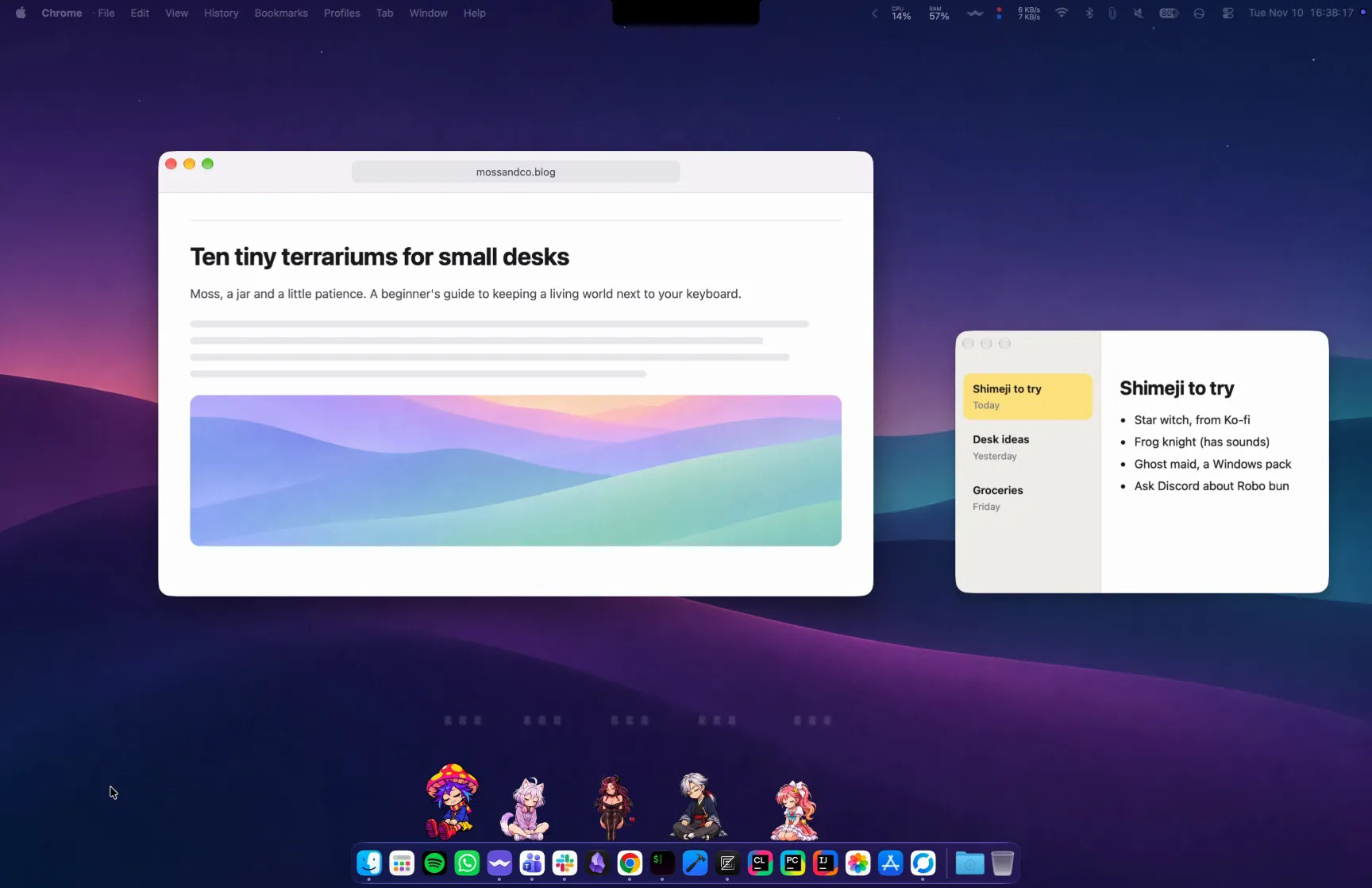
Recorded in the app with Pro, since five different characters are out together, the clip is the low-battery reaction: in the code they yawn and slow down at 20 percent or less on battery and doze off at 10 percent, yet even asleep they keep ticking 25 times a second unless Settings › Battery is set to Pause the crew.
Shimejiko is a free download for macOS 14 Sonoma or later, on Apple silicon and Intel. The free plan lets one character type out at a time, up to 3 copies of it; Pro is a single $5.99 payment for up to 3 Macs that brings the whole crew out together, each reacting to knocks, the lid and purrs (price checked 2026-11-26 on shimejiko.app). Download Shimejiko, or see how its battery settings work on a MacBook.
Questions
What is the Mac version of Ctrl-Alt-Delete?
Option-Command-Esc. It opens the Force Quit window, where you select a frozen app and click Force Quit. For the full list of processes, the job Ctrl-Shift-Esc does on Windows, open Activity Monitor through Spotlight; Apple lists no shortcut for it.
Is it safe to force quit kernel_task?
Apple's article doesn't suggest it. kernel_task slows other processes down to keep the CPU from overheating, and it calms down once the CPU cools. Find the app that's using the CPU heavily and quit that instead.
Why is memory pressure yellow on my Mac?
Apple reads yellow as "might eventually need more RAM." Sort the Memory tab, quit apps you don't need, and watch whether it turns green. If it stays yellow or turns red with your usual apps open, that's Apple's sign the Mac needs more memory than it has.
Do I need to download Activity Monitor?
No. Apple includes it on every Mac, in the Utilities folder inside Applications, and keeps a user guide for it on support.apple.com. A site offering it as a download is offering something you already have.
Can Activity Monitor show CPU use in the Dock?
Yes. Choose View › Dock Icon and pick a Show CPU option, or Show Disk Activity or Show Network Usage. The graph replaces Activity Monitor's icon while the app is open.