Mission Control on Mac: shortcuts, Spaces, and how to find a missing window

Also in日本語한국어繁體中文简体中文EspañolDeutschPortuguês (Brasil)Français
Quick answer
Press Control + Up Arrow or swipe up with three fingers to open Mission Control on a Mac. Click a window to return to it, or use the Spaces bar at the top to switch desktops. Here’s how to set up two workspaces and fix shortcuts, shifting desktops, and windows that seem to disappear.
Download for MacDownload on the App StoreTo open Mission Control on a Mac, press Control + Up Arrow or swipe up with three fingers on the trackpad. Click a window to bring it forward. If you’re looking for a different desktop, a full-screen app, or a Split View pair, look in the Spaces bar at the top. Press Control + Up Arrow again to leave the overview without selecting a window.
Mission Control is the overview. Spaces are the desktops you switch between within it. Start with the overview if you’ve lost a window; create another Space if you want to keep a set of windows out of the way without closing them. The steps below follow Apple’s macOS 27 Mission Control guide, guide to using Spaces, and Mac keyboard shortcuts, checked November 27, 2026.
How do you open the right window view?
| What you want to see | What to do | Where to look |
|---|---|---|
| The open windows on this desktop | Press Control + Up Arrow or the Mission Control key, often F3 on an Apple keyboard | Click a window in the overview |
| Only the front app’s open windows | Press Control + Down Arrow | Pick a window in App Exposé, useful when several documents belong to the same app |
| Another desktop or a full-screen app | Open Mission Control and move the pointer to the top edge | Click its thumbnail in the Spaces bar |
| The desktop itself | Press Command + the Mission Control key | Press the same keys again to bring the windows back |
On a Magic Mouse, double-tap with two fingers to open or close Mission Control, if the gesture is enabled. If the overview is crowded, turn on Group windows by application in System Settings › Desktop & Dock › Mission Control. That organizes the overview by app; Control + Down Arrow is the separate view for the front app alone.
How do you make a second desktop and move a window there?
Try keeping a draft and its source together on a second desktop, with your usual windows on the first. Start with two desktops so you can build a habit before adding more.
- Open Mission Control, move the pointer to the top edge, and click + in the Spaces bar. Apple documents up to 16 Spaces.
- From the desktop with your draft open, open Mission Control and drag the draft window onto the new desktop’s thumbnail. Do the same with its source window. Aim for a desktop thumbnail: dropping onto a full-screen app instead is Apple’s route to Split View.
- Click the new desktop thumbnail to check that both windows arrived. Use Control + Left Arrow or Control + Right Arrow to switch between desktops. You can also swipe left or right with three or four fingers on a trackpad.
- For a cleanup later, hover over the desktop thumbnail in Mission Control and click its remove button. Any open windows move to another Space, according to Apple. On a full-screen or Split View thumbnail, the button exits that mode instead.
To move one window, drag that window. To set where an app opens, Control-click its Dock icon and choose Options › Assign To. Pick This Desktop to pin the app to the current desktop, All Desktops to have it available on every desktop, or None to let it open on whichever Space you’re using. Do this once you have at least two Spaces. For the draft setup, start by moving the windows rather than assigning the apps; you may still want to open other documents on the first desktop.
Where are the settings on your version of macOS?
Check Apple menu › About This Mac if you don’t know your version. These are the paths Apple lists, rather than a claim that omitted controls never existed:
| Version | Where Apple sends you | Difference to look for |
|---|---|---|
| 27 Golden Gate, 26 Tahoe, 15 Sequoia | System Settings › Desktop & Dock › Mission Control | Lists the top-edge drag switch; the Mission Control guide also points to Keyboard settings for shortcuts |
| 14 Sonoma, 13 Ventura | System Settings › Desktop & Dock › Mission Control | Lists Shortcuts there, with no top-edge drag switch in the Desktop & Dock guide |
| 12 Monterey | System Preferences › Mission Control | A dedicated preferences pane instead of a section in Desktop & Dock |
Apple references: Golden Gate, Tahoe, Sequoia, Sonoma, Ventura, and Monterey.
Why doesn’t Mission Control work the way you expect?
| What happened | What to try first |
|---|---|
| F3 does something else | Try Control + Up Arrow. If the top row is set to standard function keys, try Fn or Globe with the key marked Mission Control. |
| Swiping up does nothing | Try the keyboard shortcut to separate a gesture problem from a shortcut problem. In Trackpad settings, check that the Mission Control gesture is enabled and which finger count it uses. |
| Desktop 2 and Desktop 3 keep changing places | Turn off Automatically rearrange Spaces based on most recent use under Mission Control if you want the order to stay put. |
| Switching to an app takes you to another desktop | Check When switching to an application, switch to a Space with open windows for the application. Turn it off if you don’t want that automatic jump. If an app keeps opening on a particular desktop, check its Dock assignment separately. |
| The window isn’t in the overview | Check the Spaces bar. The window might be on another desktop or have its own full-screen or Split View thumbnail. With a second display, check there too: Apple says Mission Control on that display shows the windows and Spaces you’re working with on that display. |
| Mission Control opens while you drag a window up | On versions that list it, turn off Drag windows to top of screen to enter Mission Control under Mission Control. Apple’s tiling guide distinguishes dragging through the top edge from dragging to the menu bar to fill the desktop. |
If you want a keyboard shortcut but not an accidental swipe, change the gesture in Trackpad settings rather than giving up the keyboard route. For other ways to move around the Mac, see Mac keyboard shortcuts.
Where do Shimejiko’s characters fit?
We make Shimejiko, a desktop pet for Mac. Its characters are drawn in a transparent overlay that the app configures to be available across Spaces and to stay out of the Mission Control window picker. That’s what the app code and design docs describe; we haven’t tested what you’ll see during the transition on each macOS version. For an unobstructed view, use Hide everyone in Shimejiko’s menu bar menu, or use its default shortcut, ⌥⌘H. The same shortcut brings the characters back.

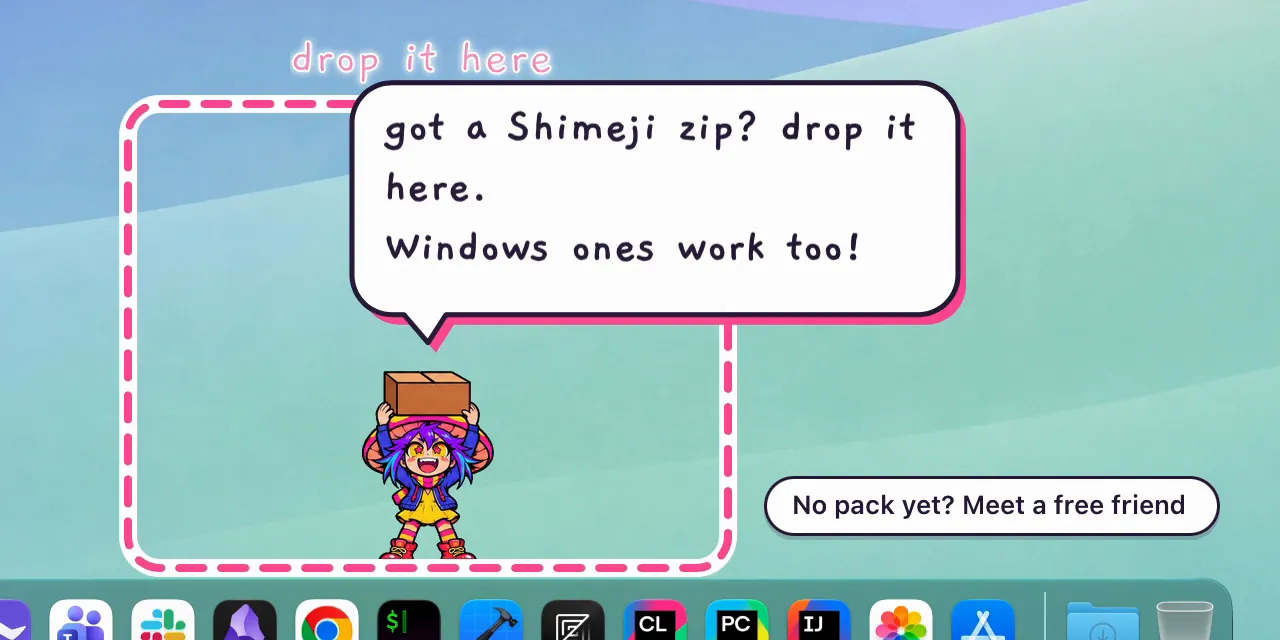
This is a regular desktop scene from Shimejiko, not a recording of Mission Control or a Space switch.
Questions
How do you leave Mission Control without choosing a window?
Press Control + Up Arrow again, or swipe down on the trackpad if you use the Mission Control gesture.
Is Mission Control the same as Stage Manager?
No. Mission Control is where you find an open window or switch Spaces. Stage Manager keeps the app or group you’re working with in the middle and recent apps along the side.