Mac menu bar: how to move, show and hide icons and find missing ones

Also in日本語한국어繁體中文简体中文EspañolDeutschPortuguês (Brasil)Français
Quick answer
Customize the Mac menu bar in System Settings › Menu Bar on macOS 27 and Tahoe, or in Control Center on Sequoia and Sonoma. Learn how to move and remove icons, keep the bar visible in full screen, and get missing icons back when space is tight around the notch.
Download for MacDownload on the App StoreTo customize the Mac menu bar, open System Settings › Menu Bar on macOS 27 Golden Gate or macOS 26 Tahoe. On macOS 15 Sequoia or macOS 14 Sonoma, look under System Settings › Control Center instead. Hold Command (⌘) and drag a status icon to move it. If the entire bar disappears and you want it to stay visible, set Automatically hide and show the menu bar to Never.
The bar at the top does two jobs. On the left, the Apple menu stays put while menus like File and Edit change with the active app. On the right, status icons give you access to things like Wi-Fi and battery. Clicking the date and time opens Notification Center. The Dock is a separate strip for opening and switching apps. We checked the settings below against Apple's Mac User Guide on November 27, 2026.
Where are the Mac menu bar settings on your version?
Choose Apple menu › System Settings and look for the following pane in the sidebar. Scroll down if you don't see it.
| macOS version | Pane in System Settings | Where to find auto-hide |
|---|---|---|
| 27 Golden Gate and 26 Tahoe | Menu Bar | General options |
| 15 Sequoia | Control Center | Other options |
| 14 Sonoma | Control Center | Below the menu bar items |
The four choices are Always, On Desktop Only, In Full Screen Only and Never. On Desktop Only hides the bar when you aren't using an app in full screen. In Full Screen Only does the reverse. Whenever the bar is hidden, move the pointer to the top edge to reveal it.
How do you add, move or remove menu bar icons?
- Add a system icon. Use the pane above to show Wi-Fi or Battery. On a Mac laptop you can also show the battery percentage. To save space, set an item such as Sound to Show When Active if you don't need it all the time.
- Pin a control. On macOS 27 and Tahoe, open Control Center from the menu bar, click Edit Controls, then drag an item from Control Center or the Controls Gallery to the bar. On Sequoia and Sonoma, drag it straight from Control Center.
- Move or remove a status icon. Apple says to hold Command and drag along the bar to reorder, or drag out of the bar to remove. If an icon won't come off, try its switch in System Settings, or use Edit Controls for an item you added there. Apple lists the clock as always shown when the bar is visible.
Why did a menu bar icon disappear?
- The whole bar is gone. Move the pointer to the top, then check the auto-hide setting for your version.
- Just one icon is gone. Check that the item is enabled. For an app icon, make sure the app is running and check its own settings. On macOS 27 and Tahoe, also look under Menu Bar › Allow in the Menu Bar if the app is listed there.
- Icons disappear only in certain apps or on the laptop display. Click the desktop to switch to Finder. If the icons reappear, try removing a few you rarely use to make room. If the camera housing blocks items, Apple's workaround is to quit the affected app, select it in Finder › Applications, choose File › Get Info, then turn on Scale to fit below built-in camera if offered. This uses less of the display while the app is open. Apple says the checkbox can be absent on apps updated for the camera area.
What does the Shimejiko mushroom do in the menu bar?
Shimejiko is our desktop pet app. Click the mushroom to open its panel. Add a friend offers up to 5 choices, with recently used ones first. Hide everyone takes the characters off the desktop. The Show friends switch brings them back, and Option-clicking the mushroom or pressing the default shortcut ⌥⌘H toggles them either way. Calm mode is a separate switch in the same panel.
Closing Shimejiko's window leaves the app running and normally removes its Dock icon. If the mushroom is out of sight, search for Shimejiko in Spotlight and open it to get the window back. In Shimejiko, Settings › General › Keep the Dock icon gives you another way back next time. We checked these controls in the app's code and strings, without running them on a Mac for this guide.
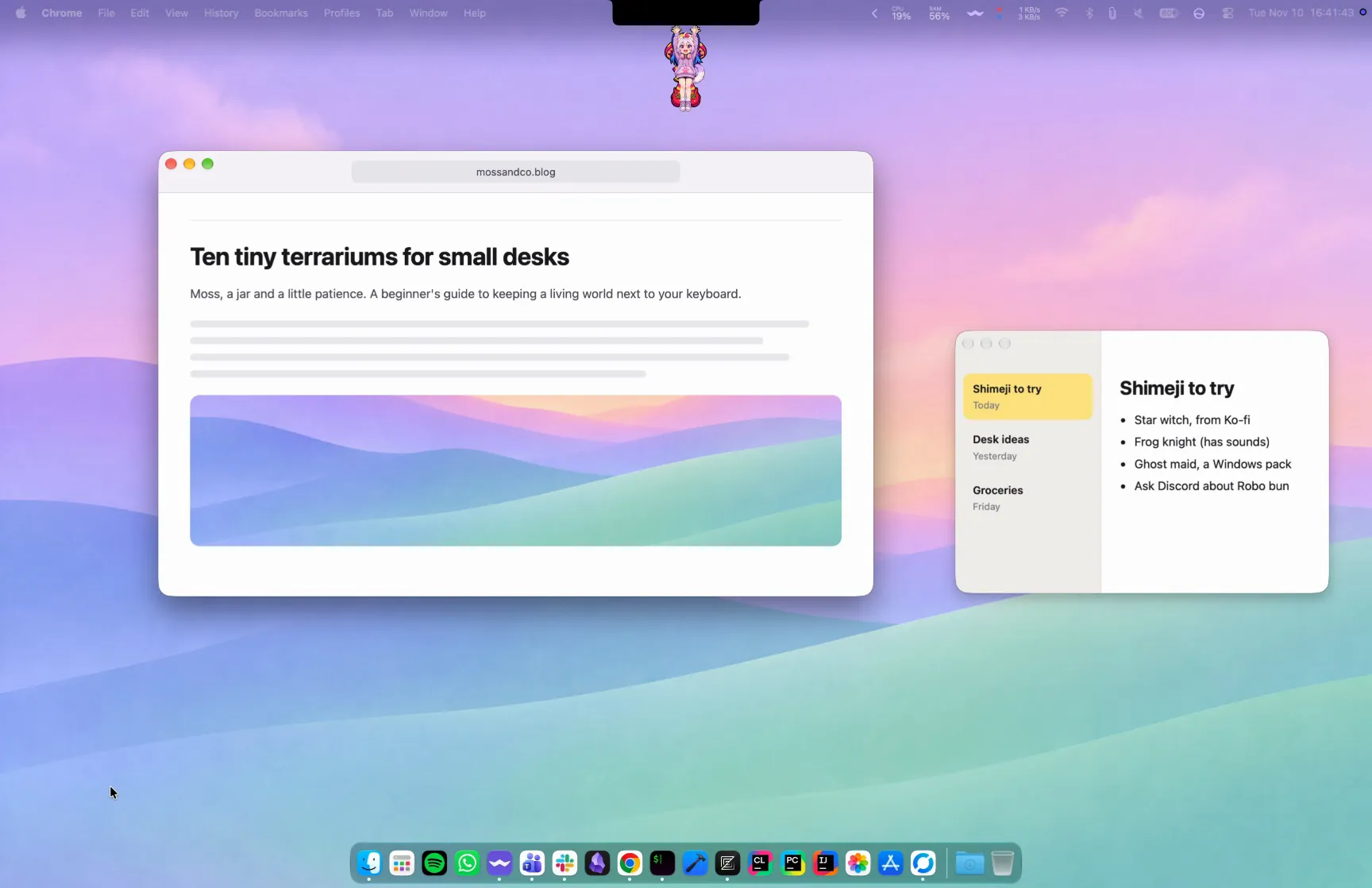
The clip shows the characters at the top of the screen, not the menu bar controls. Get Shimejiko or see what else the characters do on a MacBook.
Questions
How do I reach the menu bar with the keyboard?
Apple lists Control-F2 to focus the menu bar and Control-F8 to focus its status menus. Depending on your keyboard, use Fn-Control-F2 or Fn-Control-F8. In the menus, move with the arrow keys and press Return to choose.
Does removing an icon turn off the feature?
Removing an icon is a display choice. For example, you can take Wi-Fi off the bar and still use it in Control Center. To disconnect, use the Wi-Fi switch itself.