Mac dynamic wallpaper: how to set it up and fix it when it stays still

Also in日本語한국어繁體中文简体中文EspañolDeutschPortuguês (Brasil)Français
Quick answer
To set a Mac dynamic wallpaper, open System Settings › Wallpaper, pick a built-in Dynamic Wallpaper, and choose Dynamic instead of a light or dark still. The image changes with the time of day where you are. It doesn’t play a video behind your windows.
Download for MacDownload on the App StoreA Mac dynamic wallpaper changes with the time of day where you are. To turn it on, open System Settings › Wallpaper, pick a picture from Dynamic Wallpapers, then choose Dynamic if the picture offers a choice of modes. A light or dark still keeps that version on screen. Even in Dynamic mode, the wallpaper is a picture that changes over the day, not a video.
How to set a Mac dynamic wallpaper
- From the Apple menu, open System Settings › Wallpaper. Scroll to Dynamic Wallpapers.
- Pick a built-in picture. If it has a download arrow, click it and wait for the download to finish.
- Look next to the wallpaper preview at the top of the settings. If there’s a mode menu, choose Dynamic for time-of-day changes rather than a light or dark still.
Wallpaper Auto is not Dynamic. In macOS 27, Apple describes Dynamic as gradually brightening and darkening with local time. Set the wallpaper to Auto instead and it switches at sunset if system Appearance is also set to Auto. If system Appearance is fixed to Light or Dark, Wallpaper Auto keeps the matching still.
You don’t have to wait for sunset to confirm you picked the right mode: reopen Wallpaper and check what’s selected. To see the effect, compare the same desktop in the daytime and after dark. The image can stay still for a while between changes.
For the controls on your version, see Apple’s Wallpaper settings for macOS 27 and its guide to choosing a desktop picture on Tahoe 26, Sequoia 15 or Sonoma 14.
Which wallpaper option do you want?
| If you want… | Choose… | What changes |
|---|---|---|
| The same scene in different light | A Dynamic Wallpaper in Dynamic mode | The picture changes with the time of day at your location. |
| A different scene every so often | Shuffle Aerials | macOS swaps among aerial images at the interval you set. |
| A moving Lock Screen transition | An aerial wallpaper | On macOS 27 and Tahoe 26, it animates as you lock or unlock. On Sequoia and Sonoma the desktop stays still and the motion is in the screen saver. |
| Light windows by day and dark windows at night | System Settings › Appearance › Auto | macOS switches the look of the interface. Auto follows the Night Shift schedule if you set one. It doesn’t turn a still picture into a Dynamic Wallpaper. |
For the lock and unlock effect, see our Mac screen saver guide. If you meant a video that keeps playing behind your windows, see live wallpaper on Mac.
Why isn’t my Mac dynamic wallpaper changing?
- Check the picture and its mode. A photo or a still version won’t follow the sun. Reselect a built-in picture from Dynamic Wallpapers and check its mode. Apple notes that some dynamic wallpapers may show a still to match a light or dark appearance, so check the wallpaper itself instead of relying on Appearance › Auto.
- Check the clock and time zone. Open System Settings › General › Date & Time. If Location Services is off, macOS uses the time zone set there for its wallpaper changes. If you expect it to follow your location, check Privacy & Security › Location Services. A wrong time zone can make the change happen at the wrong local time.
- Check the display and desktop you’re looking at. If you have more than one display or Space, open Wallpaper on the one that looks wrong, or use the option to show the same wallpaper on all Spaces if that’s what you want.
- Try the built-in wallpaper by itself. If a wallpaper app is running, pause its wallpaper or quit the app, then pick the built-in Dynamic Wallpaper again. If that works but the wallpaper changes back later, check whether the other app is set to start at login or rotate backgrounds on its own.
What if you want a little movement without changing the wallpaper?
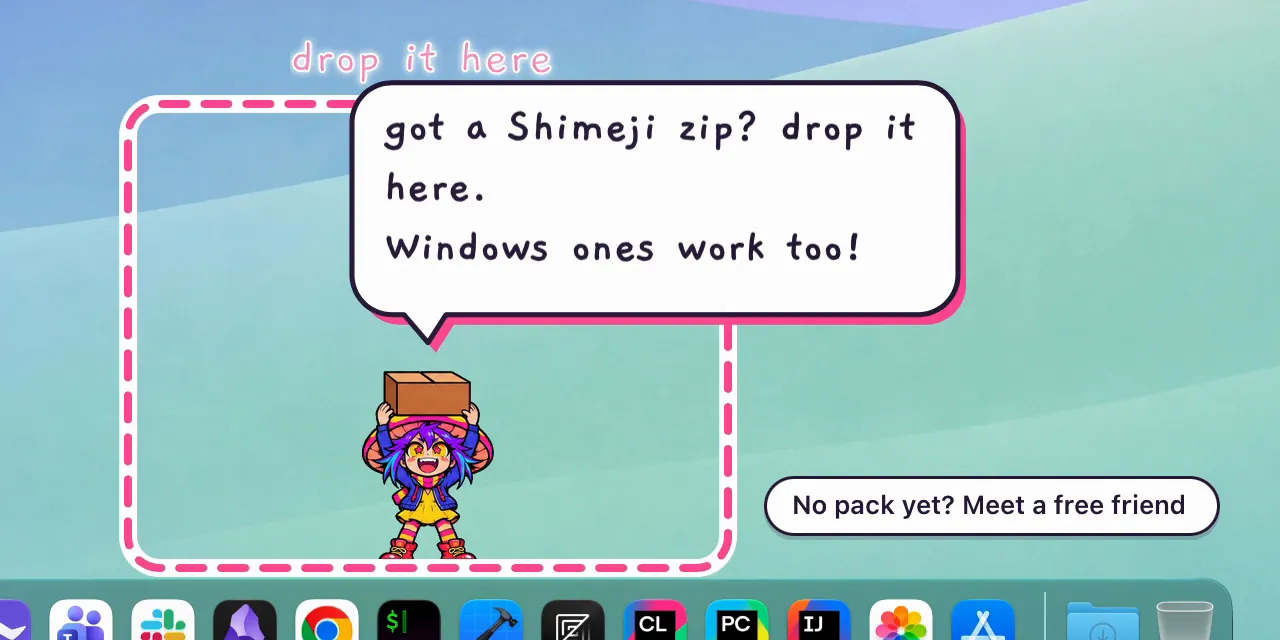
Shimejiko, our desktop pet app for Mac, leaves the wallpaper you picked alone. Its characters move on top of the desktop and windows, not behind them.

In the clip, the pet moves with the window. The wallpaper doesn’t change.